One advantage of using AutoPage to automate page building is the ability to automatically update the contents of previously built pages without having to rebuild them from scratch.
When pages are built using AutoPage, the content placed from STEP onto the pages accurately reflects how the content existed in STEP at that moment in time. If changes are made later to the corresponding content in STEP (for example, attribute values or referenced images), the pages become out of sync with the latest content.
When this content mismatch occurs, there are several options available within the STEP Workbench for updating page contents. This topic addresses the options available from the workbench. For information on updating pages from within InDesign, see the Updating Documents From InDesign section of the STEP Publisher documentation here.
Though it is possible to update the contents of entire publications and sections at once without first checking to see exactly what pages or mounted objects contain outdated content, STEP provides options that can pinpoint the exact locations where content needs updating. This 'pinpointing' approach allows for smaller page update operations, preventing scenarios where a large amount of system resources are tied up for large update operations (for example, on entire publications) when only one section or even one document may actually need updating.
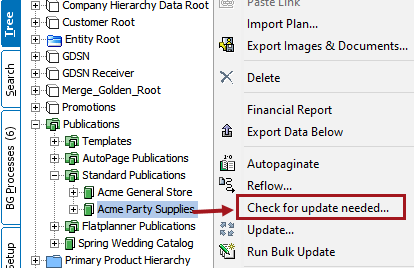
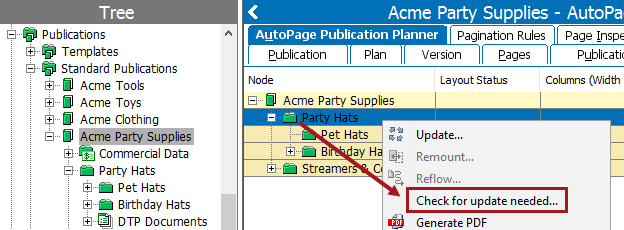
Documents can be checked for needed updates from the Tree, the AutoPage Publication Planner, and by using a Bulk Update operation.
Important: Only content updates are recognized by the system. Template changes or pagination rule changes are not shown as updates needed in the Page Inspector or AutoPage Publication Planner.
Note: Updates cannot be checked for an entire publication from the AutoPage Publication Planner; this can only be done from the Tree.
Documents can be checked for updates by running the bulk update operation 'Check publication document for needs update.' This operation is accessed in step 2 of the bulk update wizard ('Operations').
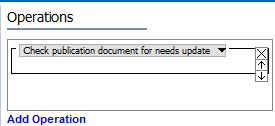
Checking for updates from the bulk update wizard is, for all intents and purposes, identical to checking for updates from the two previously documented methods in this topic. It is essentially the same functionality, just accessed from a different location.
For information on how to access and use bulk update publishing operations, see Publishing: Check Publication Document for Needs Update Operation in the Getting Started / User Guide documentation
Mounted pages saved back to STEP can be updated from the Tree by the following methods for users of any STEP Publisher license: Update and Bulk Update. Both methods work in a near-identical fashion, but Update is the simplest and most straightforward. In AutoPage, documents—and even individual mounted objects themselves—can be updated from the AutoPage Publication Planner.
The Update feature is accessed by right-clicking on a publication, section, or DTP document object in the publication hierarchy.
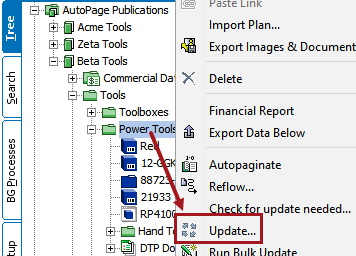
Since 'Update' is valid for any STEP publishing component, as long as an InDesign server [IDS] is set up and integrated with the STEP application server, this functionality is detailed in the Updating Documents in the Workbench section of the STEP Publisher documentation
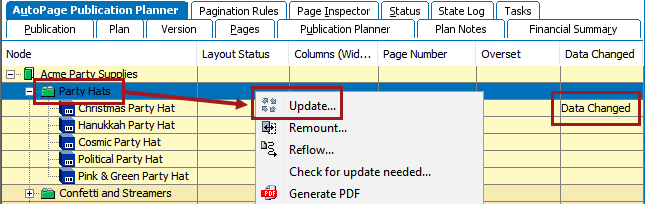
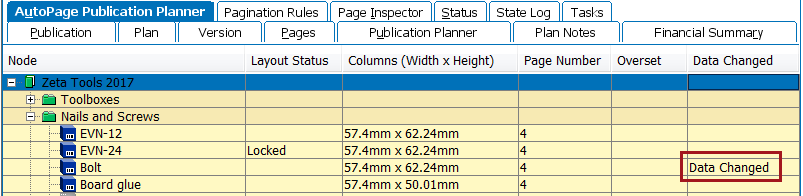
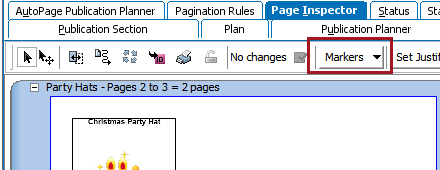
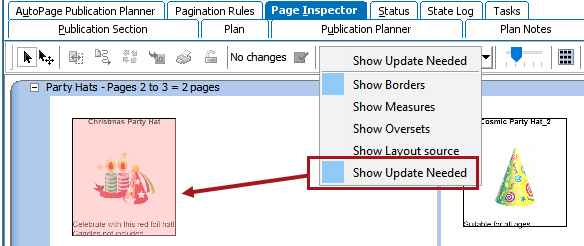
Once documents have been checked for needed updates, the AutoPage Page Inspector provides a visual indicator to let you know if an update needs to be run on a mounted object or page.
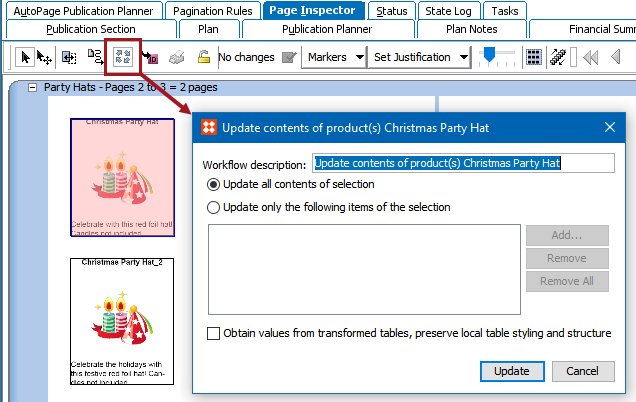
Bulk update is another method of accessing the same features available under 'Update'. For information on bulk update operations for STEP publication documents, see Publishing: Check Publication Document for Needs Update Operation in the Getting Started / User Guide documentation
2019, Stibo Systems – Confidential