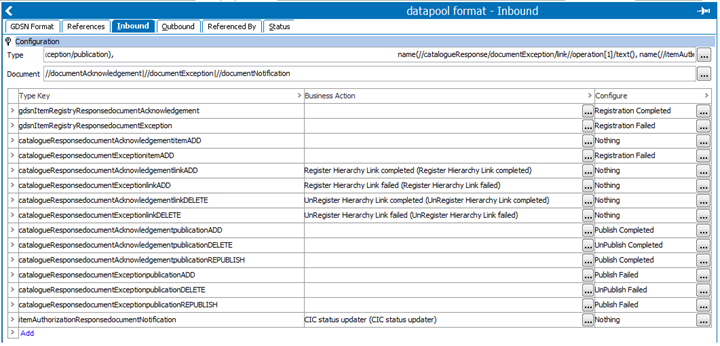
The inbound configuration defines the way the data pool receives messages from the GDSN. The inbound tab has 3 areas:
The type field contains an XPath to determine the type of the incoming message. It evaluates the XPath on the message and uses the result as a key to finding the message type.
The following shows an XML sample:
<note><to>Bob</to><from>Frank</from><heading>Reminder</heading><body>Updates due on Tuesday.</body></note>
To find out whether this is a note or a letter message type, apply the following XPath:
concat(name(//note),name(//letter))
In this example, the note tag is returned because note is present in the XML.
Sometimes there are multiple actions in a GDSN message, for example, when more products are registered at the same time. In this case several documents are returned for parsing. The document XPath is used to specify which documents are to be handled separately. In the XML example above, the following XPath returns 2 parts of the XML.
//body|//heading
These XML parts are removed from the XML and inserted one at a time. The result messages are evaluated to determine the message type via the type XPath.
The key that is found using the type from the previous example is used to determine what to do with the incoming message.
For each type key in the Type Key column, the related business rule is displayed when applicable in the Business Action column, and the related configuration is displayed in the Configure column.
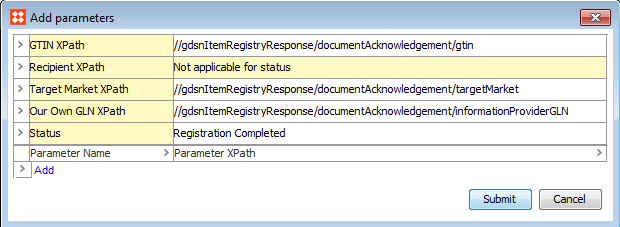
 ) in the Configure column. The Add Parameters dialog is displayed.
2019, Stibo Systems – Confidential