Open topic with navigation
Image Conversion Configuration
Image conversion configurations define a group of image settings to be used during export to change the format, size, and/or color of an image, and to specify when to cache images. An image conversion configuration can also be used to ensure that the image is not changed upon export, meaning that the format, size, and color exported are identical to that stored in STEP.
After a one-time setup, an image conversion configuration allows a user to easily apply the same settings for multiple image exports. All methods of asset export allow selection of an image conversion configuration.
During export, an image can be converted to a different format, file size, and resolution by using the image conversion feature. To use the same conversion later, this conversion needs to be store as configuration. Each configuration will have its own predefined set of parameters.
Note: When setting up an asset push, any images requiring conversions must use the following method. For more information, see the Creating and Maintaining Asset Push Configurations topic in this documentation here. For externally storing asset push items, an Asset Push Sidecar is needed. For more information, see the Asset Push Sidecar topic in this documentation here
Create an Image Conversion Configuration
- In the Tree, select a classification folder to store the new configuration.
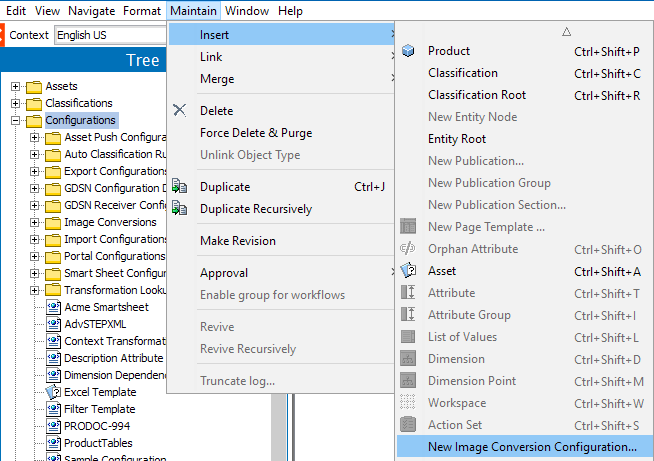
- Click the Maintain menu > Insert > New Image Conversion Configuration to display the Create Image Conversion Configuration wizard.
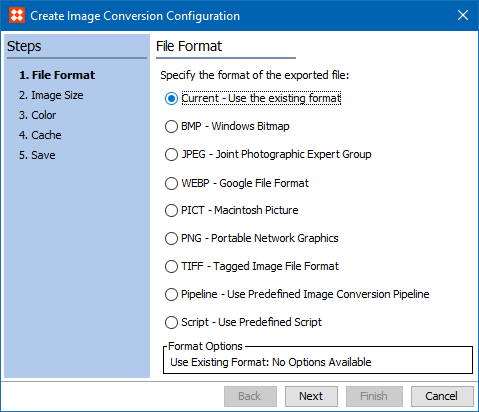
- For the File Format step,
- Current ensures that upon export, no changes will be made to the format.
- If changes are necessary, select the desired image format. For details about the individual format options, see the Image Formats topic here.
- Click Next.
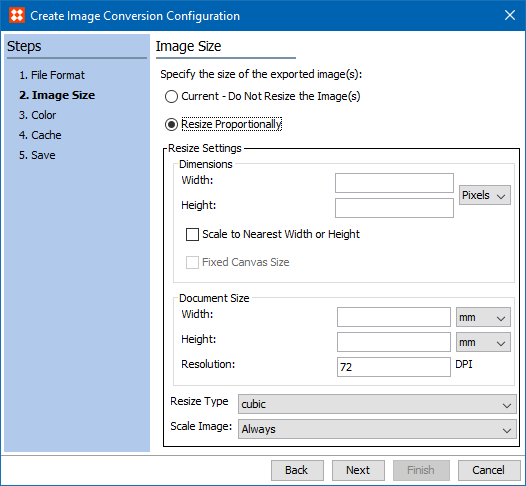
- For the Image Size step,
- Current ensures that upon export, no changes will be made to the size.
- If changes are necessary, select Resize Proportionally, and then specify the dimensions, document size, resize type, and scale image settings. For details about the image size options, see the Image Size section of the Export Images and Documents Wizard documentation here.
- Click Next.
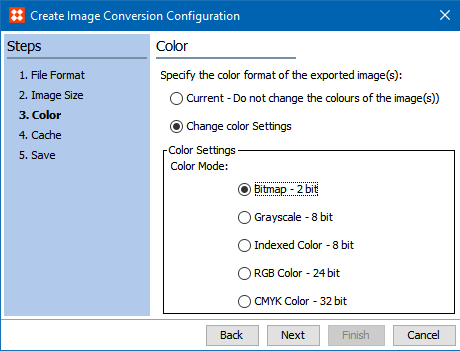
- For the Color step,
- Current ensures that upon export, no changes will be made to the color.
- If changes are necessary, select Change color Settings and specify the desired color mode. For details about the color options, see the Color section of the Export Images and Documents Wizard documentation here.
- Click Next.
- For the Cache step, the checkbox enables the ability to cache, and the radio buttons determine when the caching will occur. Caching is available via the Export Manager or asynchronously based on events via the Image Cache event processor. For more information, see the Assets and Content with STEPXML section of the Digital Assets documentation (here) or the Image Cache Processing Plugin Parameters and Triggers section of the Event Processors documentation (here).
- Cache on first use - the converted image is not cached until the first time it is accessed for viewing, exporting, or in an image preview.
- Cache on import - the converted image is cached when it is imported.
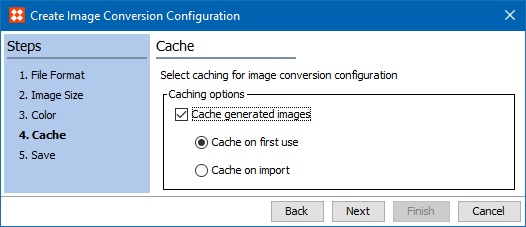
Note: For optimal system performance, it is important to configure the 'Image Cache Event Processor' to listen for incoming selected asset object types and to apply the selected conversions automatically. All user configured image conversions that have been set to 'cache on import' are available.
- For the Save step, enter a name for the Image Conversion Configuration.
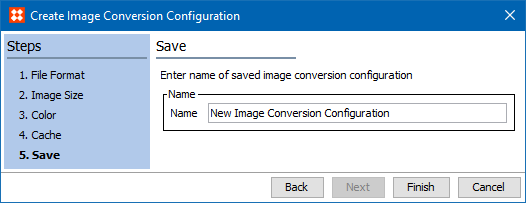
- Click Finish to save the configuration in the originally selected classification folder.
Edit an Image Conversion Configuration
Once an image conversion configuration has been created, changes can be made using these steps.
- In Tree, expand the classification folder that holds the image conversion configuration to edit, right-click the configuration, and select Edit Image Conversion Configuration.
- Use the Edit Image Conversion Configuration wizard to modify the configuration settings.
2019, Stibo Systems – Confidential