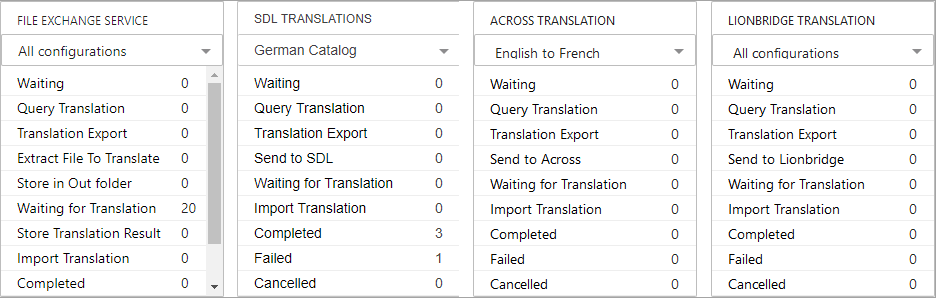
The Translation Status Widget is a Homepage widget that, once configured, enables users log in to Web UI to see the number of translation jobs that are in certain states for a selected asynchronous configuration. Similar to the Status Selector widgets, it is possible to navigate to a screen showing detailed information about job nodes for each state upon clicking. It is recommended that users are familiar with and have followed the steps to setting up a translation configuration and asynchronous service prior to configuring the widget. For more information, refer to the Asynchronous Translations topics (here) in this guide.
After an admin user adds the widget, configuration can begin.
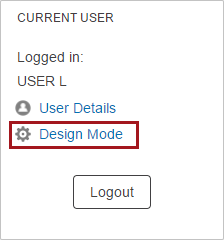
Use the following steps to add a Translation Status Widget to the Web UI home page.
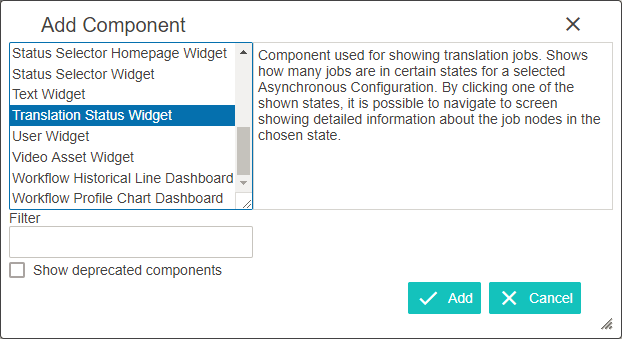
Widgets can be reordered as needed. Either reorder the individual widgets inside a Widget Grid by clicking on a widget name and then clicking the Up and Down buttons in the Widgets Child Component of the Widget Grid Properties screen. Or, as an alternative, select a Widget Grid in the Child Components > Content field of the Home Page Properties and click Up and Down to reorder the entire Widget Grid. Details on how to add a widget to a homepage can be found in the Adding Widgets to a Homepage topic in the Getting Started documentation here.
An image of the default properties screen follows. Each parameter should be configured as needed. Help text is accessed by clicking the info icon to the right of each parameter name. The parameters marked with an asterisk are mandatory. The sections directly after the image explain what each parameter does and the steps / options for configuring them.
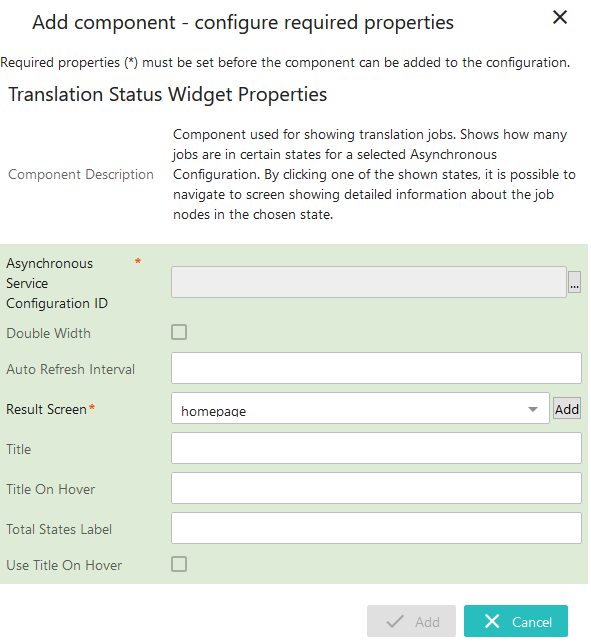
Asynchronous Service Configuration ID
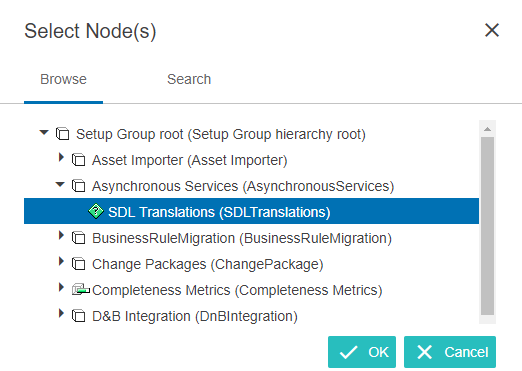
Click the ellipsis button ( ) to display the Node Picker Dialog (below) and select the required Asynchronous Configuration ID for the Translation Status Widget. Click OK.
Double Width
Select to double the width of the widget on the Home Page.
Auto Refresh Interval
If desired, enter the number of seconds that should pass before the widget is automatically updated. Enter 0 to disable automatic updates. If you leave the field blank, it defaults to 0 upon saving the Properties.
Disabling the functionality means that you will only see updates when the Web UI screen is refreshed (logging in and out; navigating to another page and then back to the homepage) versus automatic updates to the info displayed without user intervention.
Result Screen
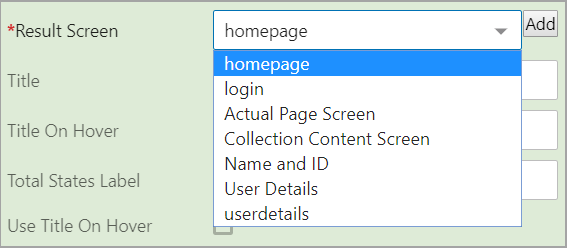
Select the desired screen from the dropdown. In this example, the 'homepage' screen is selected. For more information on creating screens within the Web UI, see the Design Mode Basics topic in the Web UI Getting Started documentation here.
Title
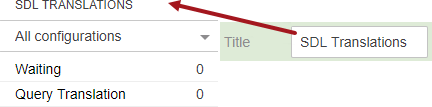
Enter the title you want to appear for the Translation Widget. For example, with 'SDL TRANSLATIONS' in this field, the widget displays as follows:
Title On Hover
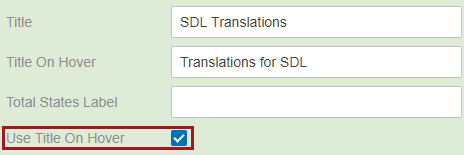
Enter the title that appears when hovering the mouse over the Title area of the Translation Widget. The Title On Hover text option will only work when the Use Title On Hover option is checked as shown in the image below.
Total States Label
If given a value, this will include the total Translations States, as shown below.
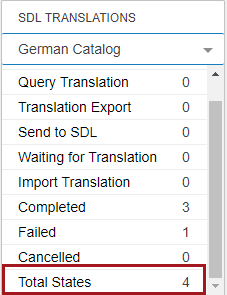
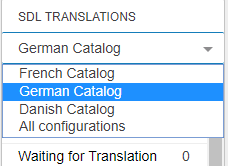
The Total States Label works based on the configuration selected from the dropdown in the Translation Widget. When a single configuration is selected, the total for that configuration is displayed. When the 'All configurations' option is selected, the total for all configurations is displayed.
Use Title on Hover
When this text box is checked, text from the Title On Hover parameter is displayed when hovering over the widget title.
2019, Stibo Systems – Confidential