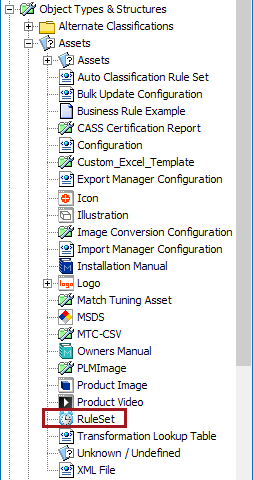
To be able to use automatic classification, you first create a rule set asset type and then set up the automatic classification component model in System Setup.
The rule set asset type is now listed among the other asset types in the system. If you want to distinguish the rule set from other asset types, you can create a special icon for the rule set.
Specify that assets that use this specific asset type are rule sets. You do this in the automatic classification component model.
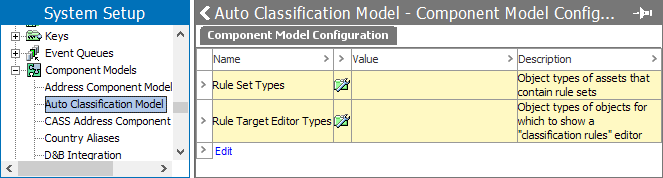
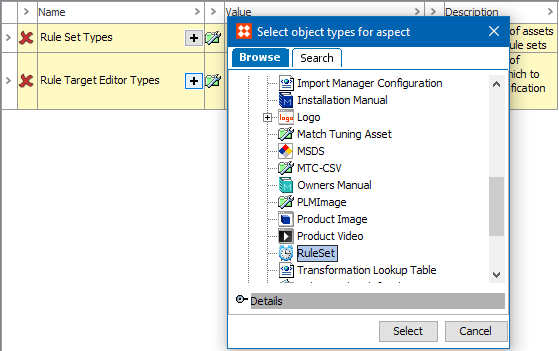
 ) next to Rule Set Types.
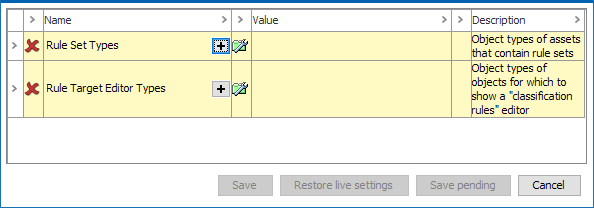
When selecting the Restore live settings, a user edits the configuration and clicks on ‘Save pending.’ The configuration will be saved, and the ‘Edit’ link is now displayed as ‘Edit (Pending changes)’ as shown below.
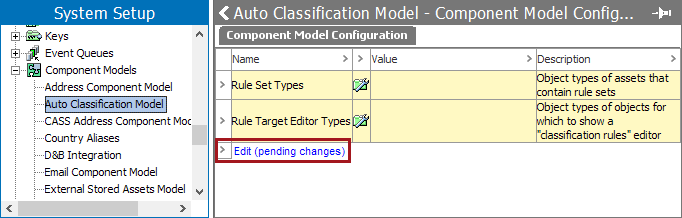
Note: The ‘Restore live settings’ button will not be active.
Once the Rule set is defined in the Component Model, a Rule Set Editor tab is displayed on the asset which holds the automatic classification configuration in the Tree tab. The Rule Set Editor tab, displays all the parameters to further define the rules.
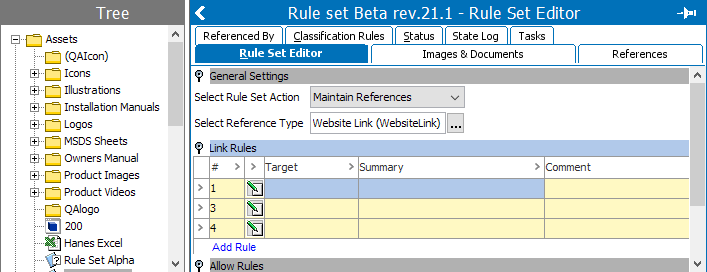
) next to Rule Target Editor Types. Search or browse for the relevant objects, click Select and then click Save. When the component model is set up this way, a Classification tab is displayed when a relevant target object is selected in the Tree. On the Classification tab, all rules that apply to the selected target object are displayed.
For more information, see the Creating Automatic Classification Rules topic in this documentation here.
2019, Stibo Systems – Confidential