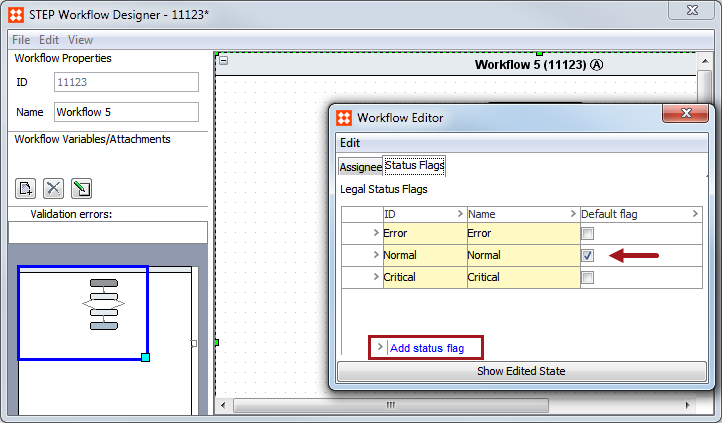
Status flags are global objects that must be applied to any workflow in which they should be used. Once the needed status flags are created under the top node that houses them, they can then be associated to the desired workflow.
This topic describes how to add status flags to workflows, and how to use business rules to set status flags on tasks.
Before status flags can be added to workflows, a setup group must first exist that can hold status flags, and at least one status flag must have been created. For instructions on these processes, see Initial Setup for Status Flags in Workflows here.
In addition, it is important to understand that status flags are specific to a task in a particular state. More information on this can be found in the introductory Status Flags topic here.
Use the following steps to enable status flags for a workflow.
Important: Any new tasks assigned to the workflow will be given the default status flag unless the workflow is directed to do otherwise via business rules. Any existing tasks already in the workflow will also receive the default status flag.
While it is not required to use workflow variables in conjunction with status flags, it is often useful to create workflow variables to be associated with each state in which a status flag should be applied. This allows for greater flexibility in how and when status flags can be set. This is because status flags are somewhat like workflow assignees in that they are specific to an object in a given state, and cannot be set in advance. Just as you cannot assign a task to a user until it enters the applicable state, you also cannot bind a status flag to an object's presence in a workflow until it enters the state. As it is often something from a previous state that determines what the status of the object is in a subsequent state, workflow variables can be used to capture and store what the flag should be, which can then be set on entry to the appropriate state.
The below instructions describe how to set a status flag based on a transition being taken. For example, a task that has been rejected may need to be marked as 'Critical' as it is now spending additional time in the workflow. This is not the only way to work with status flags, but serves merely as one example of one common use case. Rather than using a transition to determine the status flag for a task, any data could be used, such as an attribute value, reference value, presence or absence of particular data, etc. The options for setting status flags are limited only to what can be done within business rules.
However, the options for end users viewing and accessing status flags are limited by the interface in which they access workflows. If workflows are accessed in Web UI, it is not required that status flags be stored in workflow variables. However, if end users will interact with the workflow only in the STEP Workbench, status flag assignments must be stored in workflow variables as that is the only way to make them visible to the end user.
Use a Workflow Variable to Capture a Status and Apply a Status Flag
The below instructions walk through an example of how to capture a desired status flag based on a particular transition being taken, store the information in a workflow variable, and subsequently apply the desired status flag at entry to a subsequent state.
 button. As status flags are state-specific, it is recommended to create one workflow variable for each state in the workflow that will have a status flag determined by some factor other than entering the state, so that when the determining factor is evaluated, the resulting flag to be applied at any given state can be stored for that state.
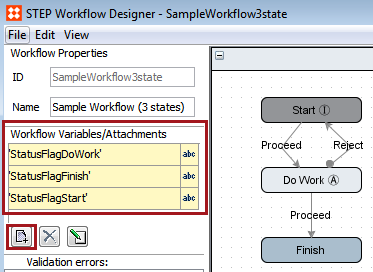
For additional information on workflow variables, see the Workflow Variables section of the documentation
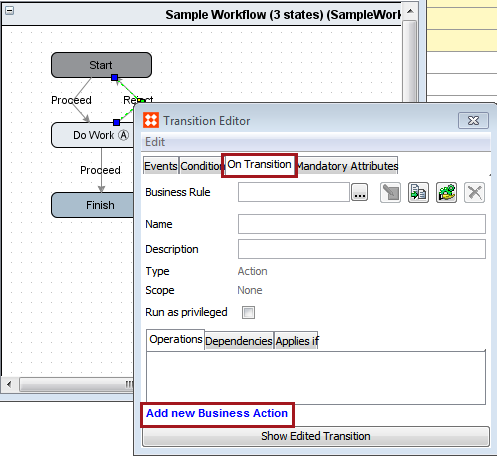
Right-click on the transition that should be recorded, select Edit Transition, click on the On Transition tab, and click the Add new Business Action link.
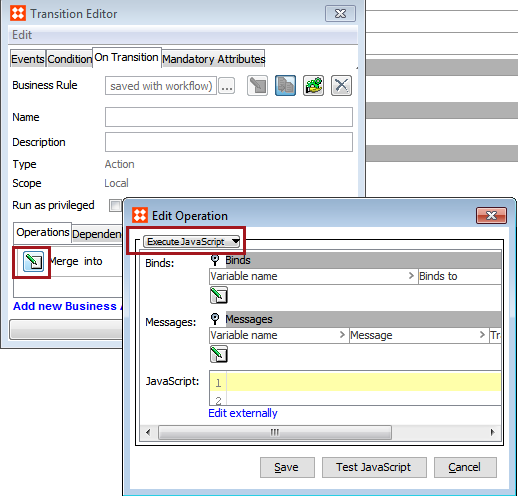
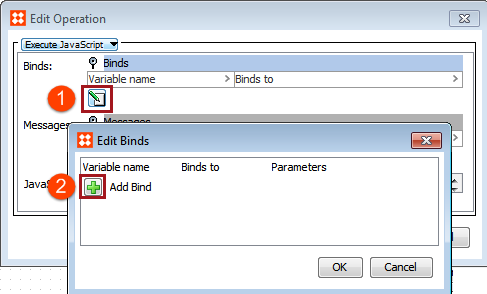
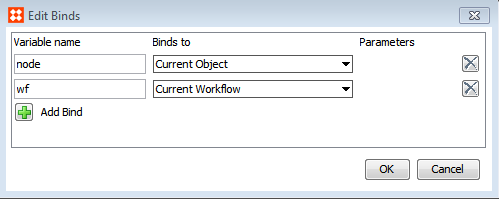
var inst;
inst = node.getWorkflowInstance(wf);
inst.setSimpleVariable('StatusFlagStart','Critical');
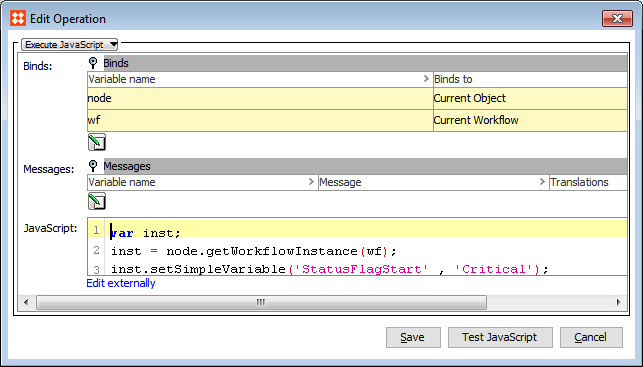
Click Save in the Edit Operation dialog when finished, and close the Transition Editor using the X button in the upper right corner.
Right-click on the state and select Edit State. Click on the On Entry tab, and click the Add new Business Action link.
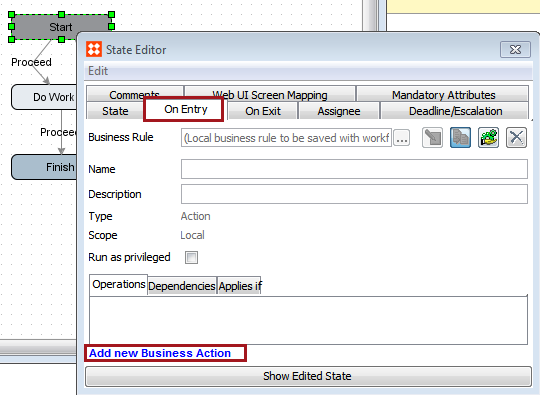
var inst;
var task;
inst = node.getWorkflowInstance(wf);
task = inst.getTaskByID('Start');if (inst.getSimpleVariable('StatusFlagStart')){ task.setStatusFlagByID(inst.getSimpleVariable('StatusFlagStart'));}
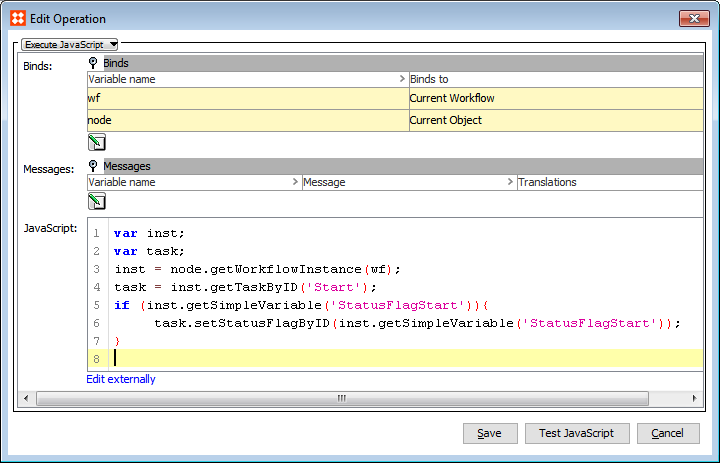
Click Save in the Edit Operation dialog when finished, and close the State Editor using the X button in the upper right corner.
At this point, rules have been created to capture the desired value for a status flag, and to set it upon entry to a state. However, in order to make the status flag available for end users to view when working with tasks, additional steps must be taken.
2019, Stibo Systems – Confidential