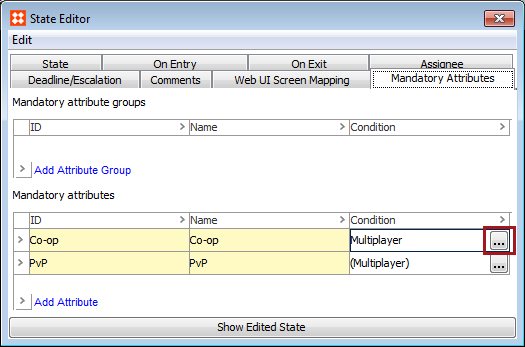
Sometimes it is essential for an attribute to be populated in one or two specific cases, but is otherwise unnecessary. To account for these cases, the mandatory status of attributes on objects moving through a workflow can be enforced via business conditions set on a state or transition.
Mandatory attributes configured with a condition will remain mandatory unless that condition returns false, indicating that the condition was not met and the attributes in question are not required when proceeding to the next state in the workflow. Like standard mandatory attributes, if conditionally mandatory attributes are missing values when attempting to submit an object to the next state, the object is prevented from progressing through the workflow and the user receives a message listing the attributes that have missing mandatory values. In Web UI , these conditions can be evaluated on the fly and dynamically reflected as the user works with the data, with a change in mandatory status being reflected on the screen in real time, allowing users to react immediately, without having to submit and receive an error message.
For more information about setting mandatory attributes in workflows, see the Mandatory Attributes in Workflows section of the Workflows documentation here.
A condition can be mapped to an attribute or a group of attributes on either a state or transition in a workflow.
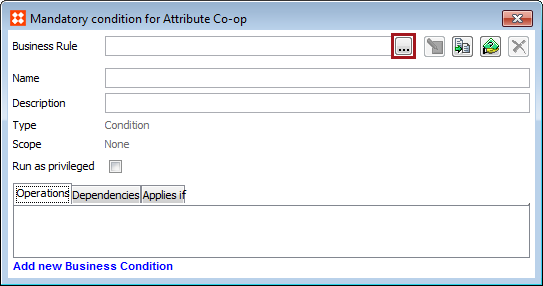
Alternatively, you can create a new business condition by clicking the 'Add new Business Condition' link at the bottom of the editor, and then click the Edit Operation button that appears. From the dropdown, select 'Evaluate Javascript' and enter the business condition in the Javascript area.
Important: For use with conditionally mandatory attributes, the business condition should only return 'True' or 'False'. If anything else is returned it will be treated as 'True'.
Once finished, click Save and close the editor.
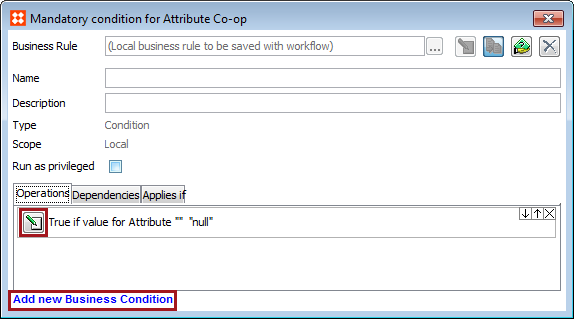
For more information about Business Rules, see the Business Rules section of the Business Rules documentation
In Web UI, the mandatory status of attributes can be evaluated on the fly as the user works with the data, with any change in mandatory status being reflected on the screen in real time. In order to display these dynamic changes, the attribute values driving the condition must be bound to that condition in the business rule configuration. While the condition driving the mandatory status of an attribute can take more than just attributes into account, if something else is driving the condition, such as a reference, the page will need to be refreshed in order update the interface.
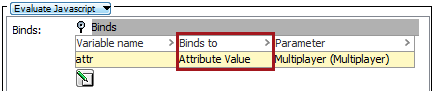
Important: Note that the use of business rules to determine mandatory status of an attribute should be done with care as the performance of the dynamic behavior of the editors could be impacted if highly complex business rules are used.
When viewing a state in a Node Editor, any attributes that are currently mandatory are marked with an asterisk. If the condition returns false due to changes in data on the page, these indicators vanish. Additionally, if there are any missing attributes that are currently mandatory, the Submit / Approve button will be locked.
Note: Conditionally mandatory attributes on transitions do not have visual indicators to end users as they are not evaluated until the transition is selected. That said, the warning message will still appear listing the missing attribute values.
On Node Lists using Multi-Edit Display Mode, conditionally mandatory attributes are indicated by highlighting the cell blue. As with the Node Editor screen, the mandatory status is dynamically evaluated so if the condition returns false, the highlighting disappears.
The business condition states that if the value of the attribute 'Multiplayer' is 'Yes', the attributes 'Co-op' and 'PvP' are mandatory. Otherwise, 'Co-op' and 'PvP' are not mandatory.
In the image below, the condition is returning true for the Space Adventure Game, so 'Co-op' and 'PvP' are mandatory (and are highlighted blue). Clicking Submit / Approve if either mandatory value is missing will result in an error message listing which mandatory attribute(s) are missing. If both attributes have values they are free to move on to the next state.

In the image below, the condition is returning false for the Space Adventure Game, so 'Co-op' and 'PvP' are not mandatory (and are not highlighted). This object is free to move on to the next state, even if 'Co-op' and 'PvP' don't have values.

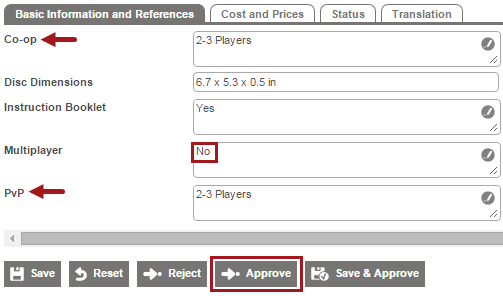
In the image below, the condition is returning true, so 'Co-op' and 'PvP' are mandatory (and are marked with asterisks). Since they have values, the Submit / Approve button is enabled.
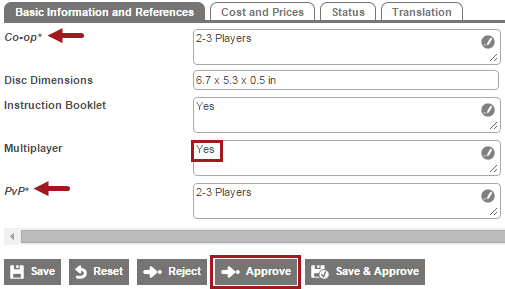
In the image below, the condition is returning false, so 'Co-op' and 'PvP' are not mandatory (and are not marked with asterisks). Since it does not matter if they have values, the Submit / Approve button is enabled.
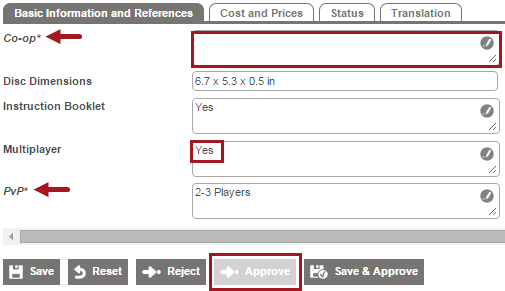
In the image below, the condition is returning true, so 'Co-op' and 'PvP' are mandatory (and are marked with asterisks). Since 'Co-op' is missing a value, the Submit / Approve button is disabled.
Smartsheets can also indicate the mandatory status of attributes based on conditions. If exported on the relevant state of the workflow, any attribute values that are currently mandatory are highlighted blue. If changes are made to the attribute values driving the condition, the sheet needs to be validated to reflect those changes.
The business condition states that if the value of the attribute 'Multiplayer' is 'Yes', the attributes 'Co-op' and 'PvP' are mandatory. Otherwise, 'Co-op' and 'PvP' are not mandatory.
In the image below, the condition is returning true, so 'Co-op' and 'PvP' are mandatory (and are highlighted blue). The sheet can be validated without errors.

In the image below, the condition is returning false, so 'Co-op' and 'PvP' are not mandatory (and are not highlighted). The sheet can be validated without errors.

In the image below, a validation was run and reported the object and its missing attributes by highlighting their cells red. The sheet failed because condition was true and 'PvP' was missing a value.

Support for conditionally mandatory attributes is also available in the workbench, though visual indicators are not managed in relation to this. When attempting to submit an object, conditionally mandatory attributes are evaluated and an error is presented to the user listing any missing conditionally mandatory attributes (in the same manner as standard mandatory attributes are reported).
Any attributes / attribute groups specified under the 'Mandatory Attributes' tab of a workflow state are considered mandatory if:
The only case in which an attribute / attribute group is not considered mandatory is if the condition returns 'False'.
Because the mandatory status of an individual attribute can be determined in a number of different ways, some methods must take priority over others:
2019, Stibo Systems – Confidential