Advanced Search allows users to find specific data using search criteria that can be combined with other search criteria. Adding search operators (And, Or, and Not) further allows users to find the most relevant information to meet their needs.
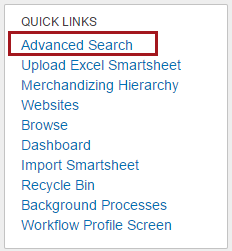
The Advanced Search link can be added to the Web UI homepage for convenient user access. In addition, the search criteria panel itself is configurable so Web UI designers can present users with criteria relevant to their job.
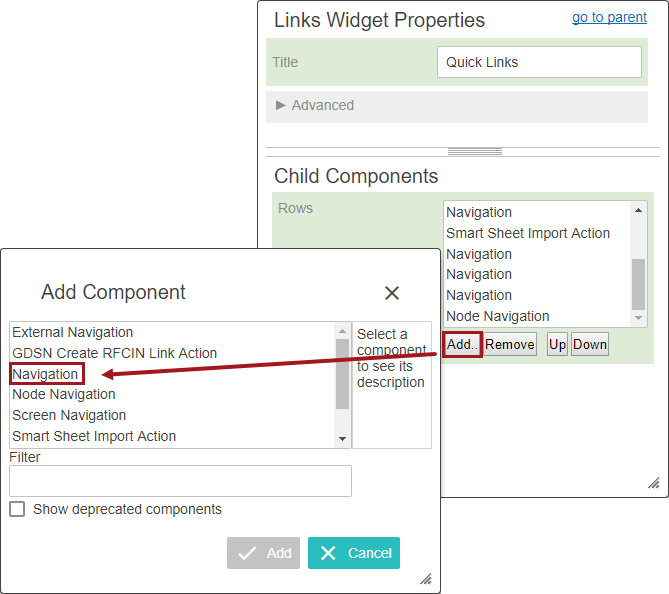
To add a link to Advanced Search on the homepage:
Select HOMEPAGE from the screen dropdown in the designer and select the Links Widget in the applicable Widget Grid (found under Home Page Properties > Child Components > Content).
If the Links Widget has never been configured to display on the Homepage, it will need to be added to a Widget Grid. Details on how to do this can be found in the Adding Widgets to a Homepage topic in the Getting Started documentation here.
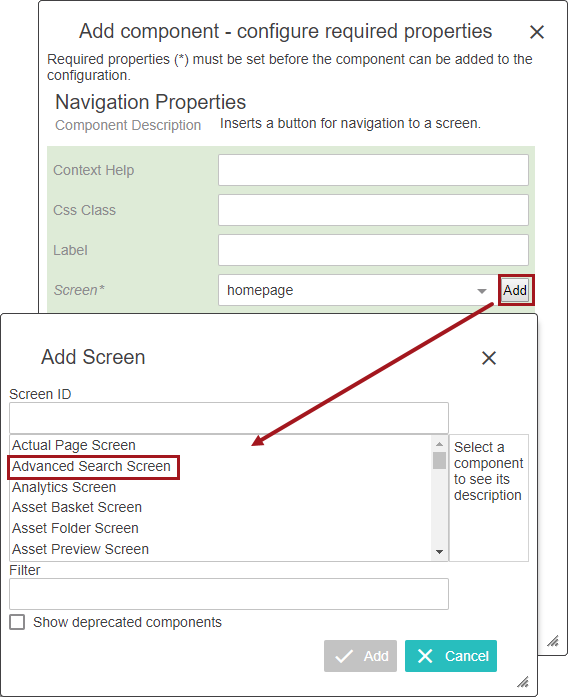
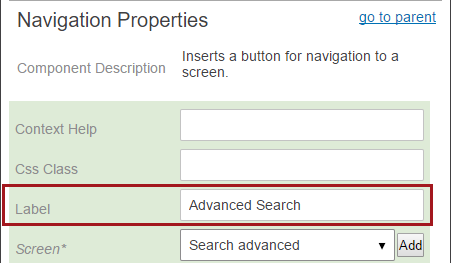
The Screen ID you use should be something descriptive (e.g., Advanced Search or Search Advanced) since this will be the name shown on any design component list in the Web UI. Screen IDs cannot be reused and must be unique.
Note: Additional information regarding STEP Web UI Designer (entering design mode, selecting screens to edit, and more) can be found in the Web User Interfaces / Getting Started documentation
Admin users can configure Advanced Search to better meet their data / job needs. This includes modifying existing search criteria for a better user experience (e.g., relabeling a criteria with a more descriptive title), and removing unused search criteria to lessen the risk of unintended and unrestricted searches.
Advanced Search properties can be edited at any time. However, it is best to configure the properties early on. Removing search criteria later may impact searches you have already built and saved. If removed, a criterion remains accessible through a saved search. However, the criterion will say 'No Title' and be unidentifiable to the end user.
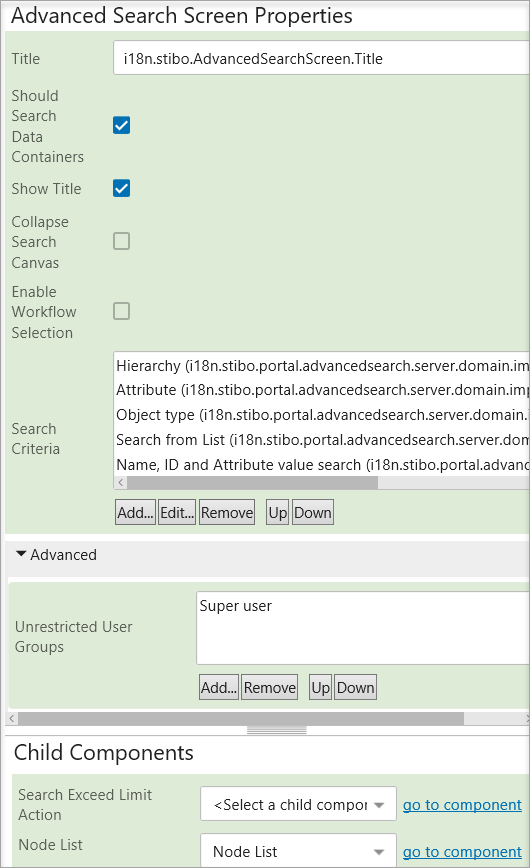
This can be beneficial to users who use Advanced Search as a results screen when clicking on a task within a Status Selector. If the user already knows the search criteria being used to return the results, then there may be no need to see the criteria each time they navigate to the Advanced Search page.
However, if clicking on an object ID in the Advanced Search results set should route users to different display screens based on the workflow and state tasks are in, then read more about the required setup for Forwarding Switch Screens in the Mapping Task List to Workflow State section of the Using a Web UI documentation here.
More details about restricting and sharing searches can be found in Restricting and Sharing Advanced Searches section of the Using a Web UI documentation
The available Search Criteria are listed below along with a description of each. The default criteria titles are shown, but these can be changed to something more meaningful to the end user.
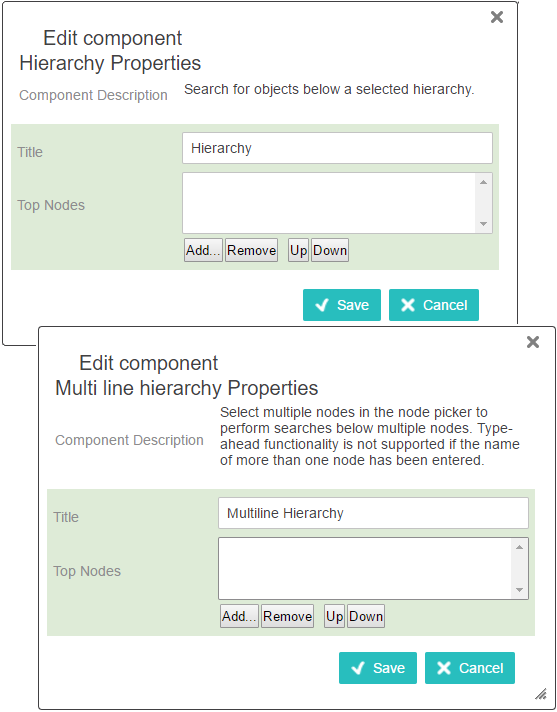
Search objects at or below a STEP Workbench Tree tab hierarchy node.
Using the Top Nodes section, these criteria can be configured to specify the exact data locations (hierarchy nodes) under which a user can search. Also, there can be more than one instance of the Hierarchy and Multiline Hierarchy under each set of search criteria. Each instance can point to different top nodes.
The Hierarchy search allows you to search under one node at a time. If the object you are looking for can be found under different nodes, the Multiline Hierarchy criteria can be used. Using the Multiline Hierarchy search criterion can make even highly specific searches less complex and easier to define.
Click on the Add button next to Top Nodes, and then click on a node by expanding / collapsing the folder structures as needed, or manually type in a selection (under Search). When picking multiple nodes, simply press the control button and click (ctrl-click) on each node. Save your choices and continue editing other search criteria or save the properties and exit out of design mode.
Search or browse attributes to determine which one you want to search. Attributes include metadata, category-specific attributes, business rules, and bound (to a STEP attribute) Workflow Variables. Once an attribute is selected, choose an operator, and then enter a value. Most operators allow you to search for specific attribute values , but there are also operators that allow you to search for empty attribute value fields.
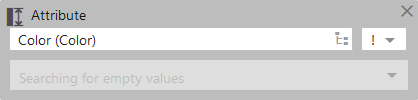
Note: The seven operators to choose from are less than (<), less than or equal to (≤), greater than (>), greater than or equal to (≥), equal to (=), search for missing values in current context (!), and search for missing values in all contexts (!!).
Wildcards
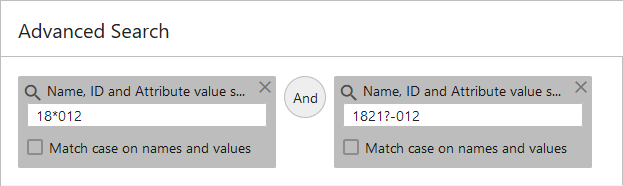
Two different wildcards can be used in any manual entry fields. These wildcards allow users to perform searches on partial text strings. The wild cards are asterisk (*) and question mark (?). The asterisk (*) represents any number of characters in a string, and the question mark represents exactly one character. Wildcard characters can go at the beginning, end, or middle of a search.
Examples of wildcard character usage are shown under the Name, ID and Attribute value search section of this documentation.
Search through attributes, users, classifications, products, assets, entities, and other object types. These objects are maintained through the STEP Workbench, on the System Setup tab, and under the Object Types & Structures folder. Simply start typing in the field or drill down through the hierarchy to make a node selection.
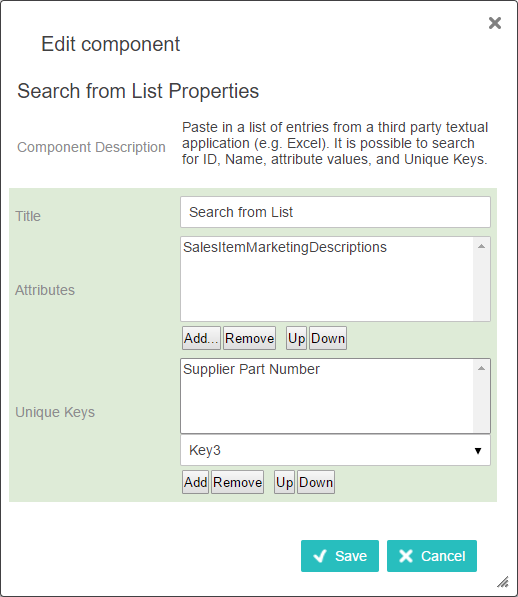
Users may input a list of IDs and Names to search rather than searching through all system objects. Data can be entered manually or by pasting in data from another source such as an Excel spreadsheet or Smartsheet. Searches can be based on lists of IDs, names, attribute values, or unique keys.
As an example, a product manager may own a certain set of SKUs. They only want to work with those objects, so they put in their list and (or set up the properties to) use that data - combining, if desired, with other search criteria - to identify specific projects needing work (e.g., in a particular workflow state or having a missing value for a mandatory attribute).
Search names, IDs, and attribute values. This parameter is very similar to the Search tab functionality in STEP Workbench.
Also, similar to the Attribute criterion, wildcard characters (* and ?) may be used when searching. Check the 'Match case on names and values' option if applicable.
This criterion is used to identify objects that are not currently approved. These include classifications, products, images and documents, and entities setup to be Workspace revisable. There are three options to use: 'Never approved or modified in main,' 'Never approved,' or 'Modified in Main.'
Search for product attributes and reference types that are required but missing. The mandatory attribute or reference type must be set as mandatory using standard methods. The Missing mandatory entries search works the same in Web UI as it does in STEP Workbench. Both are driven by Workbench mandatory settings.
This means that any attribute values marked as mandatory in just the Web UI (and not in STEP Workbench) will not show in the results. Also, mandatory workflow states and transitions will not show in the search results either.
In workbench, mandatory items have a red checkmark on the validation base icon to the right of the attribute / reference name. For example:  .
.
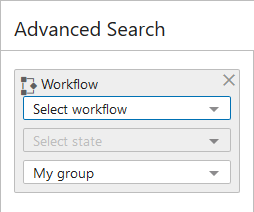
Workflows can be monitored using this criterion. Click on each dropdown menu and select a workflow, workflow state, state assignee, and status flag (if applicable and configured to display).
Choosing the '[any State]' state option allows for you to search the entire workflow, if choosing a specific state is not preferred. Choosing 'All' under the assignee field will allow for a broader search. Users may want to refine the search to see only workflow tasks that are directly applicable to them or their group.
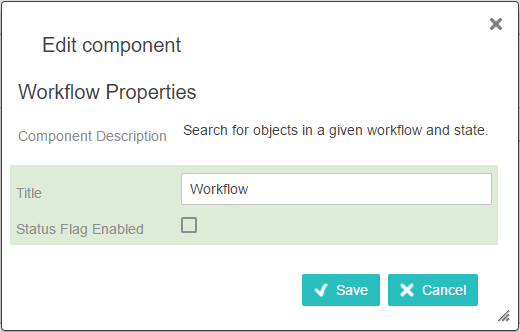
A status flag dropdown can be added to the Workflow criterion by checking the 'Status Flag Enabled' parameter within the Advanced Search Workflow Properties. When doing a search with the Workflow criterion, the status flag selector can be left as 'All status flags' if desired, or may be populated to restrict the search to only tasks with specific status flags applied.
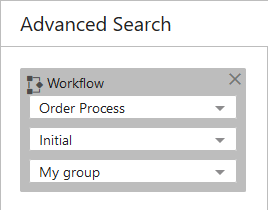
When accessing the Advanced Search screen via a workflow selection, make note of the default screen behavior, with the third bullet being key to this functionality:
When users make a task selection in the widget operating under this scenario, the workflow criteria fields display on the screen (as long as the search canvas is not collapsed). The search criteria values are read-only, and the workflow criteria cannot be removed from the search area. Privileged users can add / remove additional criteria to do more focused searches, but the user is always left with the original workflow search criteria that they began with. This allows for end users to focus on their tasks without any concern that they may inadvertently take action on tasks that they do not own.
When accessing Advanced Search via any other method (e.g., a link in the Quick Links widget), the screen behavior is as expected.
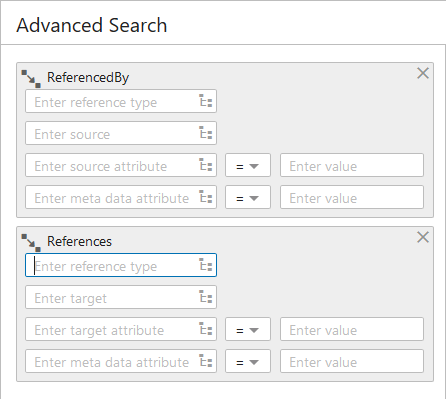
The Referenced By and References criteria work similarly. The 'Referenced By' search criteria will return target objects. The 'References' search criteria will return the source objects. Both options require a reference type selection to begin. Reference types are setup in the STEP Workbench System Setup tab in the Reference Types folder.
Once a reference type is entered, no additional options need to be filled in to start a search. Use the information at a high level or fill in the other values to drill down further. Select a reference source under Referenced By and a target under References, or locate reference objects based on attributes and attribute values residing on the target or source object. Plus enter specific attributes, values to search reference metadata. For searches using either the source / target attribute or metadata search criteria, users may also select the appropriate search operators when refining the search to include values: less than (<), less than or equal to (≤), greater than (>), greater than or equal to (≥), and equal to (=).
The data container criterion enables users to search either for entity objects for which specific data container types have been made valid, or for entities that may have specific attributes and attribute values linked via a data container.
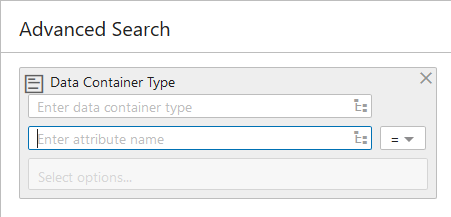
The data container criterion enables a few different kinds of searches.
Important: Any criteria with a dropdown menu allows for a user to click on the dropdown and make a choice. No manual typing can be done in those fields. Any place the Node Picker icon (  ) shows, click on it to expand the options and select / search nodes. Users may also start typing in any of those value boxes to see a list of available choices.
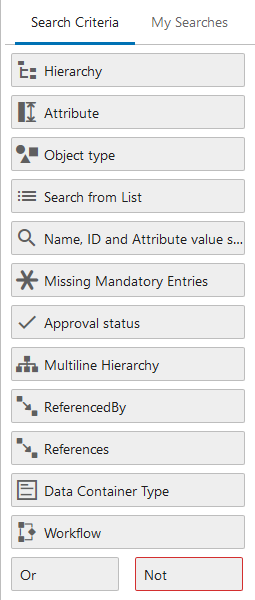
The next screenshot shows an example of what the Search Criteria looks like under Advanced Search. The criteria properties have not been renamed in this example and each criteria is only used once.
Note: The 'Or' and 'Not' operator fields are standard and cannot be removed or renamed.
Advanced Search is now set up and ready for use.
2019, Stibo Systems – Confidential