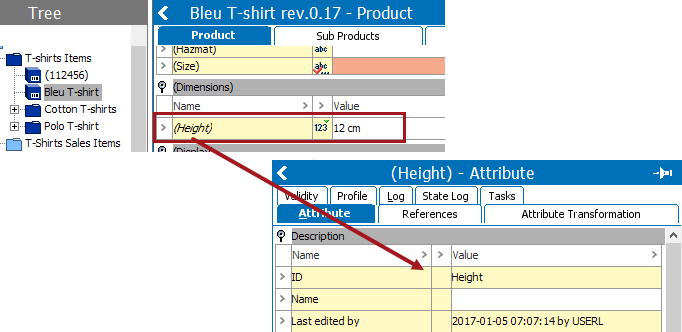
Orphan attributes are linked in the attribute editor References tab. It is also possible to link attributes from the product editor Product tab and the classification editor Classification tab.
An orphan attribute is a specification attribute with a value that has not been linked to a classification or a product through the hierarchy.
Below are few of the reasons on how / why the orphan attributes are created:
Linking an orphan attribute means 'picking it up' by linking it to a product or a classification hierarchy. The difference between linking an ordinary attribute and an orphan attribute is that the orphan already has a value for specific products.
Note: Orphan attributes display in italicized text.
The Product Editor appears.
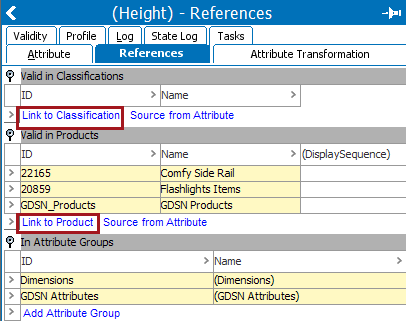
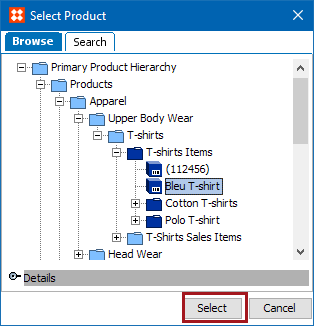
The Select Classification dialog box or Select Product dialog box appears.
The attribute displays under Valid in Classification or under Valid in Products flippers.
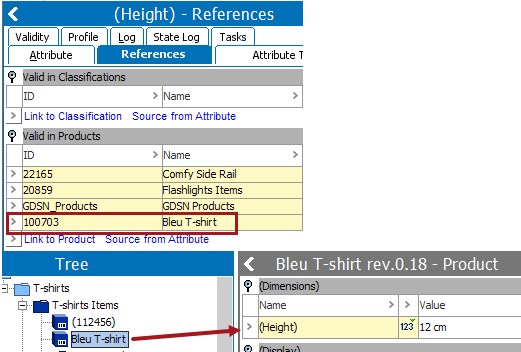
An orphan attribute has now been made valid for the selected classification or product node (and below), and the italic indication will disappear from the product editor.
2019, Stibo Systems – Confidential