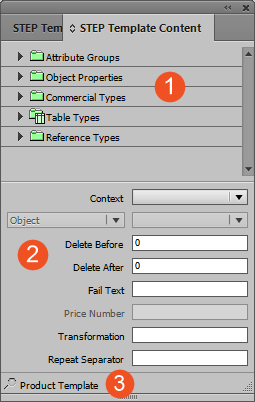
The STEP Template Content palette (or panel, in InDesign terminology) is used primarily when creating product templates in InDesign. The STEP Template Content palette is where elements from STEP—including attributes, asset references, and tables—are linked to frames on InDesign pages in order to build mounted pages in conjunction with publication templates. The STEP Template Content palette can also be used to link these same elements to page templates and publication templates, though this is less common.
The options on the STEP Template Content palette are used to assign the contents that go inside of frames on InDesign templates, as opposed to the STEP Template Frame palette, which contains the options that control the behavior of the frames themselves.
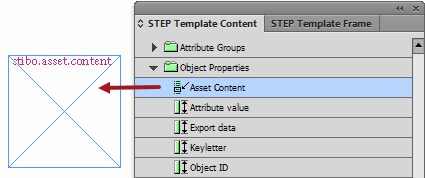
The STEP Template Content palette can also be used to apply asset references to entire image frames, though the majority of the settings that control the behavior of the images are applied on the STEP Template Frame palette.
The STEP Template Content palette is composed of three panel divisions.
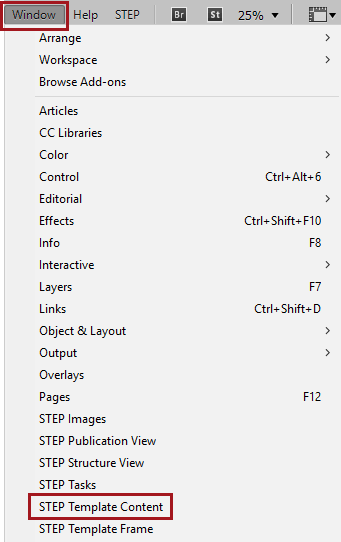
The STEP Template Content Palette is accessed by navigating to Window > STEP Template Content.
The STEP Template Content palette can be navigated by browsing or searching. To browse, hierarchies may be expanded and collapsed by clicking on the arrow signs to the left of the hierarchy levels. To search, click on the magnifying glass search icon in the lower left corner of the panel to display the Search dialog.

The Search dialog enables typeahead and filtered searches. Searches are performed by Name or ID. Searches may be filtered by one or more of the following object types: Attribute Group, Attribute, Table Types, Reference Types, and Commercial data lists. Search is not enabled unless at least one Object Types checkbox is selected in the Search dialog.
Note: A maximum of 20 results can be shown in the Search panel. It is recommended to enter more specific search criteria if looking for an object whose Name or ID begins with commonly used characters.
By default, typeahead searches begin when the first character is typed into the search field. To change this setting, the following configuration can be added to the inSTEPLogOptions.xml file:
<dtpDynamicConfig name="typeaheadSearchLimit" value="2" />
This configuration sets the number of characters that must be entered before search results display. For more information on the inSTEPLogOptions.xml file, see the IDS Logging topic in the Administration Portal documentation here.
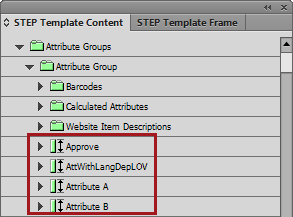
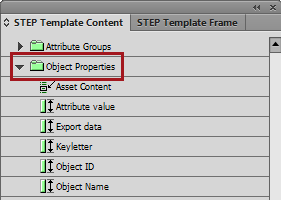
The tree in the top panel of the STEP Template Content palette mirrors many of the contents of the System Setup tab in the workbench, but also has additional entries that are specifically for template creation.
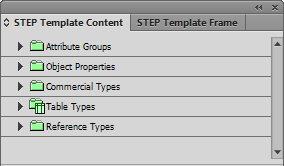
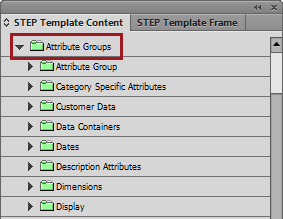
Descriptions of each folder and its contents are as follows:
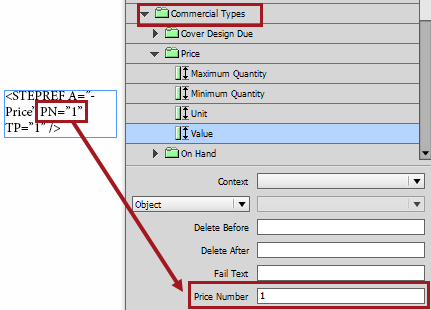


The parameters available on the lower half of the STEP Template Content panel are as follows:
For example: You want your page to display 'Special Offer: [PromoPrice] this week only'. If your database does not contain a value in the 'PromoPrice' attribute for the product you are mounting, you do not want these text strings before or after the attribute.
By using the Delete Before and Delete After functions, you can eradicate them.
For this example, setting a Delete Before value of 14 will delete the 14 characters of the 'Special Offer:' string. Setting a Delete After value of 15 will delete the 15 characters of the 'this week only' string.
Note: In most cases you do not need to count the exact number of characters to delete, as delete before / after will not delete another attribute reference. In addition, these delete options only take effect if there is no value for the attribute.
These options should also be used even if there is no free text before or after a value but you need the frame to disappear if there is no content. Using a value of DB = 1 or DA = 1 will remove any 'stray' XML tagging that appears on the page if there is no content in STEP and ensures that the text frame itself will disappear when Delete No Content is applied to the entire frame.
The Repeat Separator value is a string, which is set in by STEP’n’design every time a 'Repeat Selection' operation is performed. Often, the repeat separator is used to put in a new line character between the individual attribute rows. In that case, the Repeat Separator is the InDesign character for new line \n.
Two right-click options are available for highlighted text inside of a text frame—Apply Condition to Selection and Repeat Selection.
Though the STEP Template Content is not used to access these options, they are detailed in this topic because they involve the setting of parameters on content inside of frames.
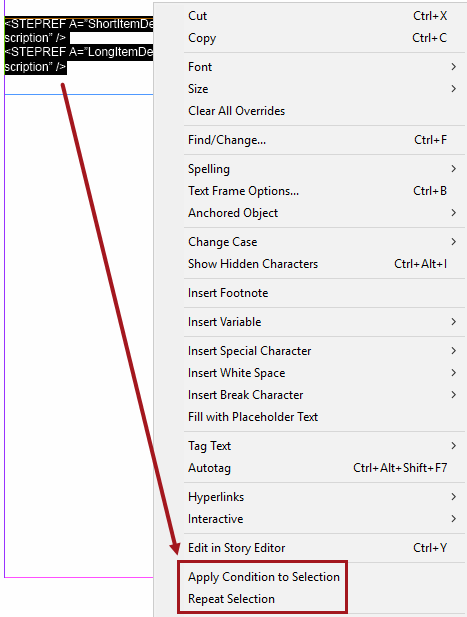
This option becomes available when at least one STEPXML tag is highlighted inside a text frame by using the InDesign Text tool. Once highlighted, you can apply parameters such as Delete Before / Delete After and Fail Text to the group of attributes at one time. Once the attribute tags are selected and the parameters chosen, click Apply Condition to Selection to apply the selections to all the attributes at once.
When the tags are selected, right-click to display the Apply Condition to Selection dialog.
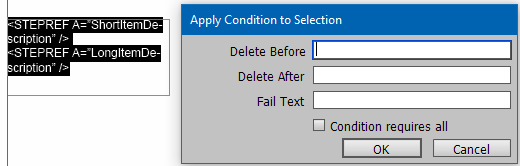
In the following screenshot, several tags have been selected and ‘1’ has been entered for Delete Before and Delete After. If a value is entered for Delete Before or Delete After, the Fail Text field will be deactivated, as the two options are mutually exclusive. Likewise, if content is provided for the Fail Text field, then Delete Before and Delete After will be deactivated. If fail text appears when an attribute value is empty, there is nothing to delete.
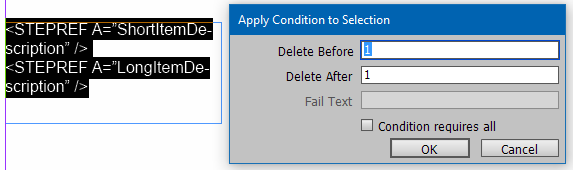
Click OK to see that as STEPCOND tag is now added to surround the grouping of attributes to which a DA and DB setting of 1 should be applied:

Configuring these options is identical to configuring them on the STEP Template Content palette for text. See the STEP Template Content Palette Parameters section of this topic above for more information.
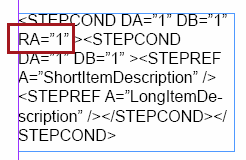
Check this box if you need everything in the frame to mount. This essentially means that the mounting of content inside the frame is 'all or nothing.' If the value of one of the attributes is empty, then nothing will mount, and the entire frame will be removed. Ticking this box will add the 'RA' (Requires All) abbreviation inside the STEPCOND tag.
If attributes, asset references, tables, or any other values from child objects of a parent must be mounted, the repeat function STEPREPEAT is used.
When a product is mounted in STEP'n'design, only attributes from the mounted object itself appear on the page. In instances of product families, for example, STEPREPEAT is used to call out information that lives on child products of the family.
The repeat function takes effect in the cases where you are mounting a product family with one or more child products. Using the repeat function, you can make STEP’n’design place specific attributes of the child products into the page in 'repeat-mode', which means that if you have children within the product family, you can have the values for all children mounted as you mount the product family level. Effectively, this function can enable you to display data for multiple products in a tabular way, without having to create a table in STEP.
As an alternative to creating a table in STEP, you can make a range of attributes repeat for any sub-products to the product being mounted. This will enable you to create a simple, table-like structure on your InDesign page where every sub-product has its own row.
Note: A more complex presentation is to build a STEP table, as this provides more complex formatting options.
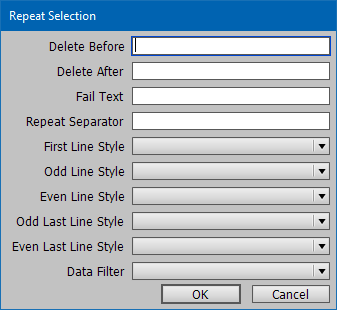
For more information about the repeat selection option, see the Using the Repeat Function for Subproducts topic here.
2019, Stibo Systems – Confidential