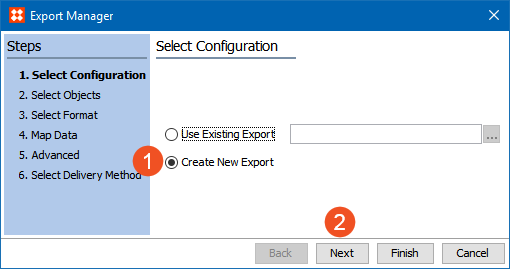
After all InDesign documents for a publication have been finalized and saved back to STEP, data about the mounted products and the pages on which they appear can be exported from the publication in order to generate an Alphabetical Index - XML file. This XML file format is used to create both types of indexes—the basic 'stock number' index and the more advanced 'alphabetical index.'
If building an alphabetical index, index words are required. This topic assumes that you have already created your index words and index words hierarchy and linked them to the products in your publication. See the Creating an Index Words Structure topic
This topic describes how to export an Alphabetical Index - XML file from a publication in STEP using standard STEP Export Manager functionality. By using the Export Manager, you can define, through mapping, which index words and/or STEP attribute(s) to include in the index output; how to sort the exported data (for example, what country, language, or numerical order should be used to sort); and what separator characters should be placed between multiple page numbers and/or page ranges (such as 1, 2 or 1-3).
The exported index will organize the index entries into XML tag structures, such as:
<Level1>
<Word>Laser Printer</Word>
<PageNumber>2,5-6</PageNumber>
</Level1>
Note: This topic assumes a basic familiarity with the STEP Export Manager. For full details on Export Manager functionality, see the Export Manager section of the Data Exchange documentation here.
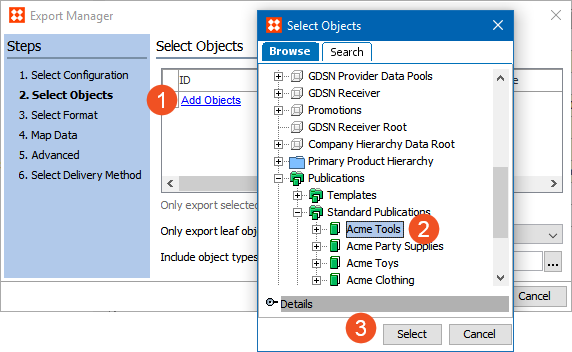
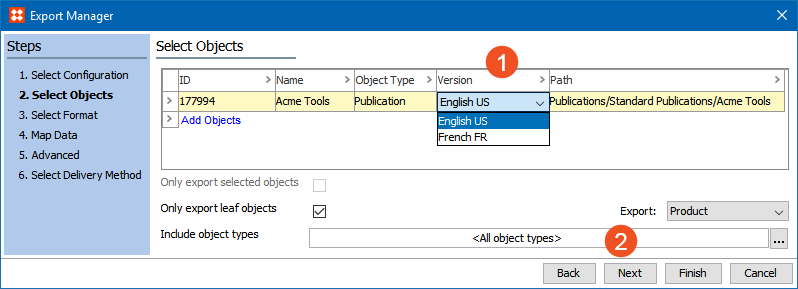
Note: 'Product' should be selected from the Export: dropdown, not 'Publication Objects'. Also, it does not matter if 'Only export leaf objects' is checked. Since the export will be in XML format, this option is ignored.
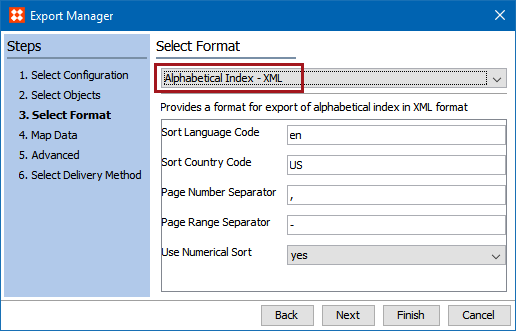
Select no to sort numerical entries on the first number, as follows:
The next step in configuring the index export is to map the data, which occurs in step 4 of the Export Manager, Map Data.
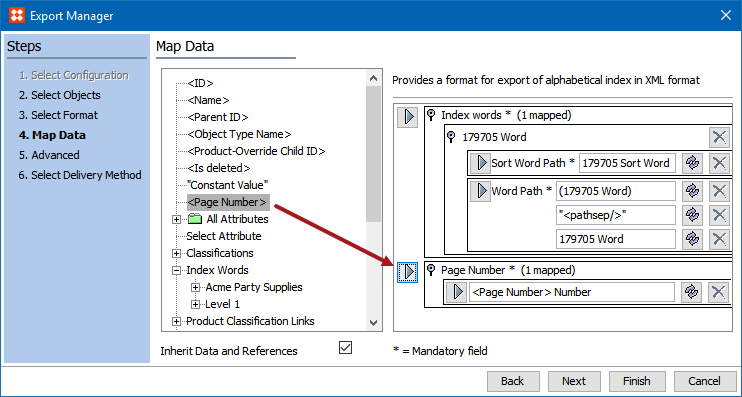
All indexes must contain at least two elements—an index word and a page number.
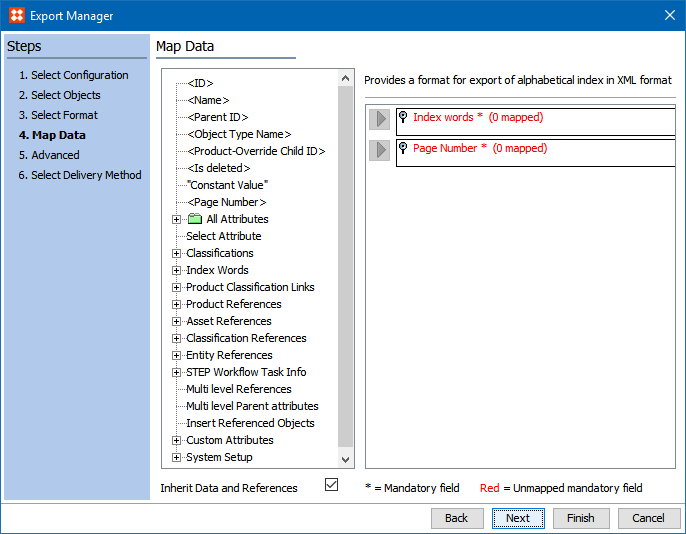
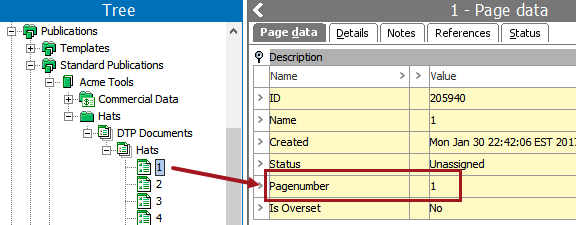
Page number is not mapped as an attribute, since page numbers are automatically populated from InDesign pages after they are saved to STEP.
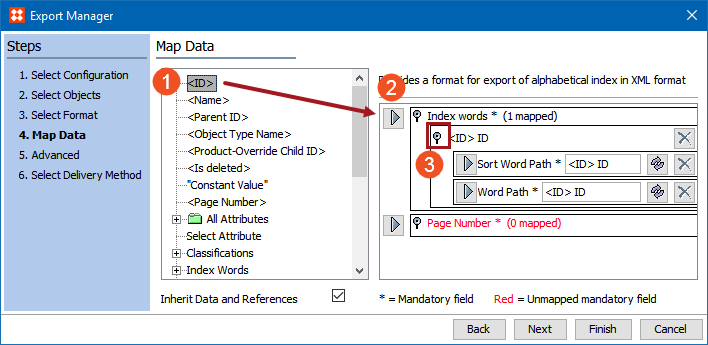
The index word in a basic stock number index is typically a part number or a catalog number. This can either be an attribute, a STEP ID, or a STEP name. For this example, the STEP ID will be used as the index word.
Sort Word Path denotes the content that the Index is sorted by—in this case, the ID of the products. Word Path is the content that is actually being pulled into the index—in this case, also the ID of the products.
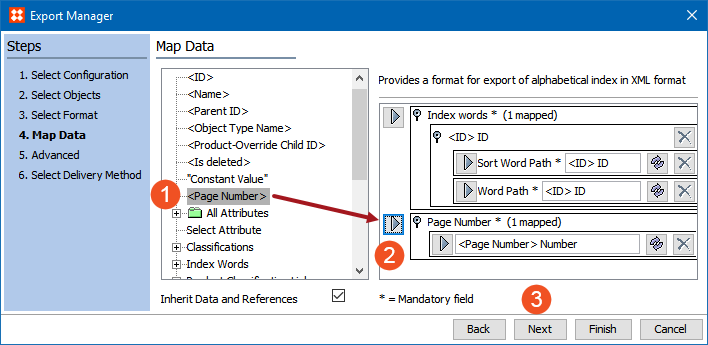
Mapping an alphabetical index is more in-depth than mapping a basic stock number index, as more considerations are made for index words and translated content.
The index words in an alphabetical index are pulled from the index words that are linked to the products mounted to the InDesign pages.
Sort Word Path denotes the content that the Index is sorted by—in this case, the sort word attached to the index words. Word Path is the content that is actually being pulled into the index—in this case, the actual index words in the hierarchy. See the Creating an Index Words Structure topic here for more information on sort words.
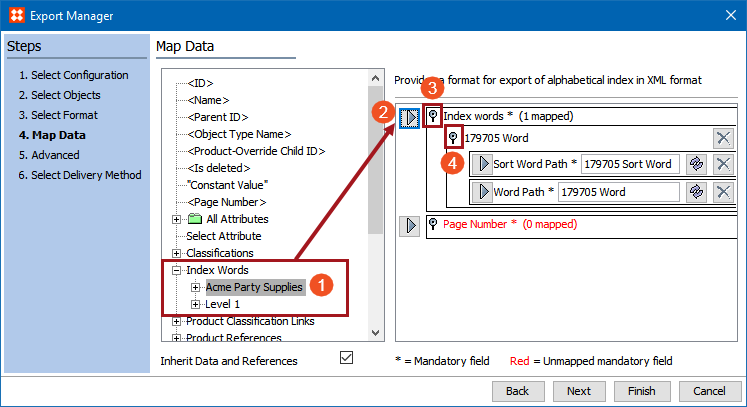
If there is no chance that the contents of your publication will be translated, it is acceptable to not map a constant and instead use letters as the Level 1 index word, as shown throughout the Creating an Index Words Structure topic here.
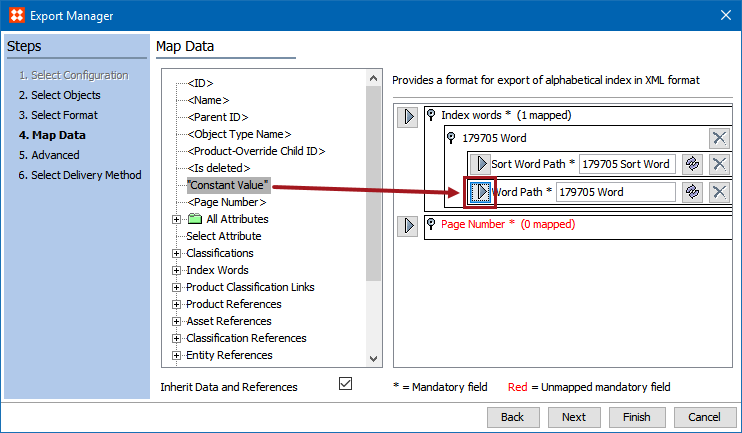
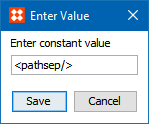
The constant <pathsep/> is used to identify each individual index letter and ensures that the same index letter is only shown once.
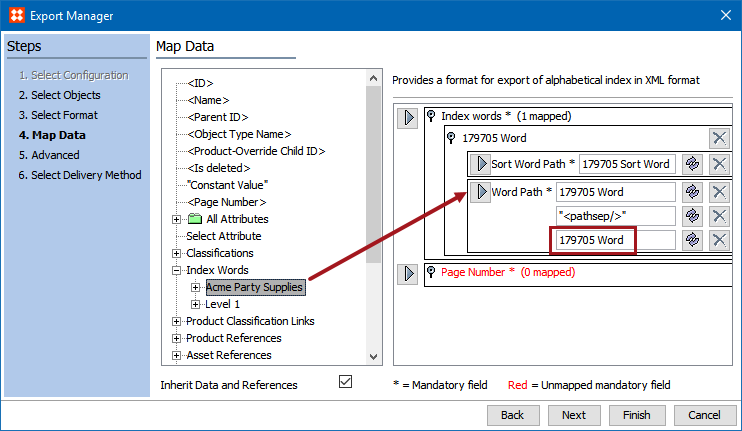
Select the relevant index hierarchy again from beneath Map Data, then click on the arrow to the left of Word Path to map the index hierarchy a second time.
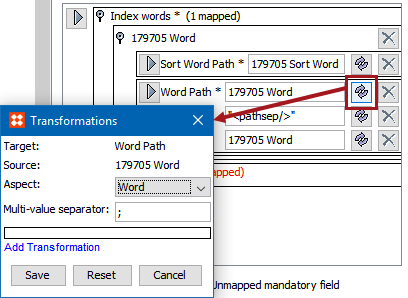
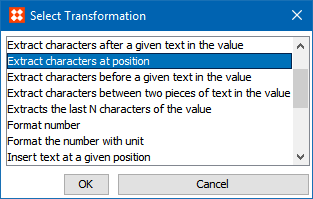
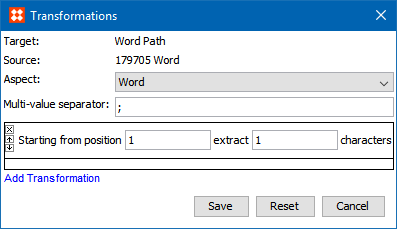
Click on the transformations icon to the right of the first Word Path field to display the Transformations dialog.
Once you have completed your index mappings, follow these steps to complete the index export from STEP. The following steps describe basic Export Manager functionality and are not unique to the Alphabetical Index - XML format.
 ) by the Save to window and choose a classification folder in which to store your export configuration. A typical location is Configurations > Export Configurations.
Note: For more information on saving export configurations, see the Running a Data Export section of the Export Manager documentation here.
Once these steps are completed, the XML file is ready to be formatted and imported into InDesign. For instructions on next steps, see the Formatting and Mounting an Index in InDesign topic here.
2019, Stibo Systems – Confidential