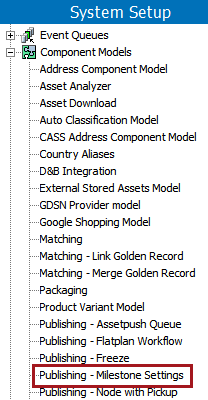
The Component Model Publishing - Milestone Settings enables monitoring of Flatplan workflow progress in the Publication Planner via the Next Milestone Date/Next Milestone Name and Traffic Light Name columns.
The Publishing - Milestone Settings component model allows you to configure the information required to set up publication milestones. To edit the component model:
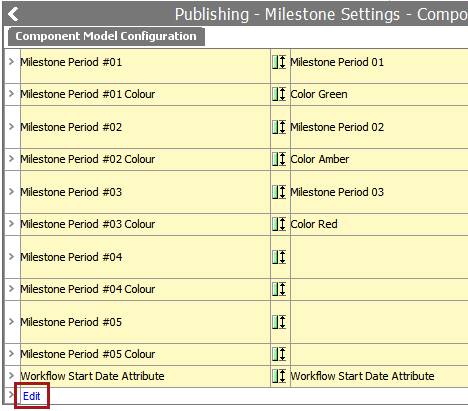
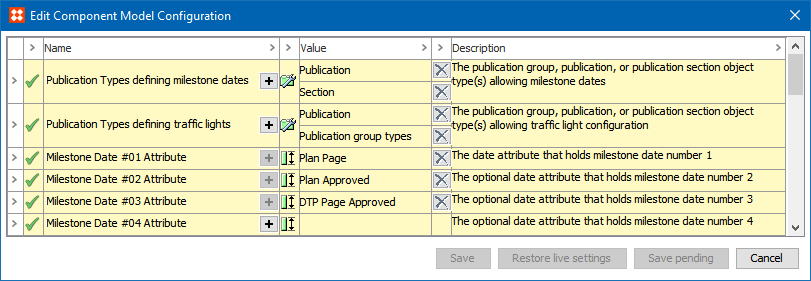
The following fields are edited in the Publishing - Milestone Settings component model:
Select the object types where milestone dates can be entered. Section is required, and publication is also typically selected, but a publication group can also be chosen.

Select the object types where traffic lights can be defined—normally publication group.

Select the attribute that is used to hold the date when the workflow starts.
Note: This attribute is required.

Add up to 20 additional attributes to hold the subsequent milestone dates. Only the 'Milestone Date #01 Attribute' (the date attribute that holds milestone date number 1) is required.
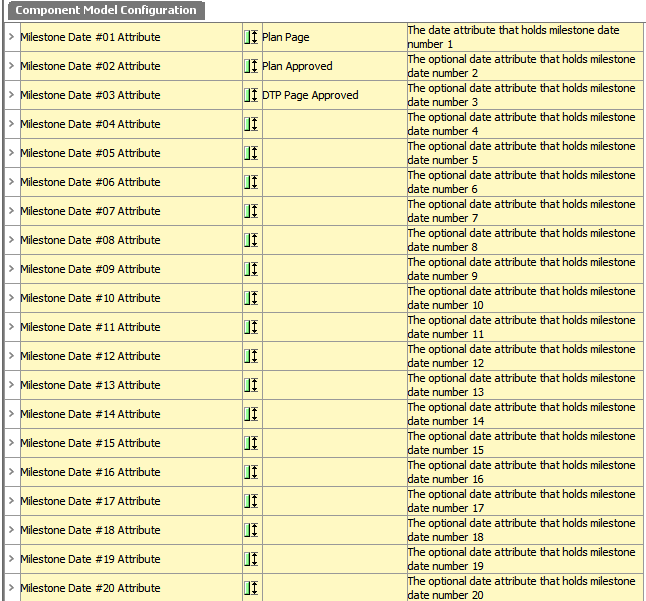
Up to five milestone 'traffic light 'colors can be defined—each of which requires a numeric attribute to store the 'percentage of working time remaining' (Milestone Period) and a second attribute to store the traffic light color (Milestone Period Colour).
Important: Milestone Period and Milestone Colour attributes must be set up in pairs.
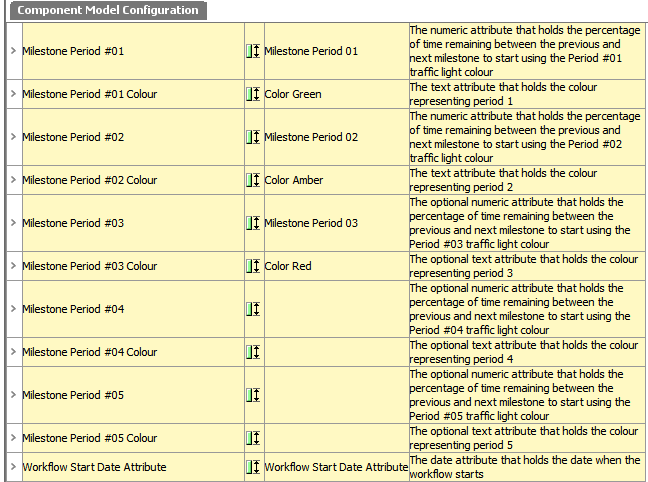
The Milestone Period attribute is a numeric attribute that holds the percentage of time remaining between the previous and next milestone to start using the Period #01 traffic light color (e.g., 'Milestone Period #01' could be set to 100%, 'Milestone Period #02' to 50%, etc.).
Up to five Milestone Periods are supported. Two of these are required ('Milestone Period #01' and 'Milestone Period #02'). These should be set up as description attributes with the validation base type of 'Integer' with a minimum value of 0 and maximum value of 100.
Examples of milestone period attributes could be Planning Date, Ready for Final Price, Final Approval, etc.
Note: Make sure these attributes are valid attributes for your publication group, publication, and/or section object types.
Up to five Milestone Colours are supported. Two of these are required ('Milestone Period #01 Colour' and 'Milestone Period #02 Colour'). These attributes are used to store the color that represents the corresponding period.
These should be set up as description attributes with a validation base type of 'Regular Expression' with the regular expression field set to [0-9a-f]{6}. This validation base type is required since the value must be a hex color string, and it prevents users from entering invalid information into the field.
For information on how to easily edit these attributes by double-clicking in the attribute field and picking a color from an editor, see the 'Editing Milestone Dates and Colors' subsection below. For more information on regular expressions, see the Regular Expression topic in the Resource Materials online help here.
The milestone color attributes could be named with the colors themselves, e.g., Color Green, Color Yellow, etc.
Note: Make sure these attributes are valid attributes for your publication group, publication, and/or section object types.
Values are added for milestone dates and colors on the Milestone Dates tab, which is available on publication groups, publications, and sections. The available attributes are those that were added in the component model.
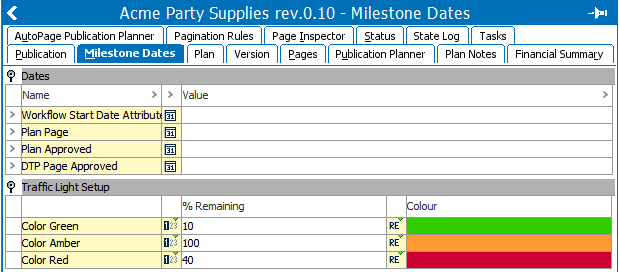
To add values to the Dates attributes, it is recommended to use the Date Picker, which is available by double-clicking in the attribute field.
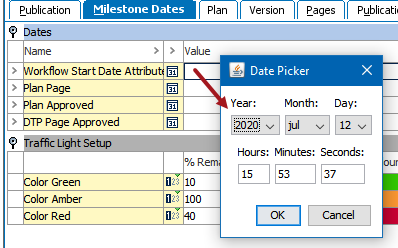
Date values are inherited in the hierarchy and any values can be overridden further down the hierarchy simply by setting them at the relevant level. To re-inherit the date or % remaining from further up in the hierarchy, simply delete the value at the relevant level. E.g., if the milestone date has been overridden at 'Section 1' level, to re-inherit it from the Publication level, simply delete the value from the Section 1 level.
To add color information to the Traffic Light Setup attributes, double-click in the attribute field to choose a color in the Select traffic light colour dialog, then click OK.
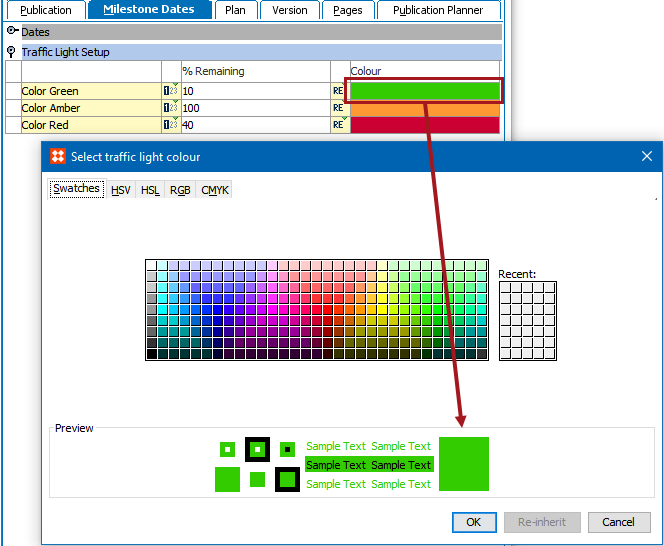
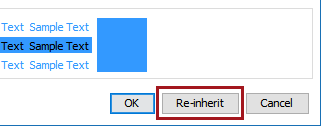
Color values are inherited in the hierarchy and any values can be overridden further down the hierarchy simply by setting them at the relevant level. E.g., if the color has been overridden at 'Section 1' level, to re-inherit it from the Publication level, edit the color via the 'Select traffic light colour' dialog and select Re-inherit.
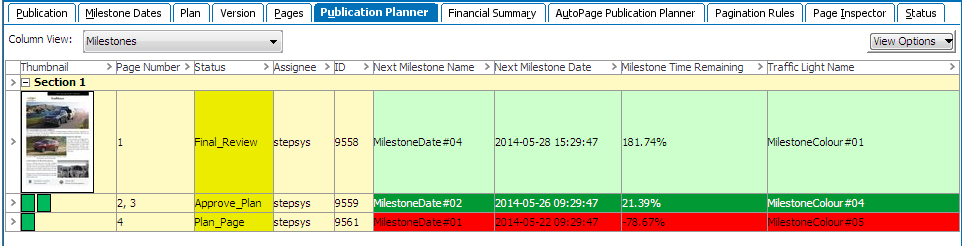
Milestone-related columns are available to display the milestone information in the Publication Planner. These are:
For more information on how to add these columns to the Publication Planner, see the Configuring the Publication Planner Column View topic here.
The following table shows a sample initial setup for a Publishing - Milestone Settings component model, including the object types and attributes applied to a selection of fields.
|
Component Model Field |
Example Object Type or Attribute Name |
Attribute Validation Type |
|---|---|---|
|
Publication Types defining milestone dates |
Publication |
N/A (object type) |
|
Publication Types defining traffic lights |
Publication Group |
N/A (object type) |
|
Workflow Start |
Start Date |
ISO Date and Time |
|
Milestone Date #01 Attribute |
Plan Page |
ISO Date and Time |
|
Milestone Date #02 Attribute |
Plan Approved |
ISO Date and Time |
|
Milestone Date #03 Attribute |
DTP Page Approved |
ISO Date and Time |
|
Period #01 |
Normal Period |
Number |
|
Period #01 Colour |
Normal Color |
Regular Expression: [0-9a-f]{6} |
|
Period #02 |
Warning Period |
Number |
|
Period #02 Colour |
Warning Color |
Regular Expression: [0-9a-f]{6} |
|
Period #03 |
Late Period |
Number |
|
Period #03 Colour |
Late Colour |
Regular Expression: [0-9a-f]{6} |
The other configuration option that affects the milestones is the definition of the working week. Unless modified, the default setting is Monday to Friday from 09:00 to 17:00. When entering the milestone dates for a publication it is advisable that they are set to be during working time. Contact your Stibo Systems account manager if you need another definition of a working week.
The following table expands on the previous table to show sample values for the aforementioned attributes and a description of their functions. These attributes would be valid at the publication level.
|
Attribute Name |
Example value |
Description |
|---|---|---|
|
Start Date |
2020-08-20 09:00:00 |
Tuesday |
|
Plan Page |
2020-09-02 09:00:00 |
Monday |
|
Plan Approved |
2020-09-10 09:00:00 |
Tuesday |
|
DTP Page Approved |
2020-09-20 09:00:00 |
Friday |
|
Normal Period |
100 |
If the remaining working time is 100%, then... |
|
Normal Colour |
'green' |
... the traffic light is green. |
|
Warning Period |
40 |
If the remaining working time is 40%, then... |
|
Warning Colour |
'amber' |
... the traffic light is amber. |
|
Late Period |
0 |
If the remaining working time is 0%, then... |
|
Late Colour |
'red' |
... the traffic light is red. |
The milestone and traffic light information shown in the Publication Planner for a given page is calculated in the following way:
Assuming that a publication has been created with the example date and color attributes shown in the table above, and that the current time is Friday 2020-09-06 09:00:00, then this is how the traffic light colors would be calculated. The following table assumes a traffic light status with a current date / time of 2020-09-06 09:00:00
|
Page |
Workflow MILESTONE | Color |
Explanation |
|---|---|---|---|
|
1 |
Plan page |
'red' |
The next milestone date is (Plan Page) 2020-09-02 09:00:00 The previous milestone date is (Start Date) 2020-08-20 09:00:00 The duration of the current task is therefore 8 working days The current date/time exceeds (Plan Page) 2020-09-02 09:00:00 by 6 working days. -6 as a percentage of 8 is -78% and so the corresponding color is 'red' |
|
2-3 |
DTP Page approved |
'green' |
The next milestone date is (DTP Page Approved) 2020-09-20 09:00:00 The previous milestone date is (Plan Approved) 2020-09-10 09:00:00 The duration of the current task is therefore 8 working days There are 10 working days from the current date/time until the next milestone date 10 as a percentage of 8 is 125% and so the corresponding color is 'green' |
|
4-5 |
Plan Approved |
'amber' |
The next milestone date is (Plan Approved) 2020-09-10 09:00:00 The previous milestone date is (Plan Page) 2020-09-02 09:00:00 The duration of the current task is therefore 6 working days There are 2 working days from the current date/time until the next milestone date 2 as a percentage of 6 is 33% and so the corresponding color is 'amber' |
2019, Stibo Systems – Confidential