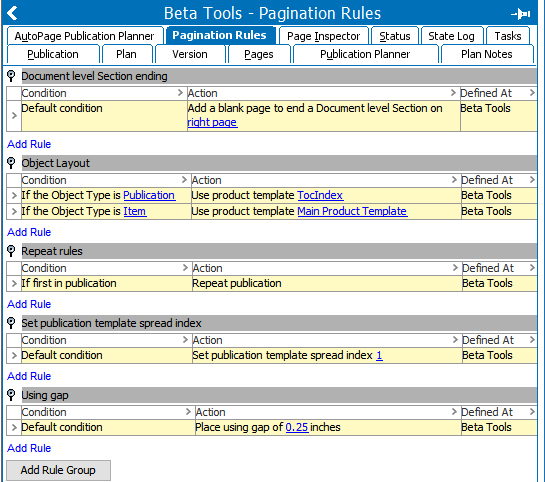
A pagination rule is a rule that controls how, when, and where objects (typically products, but also assets and classifications) are mounted onto InDesign pages when autopaginating publications.
A pagination rule consists of one or more conditions and an action that takes place when the condition or conditions are met. Detailed criteria must be specified for some conditions and actions.
Pagination rules can be applied to entire publications as well as individual sections and subsections. Rules inherit down from the parent publication level to child sections and subsections. Inherited rules can also be overridden, or, rules can be created on sections only and not set at the publication level at all.
Important: In order to run autopagination, at least one 'Object layout' rule must exist. See the AutoPage Pagination Rule Actions topic
Pagination rules are created on the Pagination Rules tab. To view the Pagination Rules tab, select the relevant publication, section, or subsection in the Tree, then click the Pagination Rules tab.
The Pagination Rules tab provides an overview of all conditions and actions applied to the publication and/or section. You can also see where in the publication structure the rules are defined ('Defined At').
Pagination rule groups are also known as Action Groups, since these groups contain selections of actions that should be taken on mounted objects and pages. Each group also contains an assortment of conditions that are applied to determine exactly how these actions will be carried out.
For detailed information on pagination rule groups and their available actions, see AutoPage Pagination Rule Actions
For detailed information on the conditions available for pagination rule group actions, see AutoPage Pagination Rule Conditions
Pagination rules are inherited from parent publication objects to child section objects (and from parent section objects to child subsection objects) in the same fashion that specification attributes, references, and so forth, are inherited in the product hierarchy in the Tree.
The Defined At column displays where the rules are inherited from.
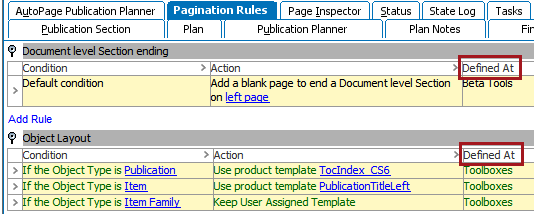
Rules that are applied at lower levels take precedence over rules applied at higher levels. So, if you have applied a rule at publication level, it is inherited to sections and subsections, but rules applied at section or subsection levels take precedence over the inherited rule.
It is possible to edit the action parameter of an inherited rule. If you have edited the action of an inherited rule, the rule is then displayed in red on the level where the action has been edited. If there is only one rule in the inherited group, then the rule is displayed in green, since the entire group has been overridden.
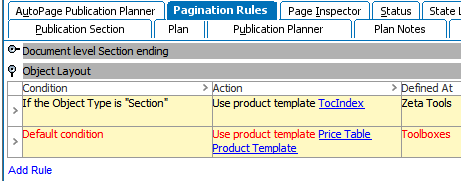
A complete rule group can also be overridden manually in cases where you want to change the rule conditions or rules in general. When all rules within a rule group are overridden, they are displayed in green.
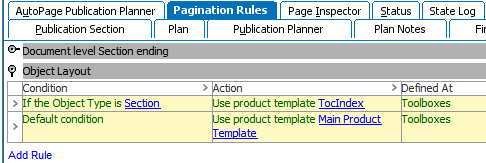
Important: All rules within a pagination rule group are affected when you create a local rule. If you make changes to a rule at the topmost publication level after you have created the local rule, the changes are not inherited. However, if only the actions are changed on the inherited rules, then only the edited rule turns red and this will not break the inheritance of the entire group rule.
If you want to get rid of the local values, you can remove all the rules one-by-one. After all the local rules within a pagination rule group have been deleted, all rules will be inherited again.
Pagination rules are evaluated one-by-one in the list from top to bottom. When the condition of a rule evaluates to True, the associated action is then evaluated. The layout of a page is decided by the sum of all conditions with actions that evaluate to true. The order of evaluation means that one action can override an action associated with a rule further down in the list. Therefore, you should always specify the rule with the more general rule first and the most specific rule last.
The order of the pagination rules can be changed by using drag and drop.
When an object is paginated with object Type OT2, then the first condition Always evaluates to True and the rule assigns the product template template1 to the product. The condition of the second rule (objectType is OT1) evaluates to False, and the action of the second rule is therefore not used.
However, if you paginate an object with object Type OT1, the first condition is still True and the rule assigns the product template template1 to the object. The second condition also evaluates to True and the action for the rule then assigns the product template template2 to the object and then overwrites the assignment done by the first rule.
Click the rule you want to move, then drag and drop it to its new position in the list.
2019, Stibo Systems – Confidential