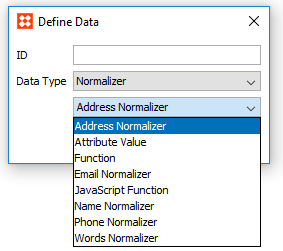
Normalizers take one or more attribute values and outputs normalized value(s). They can be configured using either JavaScript, STEP functions, or an option called 'Attribute Value' that simply lets you reference the value for a specific attribute.
Customer data normalizer templates are also available for those with the required license. For more information on this license, ask your system administrator.
Standard Normalizers include:
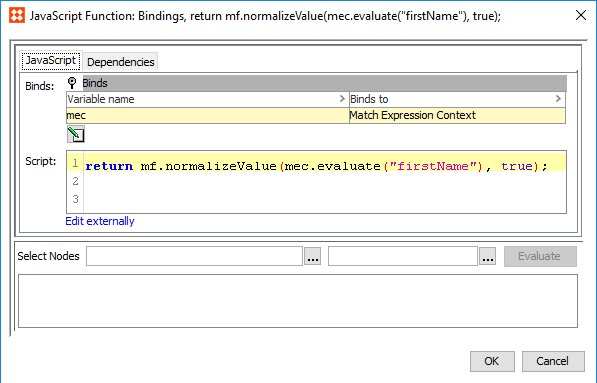
JavaScript Function
Normalized values can be produced via JavaScript functions.
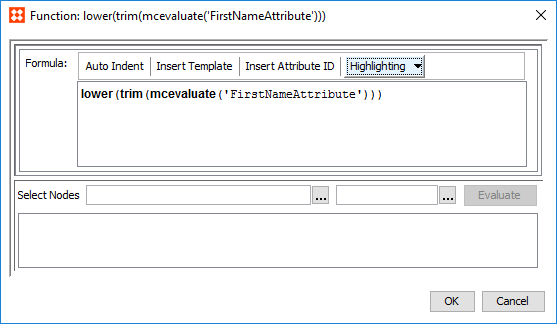
STEP Function
Normalized values can be produced via STEP functions.
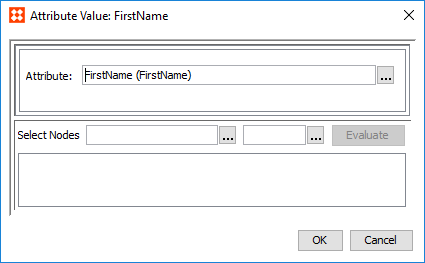
Attribute Value
The Attribute Value normalizer allows users to specify a single attribute and output its value. To specify an attribute for this normalizer, click the ellipsis button ( ) and browse or search for the desire attribute.
These normalizer templates are intended for use in customer data solutions:
Address Normalizer
The Address Normalizer can produce a normalized set of addresses for use in the corresponding Address Matcher. This data is provided by the input address element attributes mapped to the Address Component Model and include: Country, Region, City, Postcode, Street, and Country ISO Code.
Note: If the postal code mapped to the corresponding standardized component model parameter is valid for the objects being compared, the decision table will output normalized values for address attributes mapped to the standardized attribute fields on the component model.
For more information on the Address Component Model, see the Address Component Model section of the Data Integration documentation here.
) in the Data column to access the configuration.
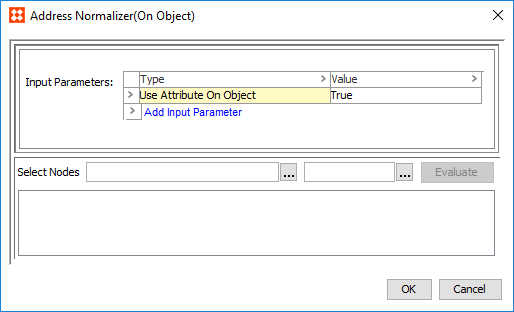
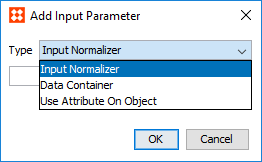
) and browse or search for a data container. The selected data container will have its address data normalized when used in a matcher.
Email Normalizer
An Email Normalizer can normalize email data for use in the corresponding Email Matcher.
) in the Data column to access the configuration.
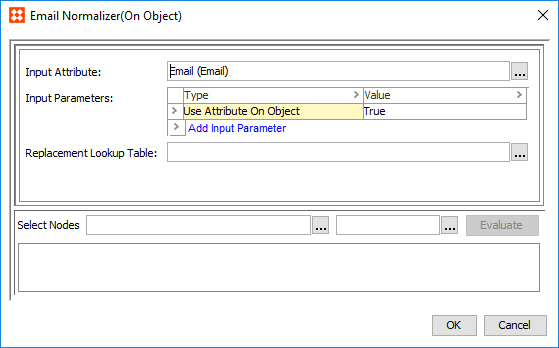
) and browse or search for an email attribute to normalize. ) and browse or search for a data container. The selected data container will have its email data normalized when used in a matcher. ) and select a lookup table. Typically, this is used to remove invalid email values.Organization Name Normalizer
An Organization Name Normalizer can normalize organization name data for use in the corresponding Organization Name Matcher.
) in the Data column to access the configuration.
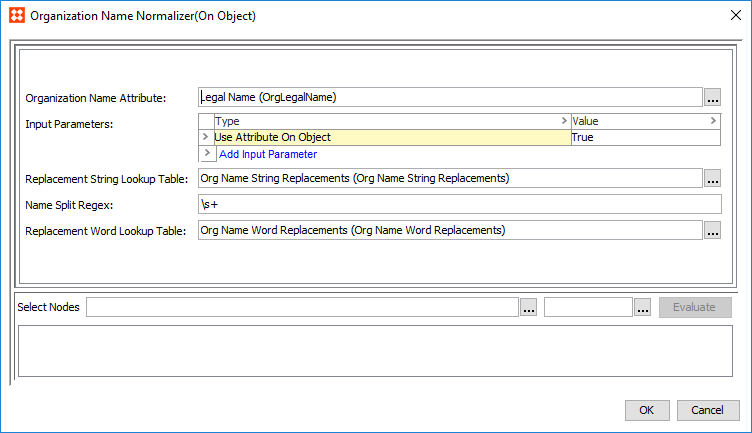
) and browse or search for an organization name attribute to normalize.) and browse or search for a data container. The selected data container will have its organization name data normalized when used in a matcher. ) and select a lookup table. This is used to account for inconsistencies in organization names by defining semantically equivalent strings (especially the usage of apostrophes and quotations). For example, normalizing 's to be s would change the organization name ACME's into ACMEs. Normalizing 'n' to be and would change the organization name ACME'n'SON to ACME and SON.) and select a lookup table. Typically, this is used to account for the inconsistent use of common words in organization names. For example, & can be replaced by and.Person Name Normalizer
A Person Name Normalizer can normalize name data for use in the corresponding Person Name Matcher.
) in the Data column to access the configuration.
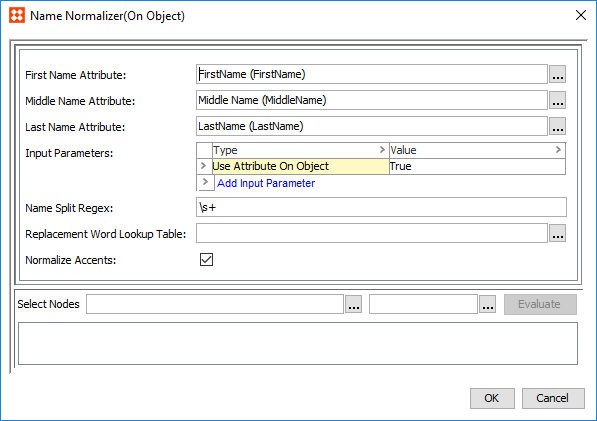
) and browse or search for a first name attribute to normalize. Repeat this step for the Middle Name Attribute and Last Name Attribute parameters.) and browse or search for a data container. The selected data container will have its name data normalized when used in a matcher. ) and select a lookup table. Typically, this is used to remove unwanted words from names. For example, 'Mr.,' 'Dr.,' or 'Von'. Phone Normalizer
A Phone Normalizer can normalize phone data for use in the corresponding Phone Matcher.
) in the Data column to access the configuration.
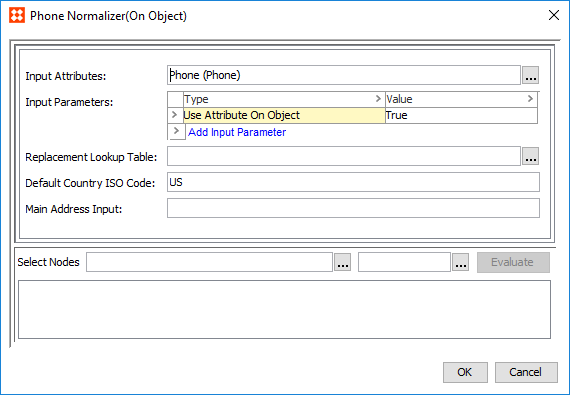
) and browse or search for a phone attribute to normalize. ) and browse or search for a data container. The selected data container will have its phone data normalized when used in a matcher. ) and select a lookup table. Typically, this is used to remove invalid phone values.Note: In order to use this parameter, write a JavaScript address normalizer that outputs a Country ISO code.
Words Normalizer
A Words Normalizer can normalize attribute data for use in the corresponding Words Matcher. Multiple attributes can be mapped to the same Normalizer. When the corresponding Words Matcher is applied, all mapped attributes will be evaluated.
) in the Data column to access the configuration.
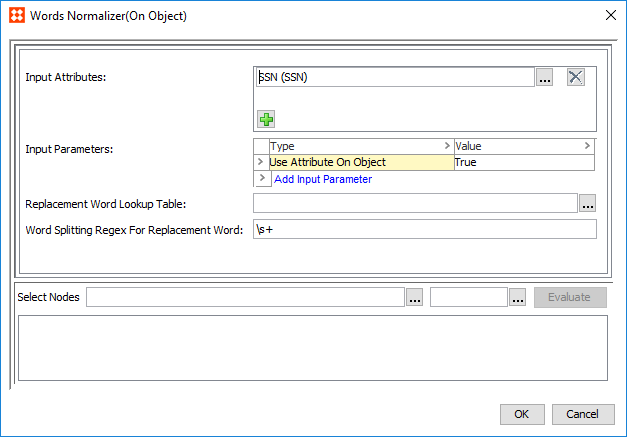
) and browse or search for attributes whose values should be normalized.) and browse or search for a data container.) and select a lookup table. Typically, this is used to remove invalid values.Customer Data JavaScript Normalizers
For especially complicated solutions, it is possible to expand the capabilities of a customer data normalizer via JavaScript. These JavaScript normalizers can be written to input the normalized values of a basic customer data normalizer(s) and manipulate the data in ways the original normalizer could not. In other words, a JavaScript normalizer inputs a set of strings / values from a basic customer data normalizer and outputs a new set of strings / values.
Note: The JavaScript normalizer should output a completely new set of strings / values, and should not overwrite existing strings / values.
These normalizers can also be built completely from scratch rather than enhancing an existing customer data normalizer.
In many situations the more complex JavaScript normalizer would be cited by a corresponding matcher, rather than the basic costumer data normalizer.
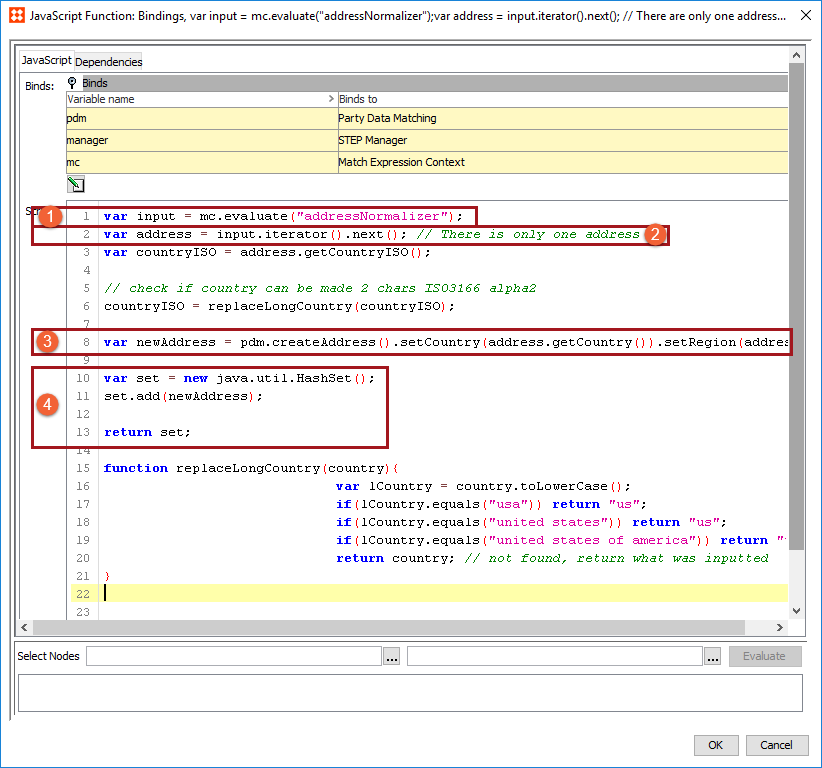
A typical customer data JavaScript normalizer complies with the following steps:
Note: 'mc' is a bind to the match expression context.
2019, Stibo Systems – Confidential