Bookmarks in STEP are placeholders created by the user that serves as a shortcut for previously viewed Objects.
In the STEP system, there are two different types of Bookmarks:
Note: Bookmarks are stored on the local STEP system and are not accessible when logging into STEP from a different computer.
Standard navigation Bookmarks are used for quickly accessing specific nodes in the Tree and System Setup hierarchies.
You can add a standard navigation Bookmark by selecting a node in the hierarchy and clicking Add Bookmark in the Navigate: Bookmarks menu or alternately by using the Ctrl+D keyboard shortcut. The Bookmark will afterward be accessible in the left side Bookmarks tab.
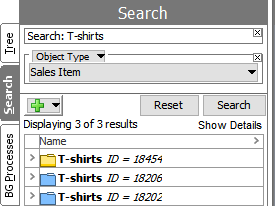
Search Bookmarks are used for storing specific searches that can then easily be re-run.
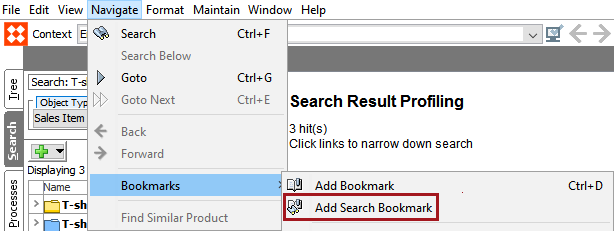
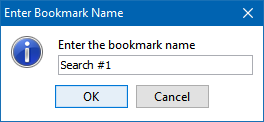
Steps to add a Search Bookmark:
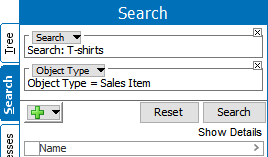
When you click on a stored Search Bookmark, the search parameters will be populated. Select Search to rerun the search.
Note:
Search Bookmarks are saved under the Bookmarks tab with a search icon labeled with the bookmark name provided by the user.
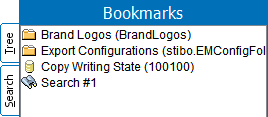
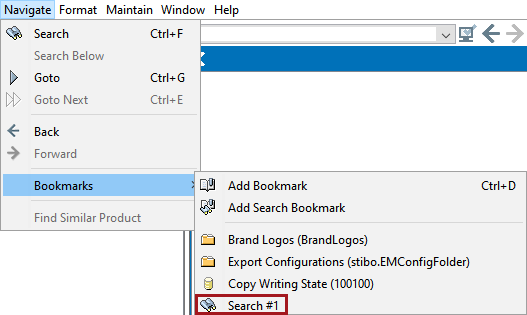
Both standard navigation and Search Bookmarks can be edited in the Bookmarks tab by right-clicking the Bookmark and selecting Edit Bookmark in the context menu. It is possible to edit the Name of the Bookmark and also the object / search URL if the Edit URL checkbox is activated.
Both standard navigation and Search Bookmarks can be removed from the Bookmarks tab by right-clicking the Bookmark in the tab and selecting Remove Bookmark on the context menu.
2019, Stibo Systems – Confidential