In workbench, collections can be created in two ways:
Regardless of how they are created, if a collection contains less than 10,000 objects, these can be inspected in the Tree hierarchy by expanding the Collection node. The collection will be displayed in an entirely flat structure regardless of any parent-child relations that may exist between the objects, and regardless of which parents / children the objects have when viewed elsewhere in STEP.
Note: While this topic and the Collections section do not address Web UI functionality, it is important to note that the Web UI Collection Content Screen also has the same 10,000 object restriction to allow for the best performance.
In Web UI, objects can be manually added to and removed from a collection. This functionality is not available in the workbench.
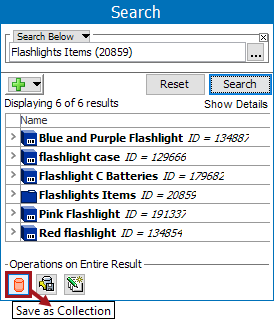
The most common way to create a collection is through creating a search. To do so, follow the steps below.
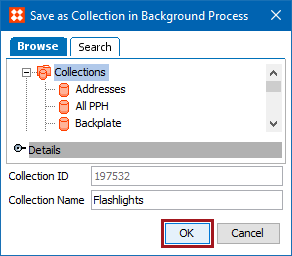
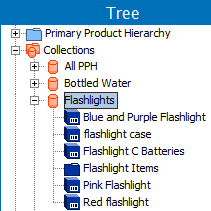
Note: The initial search criteria used to locate the included objects is stored on the collection, which allows for later updates of the collection. To learn more about editing searches to update collections see the Maintaining Collections topic here.
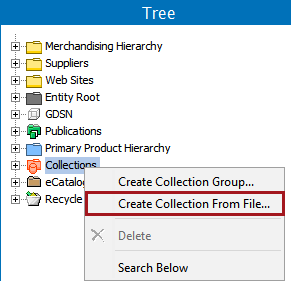
Collections can be created from a text or CSV import file containing STEP IDs of products, assets, or classifications. Objects in the import file must already exist in STEP as the import will not create or update objects, only place them in a collection.
Important: If the import file includes only attribute values or unique keys of the products, assets, or classifications to be added to the collection (and does not include the STEP ID), you must use the above steps for Creating a Collection from Search.
To create a collection from a file:
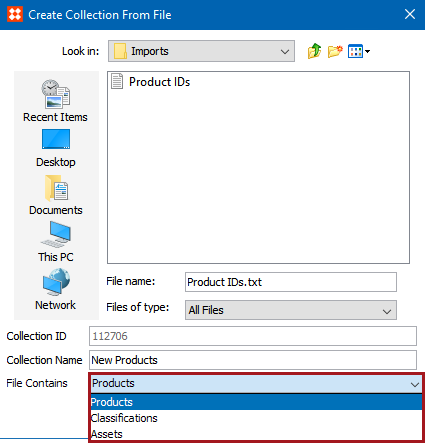
The Collection ID is autogenerated
2019, Stibo Systems – Confidential