This topic covers information specific to the Asset super type that is important to know when working with assets. For general object maintenance information (applicable to all object types rather than specific to assets), see the All Objects topic within this guide here.
The basic methods for creating an asset are the same as any other object type, as described in the Creating Objects in Tree topic (here) within this guide. However, there are a few considerations that are specific to assets that users should be aware of when creating assets, which are described.
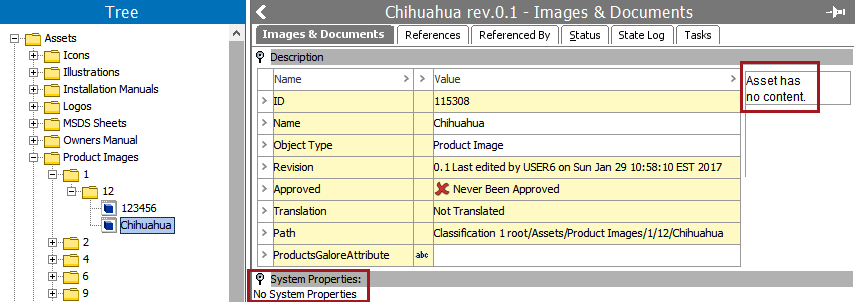
Assets are essentially placeholders in STEP, to which a digital media file must be associated. When assets are created in STEP via import of a digital media file, this association happens automatically. However, when assets are created using standard object creation methods in Tree (e.g. right-clicking on a classification folder and selecting 'New Asset'), it is only the placeholder that is created. An asset created in this manner will initially have no system properties and no content. For example:
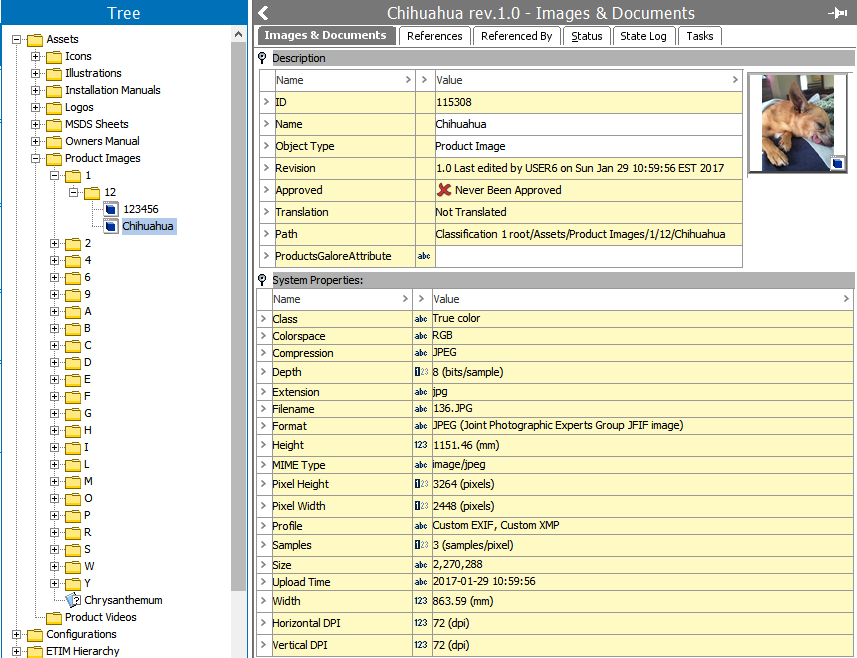
A user can right-click on the asset and select Replace Asset Content to open a dialog where a digital media file can be selected from the local machine. STEP will automatically read and populate the properties of the asset, and a thumbnail of the digital media file will display. For example:
To avoid this two-step process, assets are often introduced in STEP via import (or specific transfer protocols for an initial implementation). More information on importing assets is available in the Importing Assets section (here) of the Digital Assets guide.
General information about editing objects in STEP is available in the Editing Objects in Tree topic within this guide (here) and is not repeated in this section. However, assets have some additional editing options specific to working with digital media files, which are described.
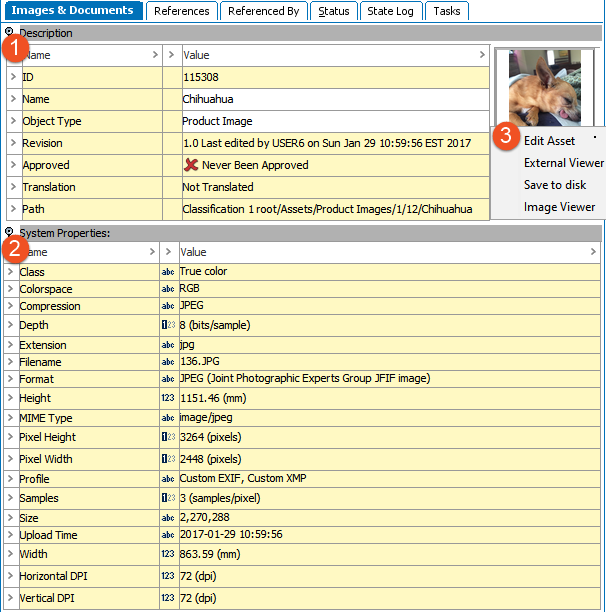
The Images & Documents tab is the primary workbench interface for assets. It has three sections, described below.
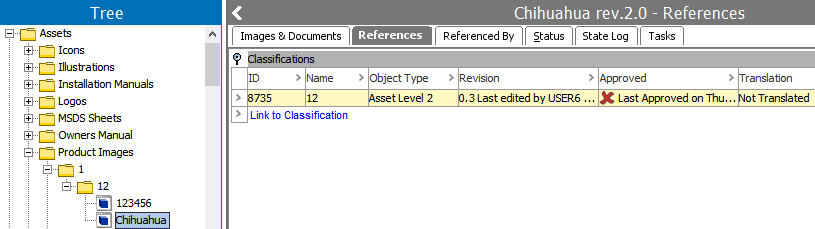
The References tab displays the classifications that the selected asset is linked to, and allows for linking to additional classifications using the Link to Classification link. Each asset must be linked to at least one classification, but may be linked to many. Links can be removed by right-clicking on the row indicator and selecting 'Remove Link to Classification'. The Name of each classification displayed is hyperlinked for easy navigation, and revision, approval, and translation statuses are also displayed.
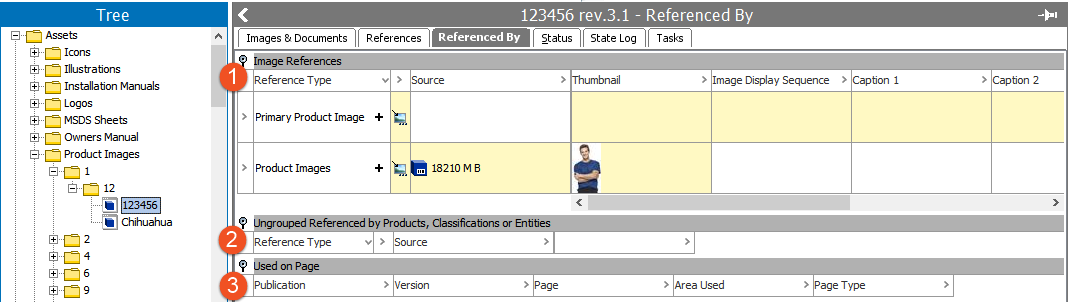
The Referenced By tab is where all references of which the selected object is the target (e.g., all the objects that the selected object is referenced by) can be viewed and edited (assuming proper privileges are in place). The display of the Referenced By tab on an asset will vary slightly from system to system, based on the data model.
The Status tab provides general information about objects, including revisions, translation status, and approval status. For more information on these basic settings, see the Status Tab topic (here) in the Products section of this guide. For assets specifically, this tab also includes an Asset Push Status section that describes the status of assets for the various asset push configurations on the system. For more information, see the Monitoring Asset Push topic (here) in the Digital Assets guide.
The State Log tab allows users to view the recent history of the object across all workflows in which it has been entered. See the State Log Tab topic (here) in the Workflows documentation for more information.
The Tasks tab displays all active tasks across all workflows for the selected object, subject to the user's privileges (only tasks that the user has the rights to address are visible). When relevant tasks and privileges are in place, the user is able to act on the tasks from this editor, including to edit data and move tasks through the workflow. More information on the Tasks tab is available in the 'Moving Tasks through a Workflow in Workbench' topic (here) in the Workflows guide.
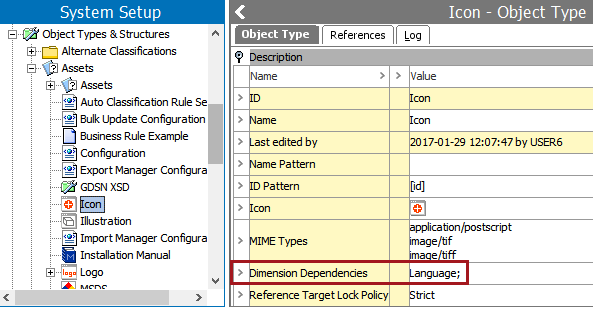
Individual asset object types can be made dimension dependent using the Dimension Dependencies parameter on the object type. This configuration will only affect the STEP Name of assets, meaning that it allows for individual assets to have a different name based on the indicated dimension dependencies (e.g., 'Red Hat' in English and 'Chapeau Rouge' in French when the dependency is Language).
It is also possible to make the content of assets dimension dependent so that an asset in STEP can be tied to different digital media files in different Contexts. This is configured using the Image & Document Settings > Dimension Dependencies parameter in System Settings.
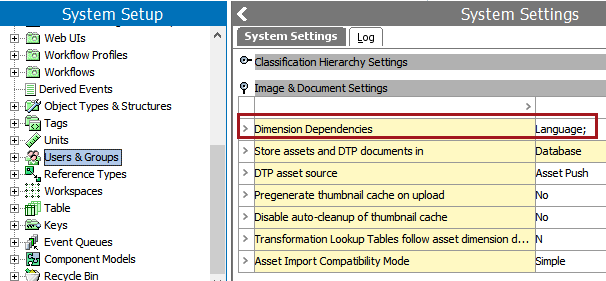
This setting is global, meaning it applies to all assets. Unless there is a very special reason for turning on asset dimension dependencies, this should be avoided. As mentioned, the setting is global, meaning that special procedures must be implemented for creating assets that are to have the same content in all contexts. Thus, if you import a digital media file (and via this create an asset instance) in a context that does not use the top level dimension point for the dimension on which asset content depends, the content will be created only in the dimension point the current context uses.
2019, Stibo Systems – Confidential