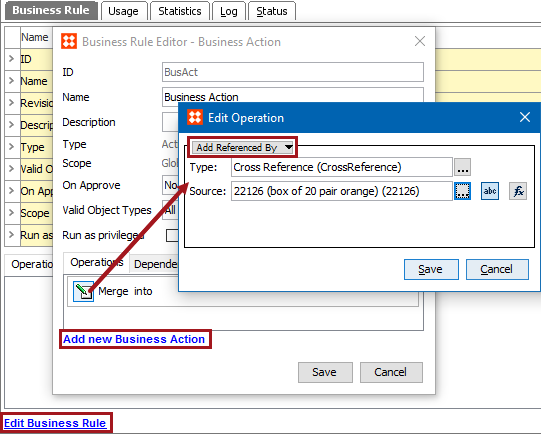
This operation can create a reference to an object with a specific source and a type. This allows you to add an entry on the Referenced By tab of the editor for the selected object.
For example, a business action can be used to add an object as the source to an image using a specified reference type.
This operation can also be run via a Bulk Update and sample data is provided in the References and Links: Add Reference or Add Referenced By Operations topic in the Bulk Updates documentation here.
Prerequisites
Before using this operation:
Configuration
 ) to display the Select Reference Type dialog, select a reference type, and click the Select button.
Note: The selected object dictates the label on the manual button. If the selected object requires a text value, the label is 'abc.' If the selected object is numeric, '123' is displayed, and so on for each validation base type.
 ), click the ellipsis button () to display the Select Reference Source dialog, select a valid source, and click the Select button.
 ), click the ellipsis button () to display the Function Editor dialog. Add a function and evaluate, then click OK. For more information, see the Using Function Editor topic in the Resource Materials online help here.
Note: A function that cannot return the specific Target Type ID returns the 'Could not get the reference target.' error.
2019, Stibo Systems – Confidential