Open topic with navigation
Monitoring Bulk Updates
When a user completes the Bulk Update wizard, the Background process status dialog displays. This allows a user to monitor the status of the bulk update that was created.
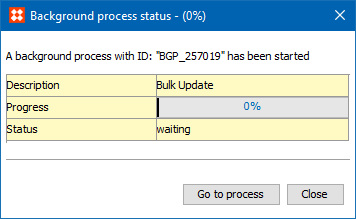
Click Go to Process to display the Background Process tab for additional information about the process execution.
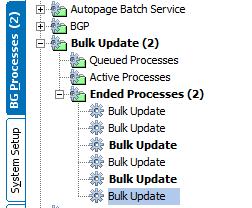
Note: If one operation on an object or the auto approval of the object fails, changes made by other operations are rolled back, and the object is left as it was prior to the bulk update.
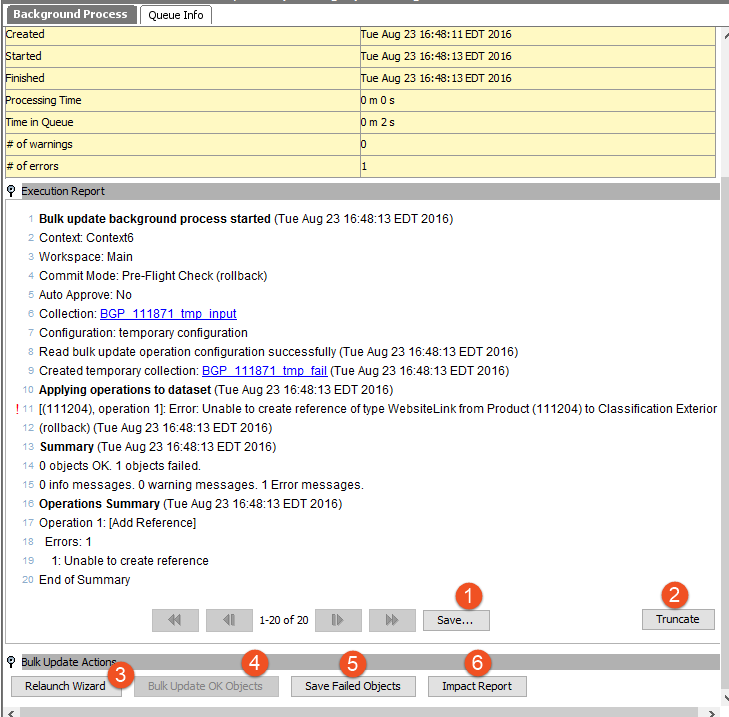
When the process has completed, the following options are available in the Bulk Update Actions flipper on the Background Process tab.
- Click Save to keep a copy of the execution report. This can be saved locally.
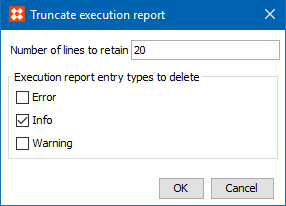
- Click Truncate if not all lines in the execution report are needed. Upon selecting Truncate, a dialog will appear allowing users to select which lines to delete, and how many lines to retain.
- Click Relaunch Wizard to open the Bulk Update wizard again. The wizard opens with the same objects selected and with the same operations specified in the process that was just completed.
- Click Bulk Update OK Objects if a pre-flight process was run the bulk update should now be run on the objects that were processed without errors.
- Click Save Failed Objects to save the objects for which the bulk update failed as a new collection. Note that this option is only available if there were failed objects.
- Click Impact Report to view a report of the errors that occurred during the bulk update process. This option is only available if objects failed during the bulk update.
2019, Stibo Systems – Confidential