It is often necessary that certain attributes or attribute groups be set as mandatory for a state or transition in a STEP Workflow. This means that the object can pass further in the workflow only if the indicated attributes have values. To facilitate this, the relevant mandatory attribute groups and/or attributes can be indicated directly in the STEP Workflow Designer, enabling mandatory attributes to be applied once and take effect across all interfaces (workbench, Web UI, and Smartsheets), without requiring any additional configuration. In addition, attributes and groups can be set to be conditionally mandatory, meaning they are only required if specific conditions are met.
This topic describes the functionality for making attributes mandatory specifically within a workflow state or for a particular workflow transition. In using this functionality, it may also be helpful to understand the other mandatory attribute settings (e.g. those that are not specific to objects within a workflow).
For more information on general mandatory attribute settings, see the Mandatory Attributes topic
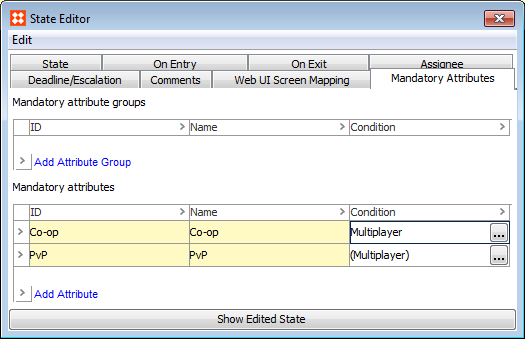
Users can specify which attributes and attribute groups are mandatory via the State Editor. Mandatory attributes configured on a state will be marked with an asterisk when working in Web UI.
Note that unless the condition returns 'False' the attribute will remain mandatory.
For more information about conditionally mandatory attributes, see the Conditionally Mandatory Workflow Attributes section of the STEP Workflows documentation here.
If any mandatory attributes are missing when submitting an object in STEP Workbench or Web UI, an error message listing all missing mandatory attributes will appear, preventing the user from progressing through the workflow. For more information on how Web UI handles this, see the Workflow Mandatory Attributes in Web UI section of the Web UI Getting Started documentation
In the Excel Smartsheets, users will receive the necessary information when working with objects that have state mandatory attribute(s) and/or attribute group(s). For more information see the Additional Information About Smartsheets section of the Smartsheets documentation
Users can specify which attributes and attribute groups are mandatory via the Transition Editor.
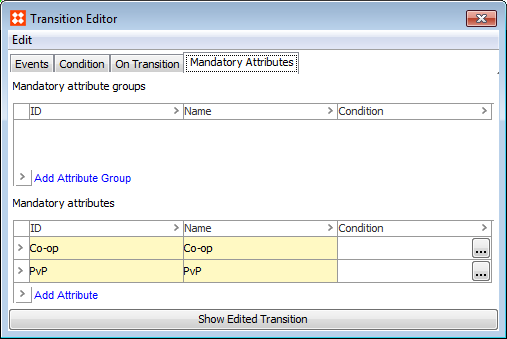
Note that unless the condition returns 'False' the attribute will remain mandatory.
For more information about conditionally mandatory attributes, see the Conditionally Mandatory Workflow Attributes section of the STEP Workflows documentation here.
If any mandatory attributes are missing when submitting an object in STEP Workbench or Web UI, an error message listing all missing mandatory attributes will appear, preventing the user from progressing through the workflow. For more information on how Web UI handles this, see the Workflow Mandatory Attributes in Web UI section of the Workflows in Web UI documentation
It is possible to enforce the mandatory status of an attribute or attribute group via business conditions set on a state or transition in a workflow. When maintaining objects in a Smartsheet that has been exported for a workflow state (i.e. from the Web UI Tasklist), any cells containing attributes that are conditionally mandatory for that particular state are highlighted blue. Additionally, unless the condition driving the mandatory status of the attributes returns 'False', the user must enter values for all applicable attributes before the sheet can be validated.
Note: Transition mandatory attributes and attribute groups are not supported in Excel Smartsheets.
For more information about conditionally mandatory attributes, see the Conditionally Mandatory Workflow Attributes section of the STEP Workflows documentation here.
After setting mandatory attributes on a state, transition, or on a Web UI screen, specific events can be identified for which the population of the attributes should not be enforced. This allows an object to move through designated states in a workflow, even when the object is missing mandatory attribute values.
In the below example, Color and Material are set as mandatory attributes on the Review Data state. If the user does not populate these values on a given product and attempts to submit from the state via any transition (Reject or Approve), the object would not be able to proceed through the workflow until the missing values were provided. However, if the Reject event is set to ignore mandatory attributes, the user may return to the previous state in the workflow even if Color and Material have missing values.
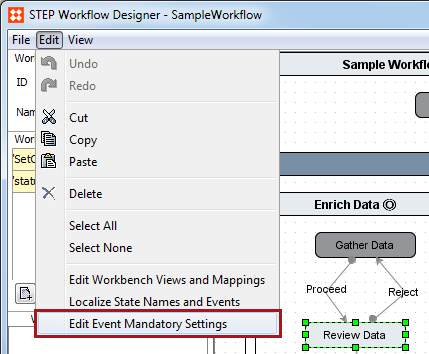
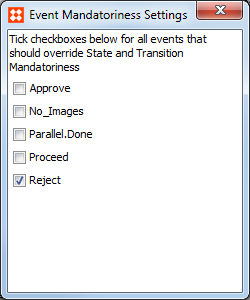
Note: While this can also be accomplished by setting mandatory attributes on transitions themselves, the Web UI only provides a visual indicator (asterisk) on mandatory attributes that are set in workflow states. This feature allows users to see the visual indicator for mandatory attributes required for forward progression, while also being able to disregard these requirements for certain transitions, such as Rejections.
Note: Mandatory attributes set on a Web UI screen are only honored if the 'Submit Action' has 'Enforced Validity' checked.
2018, Stibo Systems – Confidential