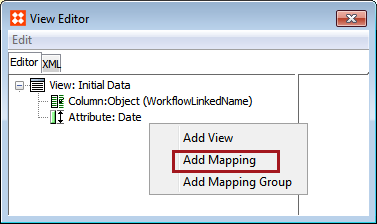
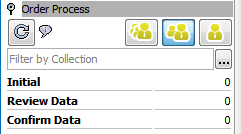
This topic details how to map a view to a workflow state (or states), as well as how to map views to specific users or user groups. Without views and mappings configured, all states in the workflow are displayed on the STEP Workflow navigator tab (including parallels, clusters, and final states). When a workflow includes automated, system, parallel, and/or cluster states, and users will be interacting with the workflow in the STEP Workbench, it is recommended to have mappings in place so that only the user states (e.g. states in which a human must interact) are present on the STEP Workflow tab.
A workflow has been created and one or more views have been created for the workflow. This is required because the mapping task serves to connect any given view to a particular state or set of states. Therefore, for the exercise to be meaningful, both the view(s) and the state(s) must already exist. Also note that the views must have an ID assigned, else they will not be available for selection in the mapping. For more on creating views, see the Configuring Views for Workflows topic

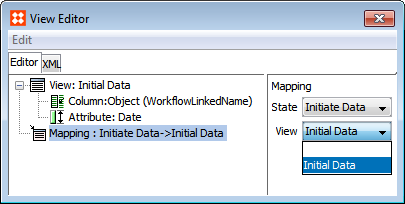
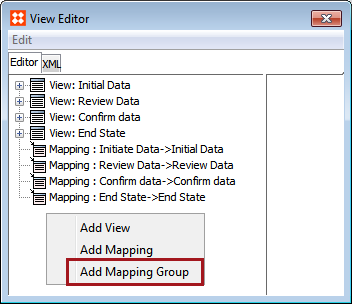
It is possible to create mappings that only apply to specific users or user groups. The mappings of a particular workflow could be configured so that only users in a specific group can see a given state (e.g. only administrator users have access to automated and system states to intervene in case of errors), or so that users in a specific group could see tasks within the same state with different views (e.g. an end user may need to see different data than an administrator).

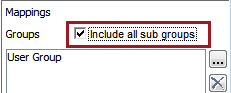
If the Include all sub groups is checked, any subgroups within the group, as well as direct users in the group will have access to the view.
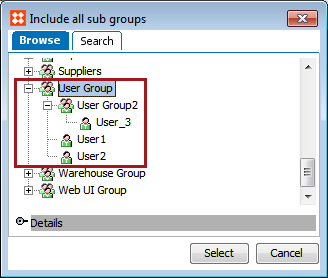
In the example below, if the Include all sub groups option was checked and User Group was selected, this would include User Group 2, its child User 3, as well as User 1, and User 2.
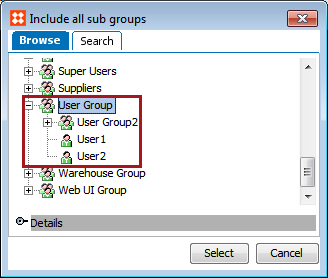
If theInclude all sub groups box is unchecked, only the top level users directly in the group have access to the view. For example, with User Group selected, only User 1 and User 2 would have access to the view as they are the only direct user children of the selected group.
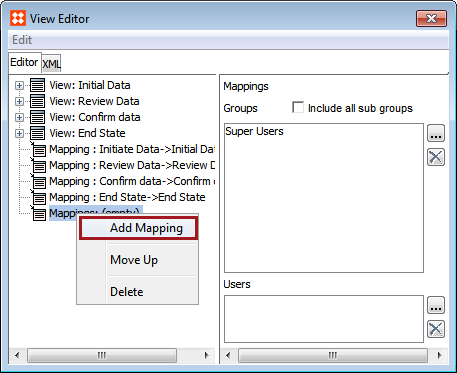
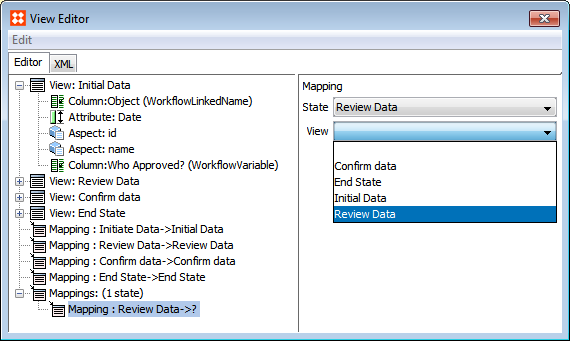
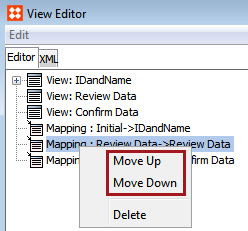
It is important to note that when a state is mapped to a view both inside and outside a mapping group, and a user logs in who is either directly specified on the mapping group, or member of a group that is specified, the mappings will be evaluated from the top down and the first one that matches will be used. In other words, if the same user is in two different groups with different privileges, but both groups are mapped to the same state, then whatever group comes first in the mapping dictates the allowable privileges for that user. Thus, the order of mappings and mapping groups is significant and mappings must be sequenced appropriately.
2018, Stibo Systems – Confidential