Open topic with navigation
Attribute Content Definitions
Attribute content definitions insert attributes for the selected object(s) in the table. Due to table inheritance, the attributes chosen for the table do not actually have to be valid on the object on which the table is built, if the table will be built dynamically using child objects. This would be the case, for example, when building a horizontally read table that uses attribute content definitions in the columns and a product content definition such as 'Subproducts, Family' or 'Subproducts, Classification' in the rows.
Attribute content definitions can be applied for individual attributes (both specification and description) as well as for attribute groups. The available attribute content definitions are:
- Attribute
- Attribute Group Attributes
- Meta Data Attribute
- Legal Attributes
Attribute
The Attribute content definition inserts an attribute for the selected object in the table. The Name and ID of an object is also considered an attribute.
Note: Only individual attributes can be chosen when using the Attribute content definition; entire attribute groups cannot. To select attribute groups, the Attribute Group Attributes definition must be chosen. See the 'Attribute Group Attributes Content Definition' subsection of this topic below for more information.
- Follow the steps in the Adding, Editing, and Overriding Content Definitions topic here to open the Row/Column Type & Content Definition dialog for your row or column.
- In the Column/Row Content definition dropdown list, select Attribute.
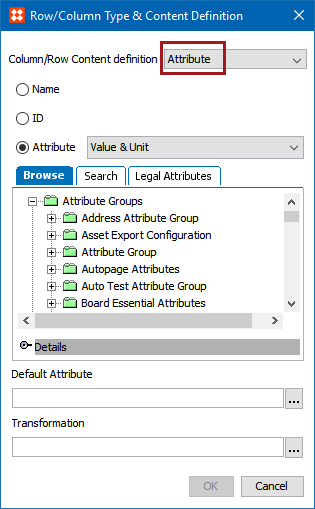
- Select Name to insert the object names in the table. If Name is inserted in a column, and the row extracts a product, then the name of the product is inserted in the table.
- Select ID to insert the object IDs in the table. If ID is applied to a column, and the row extracts a product, then the ID of the product is inserted in the table.
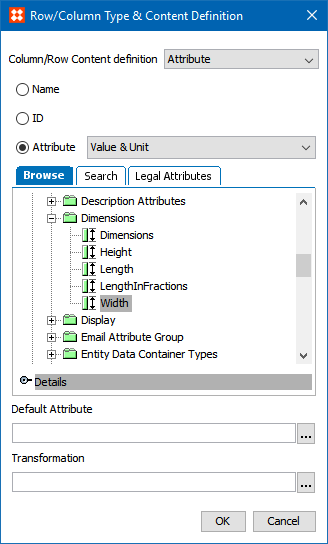
- Select Attribute to insert a specific attribute in the table. Three tabs are available for locating the attribute: Browse, Search, and Legal Attributes.The screenshot below shows the dialog with the Browse tab selected.
Note: In any of these methods, multiple attributes can be selected by pressing Ctrl or Shift while making selections, but a new row will be created in the table for each attribute selected.
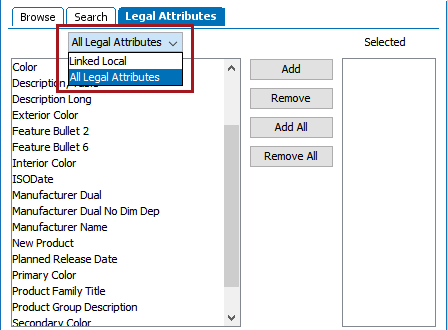
- When Legal Attributes is selected, two options are available from the dropdown:
- Linked Local - Select this to view all attributes that are linked locally to the selected products. In this option you will not see any attributes inherited from a higher level. For more information on locally linked attributes, see the Attribute Links section of the System Setup / Super User Guide documentation here.
- All Legal Attributes - Select this to view all attributes that are valid for the selected product. This includes both inherited attributes and attributes that are linked locally. For more information on attribute validity, see the Validity on Specification Attributes section of the System Setup / Super User Guide documentation here.
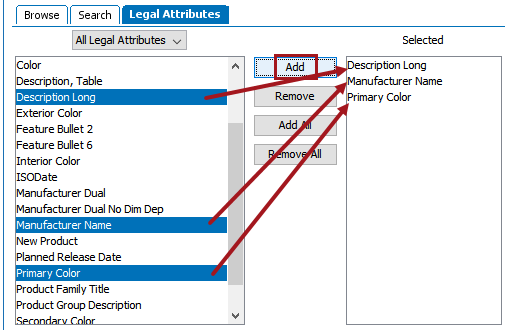
- For the Linked Local and All Legal Attributes options, select the desired attributes in the left window of the dialog and choose Add to add them to the Selected window. Attributes may be multi-selected by holding the Ctrl or Shift key while making selections. To add all of the attributes to Selected, click Add All. To remove a selection of attributes from Selected, choose the relevant attributes, then click Remove. To remove all attributes from Selected, click Remove All.
Resolving the Attribute
The following options are available in the dropdown list for resolving the attribute.
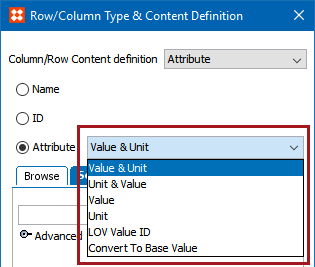
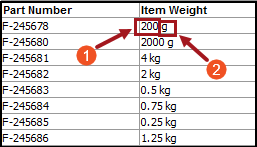
- Value & Unit - Attribute values and units are resolved with values (1, below) resolved before units (2, below).
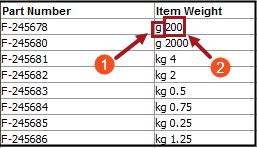
- Unit & Value - Attribute values and units are resolved with units (1, below) resolved before values (2, below).
- Value - Only values are resolved. If the values also have a unit, the unit will not be resolved.
- Unit - Only units are resolved. Attribute values will not be resolved.
- LOV Value ID - The IDs of the LOVs will be resolved.
Example before LOV value ID resolve:
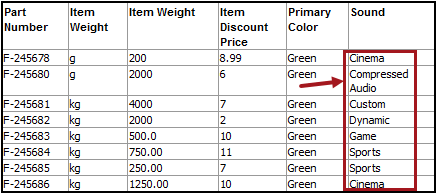
Example after LOV value ID resolve:
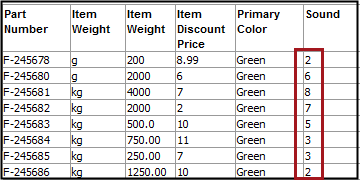
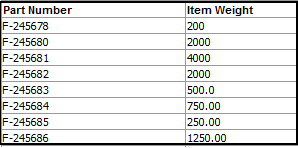
- Convert To Base Value - This will resolve and give the result of the base value. In the below example, two value units—g (gram) and kg (kilogram)—are used in the Item Weight column. When using the Convert to Base Value option, the values will be converted to grams.
Example before Convert to Base Value resolve:
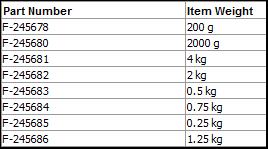
Example after Convert to Base Value resolve:
Default Attribute
Bu using the inheritance feature of STEP, you can link an attribute higher up in the Tree to make it valid at the appropriate points in the hierarchy / on particular object types. Insert the 'Default Value' at the top level and let it inherit down. Then, if you need to change this value on some of the children, you can simply change the value. If later you remove the overridden value, the default value will again populate.
To add a default attribute:
- Click the ellipsis button (
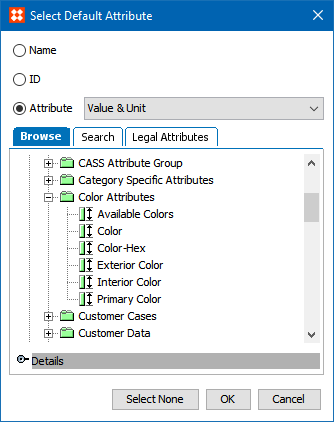
 ) to launch the Select Default Attribute dialog.
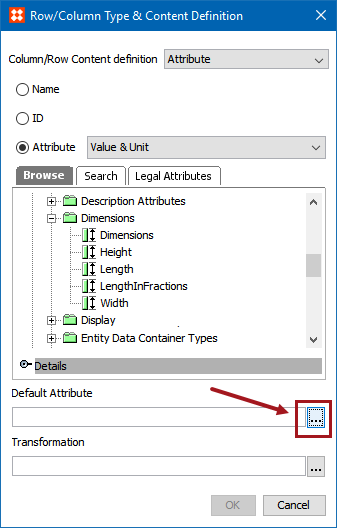
- Locate the default attribute using either the Browse, Search, or Legal Attributes tab, then click OK. If an attribute has previously been chosen and you want to remove it, click Select None.
Transformation
There are numerous reasons to apply a transformation to an attribute in a table. One example would be if the attribute is multivalued. You can then apply a transformation that specifies how to separate the values.
- To apply an attribute transformation to the selected attribute, click the ellipsis button () under Transformation.
- Select the relevant transformation in from the Select Transformation dialog, then click OK.
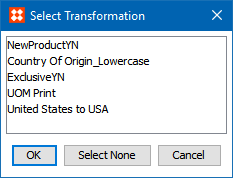
For more information about applying attribute transformations to table content, including initial setup, see the Applying Attribute Transformations to Table Content section of the Tables documentation here.
Legal Attributes Content Definition
The Legal Attributes content definition limits the number of available attributes to attributes that are legal on the selected object. It also enables additional limitation and sorting options.
- In the Column/Row Content definition list, select Legal Attributes.
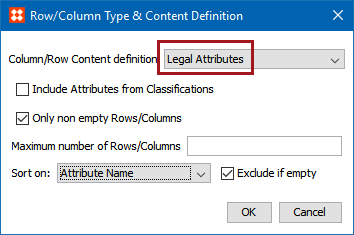
- Select Include Attributes from Classifications to include attributes from classifications.
- Select Only non empty Rows/Columns to resolve only attributes with values.
- In the Maximum number of Rows/Columns field, enter the maximum number of attributes to be resolved.
- From the Sort on list, select the relevant sorting attribute, or leave the default selection of Attribute Name to sort the rows / columns alphabetically by attribute name. The list is composed of all description attributes in the system that have been made valid on the Attribute object type and have a validation base type of Number. The below screenshot shows a representative sample; the attributes will vary from system to system.

- Check Exclude if empty to include only attributes that have a sorting sequence entered. In other words, any attributes (even if they have values entered) without a value in the selected sorting sequence metadata attribute will NOT be displayed. If this box is not selected, the attributes without a value for the sorting sequence attribute will be included at the end in alphabetical order.
- Click OK when configurations are complete.
Attribute Group Attributes Content Definition
The Attribute Group Attributes definition enables you to select an entire group of attributes and add them to a table in one operation. Each attribute will appear in its own column / row. For example, if you assign a column to an attribute group that contains six individual attributes, six columns will be created in the table, unless limiting options are applied; see the steps below for more information.
The Attribute Group Attributes content definition extracts all attributes in a group dynamically. Therefore, if new attributes are added to the attribute group in System Setup after the table has been created, new columns or rows for these attributes will be created dynamically.
- In the Column/Row Content definition list, select Attribute Group Attributes.
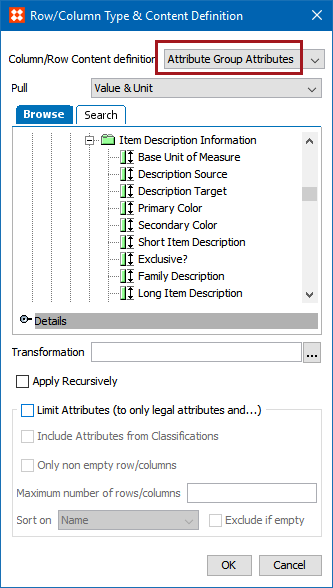
- In the Pull dropdown list, select what content should be displayed for each attribute. Available options are:
- Value & Unit
- Unit & Value
- Value
- Unit
- LOV Value ID
- Convert to Base Value
See the 'Resolving the Attribute' subsection in this topic, above, for explanations of these options.
- Browse or search for the relevant attribute group using the Browse or Search tab.
- To apply an attribute transformation, click the ellipsis button (…) next to the Transformation field and choose the relevant transformation from the Select Transformation dialog.
Only one attribute transformation can be applied to the group. But, a single attribute transformation can contain multiple transformations, so it is possible to apply all of the transformations that you might require.
Note: The attribute transformation applied to the attribute group in this step should not have previously been made valid on any attribute or attribute group, including the group to which it is being applied in the table. If the transformation is valid on any attribute or attribute group, it will not appear in the Select Transformation dialog.
For more information about applying attribute transformations, see the Applying Attribute Transformations to Table Content section of this guide here.
- Check Apply Recursively to apply the transformation.
- Select Limit Attributes (to only Legal attributes and...) so that only attributes that have been made legal for the specific products included in the table will be included as columns / rows in the table. Selecting this also makes more limitations available.
- Select Include Attributes from Classifications to include specification attributes that are inherited from classifications.
- Select Only non empty rows/columns so attributes values will not be included as columns / rows in the table.
- In the Maximum number of rows/columns field, enter the maximum number of rows / columns to include. A number is required; if this left blank, rows / columns will be created in the table for all attributes in the group (unless otherwise limited, e.g., if 'Only non empty row/dolumns is ticked,' empty rows / columns will not be included regardless).
- From the Sort on list, select the relevant sorting attribute, or leave the default selection of Name to sort the rows / columns alphabetically by attribute name. The list is composed of all description attributes in the system that have been made valid on the Attribute object type and have a validation base type of Number. The below screenshot shows a representative sample; the attributes will vary from system to system.
The best practice for this option is to create a special 'table sort' attribute that is exclusively used for sorting rows and/or columns created using the Attribute Group Attributes content definition. For more information, see the Controlling the Attribute Order in 'Attribute Group Attributes' Within Tables section of the Tables documentation here.
- Check Exclude if empty to include only attributes that have a sorting sequence entered. In other words, any attributes (even if they have values entered) without a value in the selected sorting sequence metadata attribute will NOT be displayed. If this box is not selected, the attributes without a value for the sorting sequence attribute will be included at the end in alphabetical order.
- Click OK. The Attribute Group Attributes definition is added.
2018, Stibo Systems – Confidential