Open topic with navigation
Units
A unit is a representation of measurement. In STEP, a unit is an Object that can be associated with attributes or LOVs (List of Values). A measurement stored as an attribute will typically consist of a Value and a unit (or unit of measure). This section describes how to setup and maintain units.
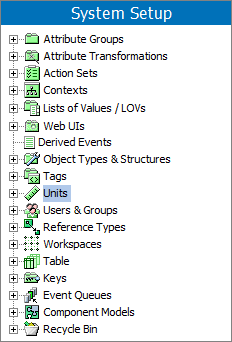
Units are maintained in System Setup > Units.
The separation of the unit and the value of a measurement means:
- The value part can be validated according to numeric criteria.
- The value part can be searched and compared according to operators such as '>' and '<.' (Values for numeric searches with no units are assumed supplied in the default unit for the attribute. For example, if kg is the default unit for the Weight attribute, 'Weight = 1' will match '1 kg' and '1000 g'.)
- It is possible to establish automated conversion between values of different units of measure.
- More presentation options, e.g. in 'specifications tables.'
- Consistency can be enforced in the use of units.
Note: Units can be applied to Attributes and/or LOVs of all validation base types except: Condition, Text, Date, 'ISO Date', 'ISO Date and Time', URL, and Regular Expression.
Example Units:
- Cm
- Meters
- Inches
- Feet
- Yards
- Celsius
- Fahrenheit
Unit Groups
A unit group is a grouping of compatible units. It contains units that apply to the same measurement. It is thus possible to establish rules for conversion between units within the group.
Unit groups are available for attributes and List of Values (LOVs).
Examples of Unit Groups and Units:
|
Temperature
|
- Celsius
- Fahrenheit
- Kelvin
|
|
Dimension
|
- mm
- cm
- meters
- inches
- feet
- yards
|
|
Volume
|
|
For example, if the unit group 'Dimension' has been linked to the attribute RopeLength, then the units mm, cm, meters, inches, feet, and yards can be applied to the value of RopeLength.
Unit Conversions
It is possible to define a conversion rule between two compatible units. Unit conversions are used when e.g. exporting data, and when searching for Attribute Values.
Examples of Unit Conversions:
|
Time (s):
|
|
|
|
|
Second
|
unece.unit.SEC
|
s
|
|
|
Minute
|
unece.unit.MIN
|
min
|
(1 min = 60 s)
|
|
Hour
|
unece.unit.HUR
|
h
|
(1 h = 3600 s)
|
|
Day
|
unece.unit.DAY
|
d
|
(1 d = 86400 s)
|
Note: The system will normally include a pre-defined set of units according to UN/ECE standards. New units may be added if this standard does not provide a suitable unit. However, please inspect the available units carefully before doing so. The pre-defined units are also provided with standard unit conversions
Example of Conversion Factor and Conversion Offset
Unit Conversion: A unit conversion specifies the rules for conversion from one unit to another. One of the units has to be a base unit.
The conversion is specified in terms of a conversion factor and conversion offset.
|
Fahrenheit (base unit)
|
|
|
|
Celsius
|
1.8
|
32.0
|
Conversion rule for temperature Celsius into degrees Fahrenheit:
- Temperature Fahrenheit = (1.8 * Temperature Celsius) + 32
To convert a Celsius temperature of 100 degrees into degrees Fahrenheit:
- Multiply the Celsius temperature reading by 1.8 to get 180.
- Then add 32 to 180 and get 212 degrees Fahrenheit.
Note: A conversion factor and conversion offset must be typed with minimum one decimal. The conversion factor and conversion offset should never be empty. In case one of them is '0' (zero), '0.0' has to be typed.
Maintaining Unit Groups
Creating a Unit Group
Unit groups are created in System Setup> Units.
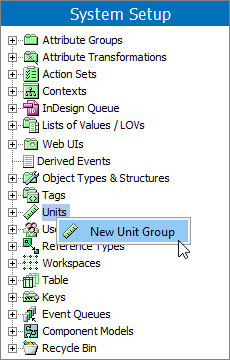
- Go to System Setup > Units > Right click Units > Click New Unit Group.
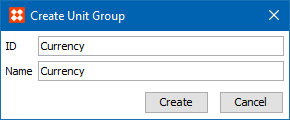
- The Create Unit Group dialog will display. Enter an ID and Name for the new unit, and click the Create button.
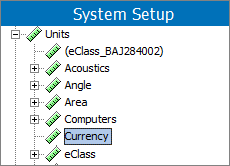
- The newly created unit group will display in System Setup (as shown below).
Creating a Unit
Units are created in System Setup > Units.
- Go to System Setup > Units > Click the relevant Unit Group > Right click the relevant Unit Group > Click New Unit.
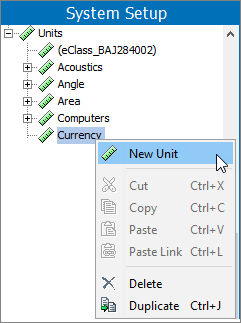
Note: You may have to create a new unit group for a new unit.
- A Create Unit dialog will display.
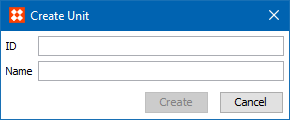
- Enter the ID and Name of the new unit, click the Create button, and the Unit Editor will display the newly created unit within a unit group. The unit can now be selected for attributes.
Setting up a Unit Conversion
Unit conversions are maintained in System Setup > Units.
A Unit conversion is a conversion script ('translation') from one unit to another. Standard units are defined with standard conversions.
- Go to System Setup > Units > Expand the relevant unit group > Click a unit and the Unit Editor will display as shown below.
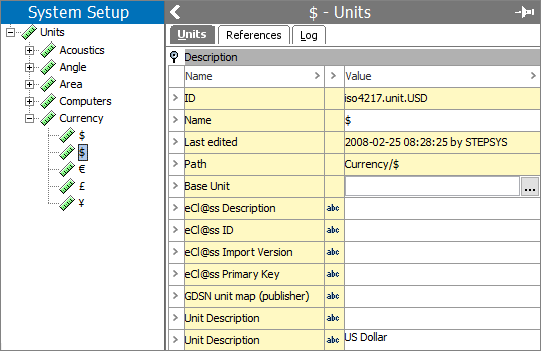
- Click the Units tab.
- In the Base Unit field click the ellipsis button (
 ), and an Edit Conversion Rule dialog displays.
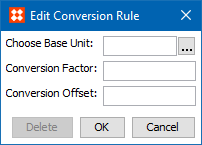
- In the Choose Base Unit field, click the ellipsis button (), and a Please Select a Unit dialog displays.
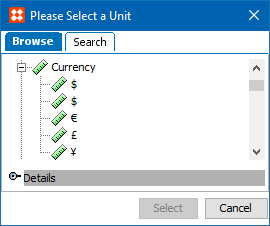
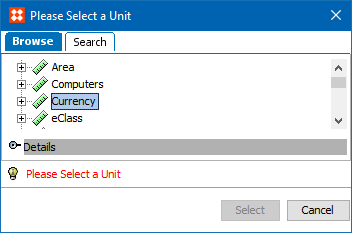
- Use the Browse or Search tabs to find and select the relevant unit, and then click the Select button. When a unit group is selected, then the user will be warned with red text to 'Please Select a Unit' (as shown below).
- In the Conversion Factor field, type the factor. (See the Example of Conversion Factor and Conversion Offset section of this topic.)
- In the Conversion Offset field, type the offset. (See the Example of Conversion Factor and Conversion Offset section of this topic.)
- Click the OK button, and the conversion rule that has been created between two units displays in the Base Unit field.
Note: There can only be one Base Unit for each group. If one unit uses another unit as Base, it cannot be used as Base itself.
Removing a Unit Conversion
Unit conversions are removed in System Setup >Units.
- Go to System Setup > Units > Expand the relevant unit group > Click the relevant Base Unit where an assigned conversion rule has to be removed. An Edit Conversion Rule dialog displays.
- Click the Delete button, and the conversion rule will now be removed from the base unit.
Removing a Unit or Unit Group
Units are deleted in System Setup > Units. A unit group containing a unit cannot be deleted. All units must be removed from the group before the unit group can be deleted. A unit that is used in an attribute cannot be deleted. The unit must be removed from the attribute before the unit can be deleted.
- Go to System Setup > Units > Click the relevant unit or unit group to be deleted > Right click the relevant unit or unit group > Click Delete, and a Delete warning dialog displays.
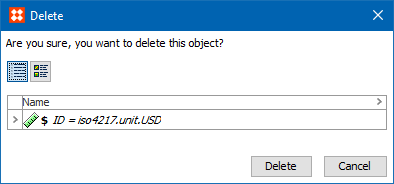
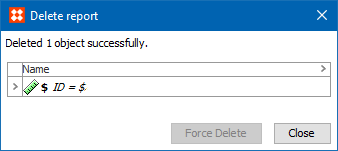
- Click the OK button to delete. The unit or unit group will be deleted, and a Delete report dialog will display. Click the Close button to close the dialog.
2018, Stibo Systems – Confidential