Open topic with navigation
Installing STEP Publisher
This section contains information about installing the STEP Publisher 'STEP’n’design' plug-in(s) on your local computer and logging on to STEP from within InDesign. This topic assumes the following:
- You have Adobe InDesign installed on your computer
- You have been assigned a STEP user name and password
- A publication containing at least one publication version has already been created in your STEP system. A publication version is required to define the workspace and context in which you will be working. For more information about creating a publication version, see the Publication Versions topic in the Publication Hierarchy section of this guide here.
Installing the STEP’n’design Plug-in
To log onto STEP from within InDesign, you must first install the STEP’n’design plug-in that is associated with the STEP system that you are trying to access.
Note: It is strongly recommended that InDesign is closed while you install the plug-in. If InDesign is open when you install the plug-in, you will need to close and reopen InDesign before the plug-in can be registered.
Once the STEP'n'design plug-in is successfully installed, you will see a STEP menu option across the top of the InDesign interface. If you do not see this option, then the plug-in installation was unsuccessful.

The following instructions are written for the Windows platform, but the overall process of downloading and installing the plug-in is equivalent for Mac users.
- In your browser, navigate to the WebStart page for your STEP system and locate the STEP'n'design icon at the bottom of the screen.
- Click on the 'STEP'n'Design' icon to display the supported plug-ins for your STEP system. The selection of plug-ins may be different depending on the release version and/or patch level of your system.

- Select the plug-in that matches the version and platform of InDesign that you are running. For Windows users, the plug-in is contained within a .ZIP file. For Mac users, the plug-in is contained within a .dmg file. The file should download automatically, though the file may download differently depending on your browser settings. The following screenshot shows how the downloaded .ZIP file appears at the bottom of a browser window in Chrome.

- Locate the .ZIP file in its download location (such as your Downloads folder or other default download location), then move it into your Adobe InDesign Plug-Ins folder. For Windows platforms, the file path format is as follows. ('Adobe InDesign CC 2015' will be replaced with the specific version of InDesign that you are using.)
C:\Program Files\Adobe\Adobe InDesign CC 2015\Plug-Ins
- Unzip the file directly into the Plug-Ins folder. Optionally, you can create your own folder within the Plug-Ins folder to store the STEP'n'design plug-in (for example, 'STEPplugins'), but this is not required.
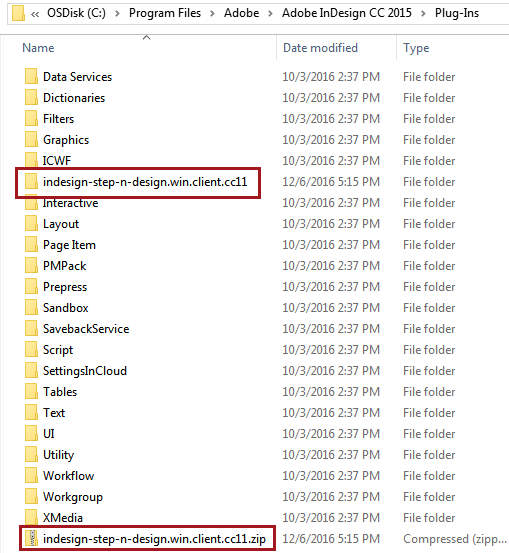
- Once unzipped, your Plug-Ins folder should resemble the following. The ZIP file may be deleted at this point, though it is not required to do so.
- The contents of the unzipped file will look as follows. Nothing should be deleted from this folder once unzipped.
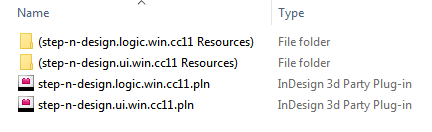
For Mac systems, only the two plug-in files will be available; the resources folders will not be present.
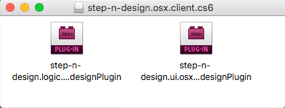
- After installing the plug-in in the Plug-Ins folder, open your InDesign client to complete the installation process and log onto STEP.
Logging on to STEP from InDesign
After installing the STEP'n'design plug-in and opening InDesign, you will have the ability to connect to STEP from InDesign.
- When InDesign opens, a Connect to DB dialog box displays.

- In the Username field, type your user name.
- In the Password field, type your password.
- In the Server field, type the name of the server (STEP database) you want to connect to.
- If you need to connect to STEP through a proxy server, check Use Proxy. Once the Use Proxy box is checked, the fields that are required to connect to the proxy server are displayed (Server, Port, Username, and Password).

Note: If using http://, by default the system will connect using a port number. If SSL is enabled and you are using https://, then the system will connect using a different port number for the same server. For more information, please contact Stibo Systems support staff.
- Click Logon.
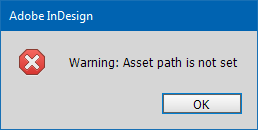
- For first-time logins, a warning dialog displays that says Warning: Asset path is not set. The error message will display every time you log in until an asset path is specified in the STEP > Preferences menu. Click OK to continue.
For information on setting an asset path and disabling this warning, see the Linking to an Asset Location topic here.
- After clicking OK, the Change Version dialog displays. A version must be selected in order to define the workspace and context to be used.
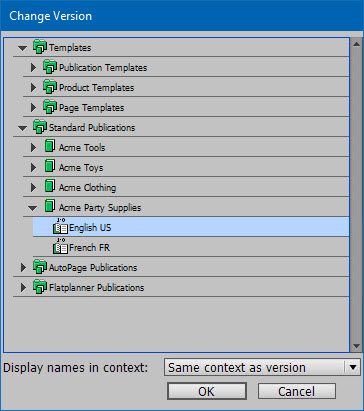
- Navigate to the relevant publication, then click the black arrow to the left of the publication icon to display the available versions for the publication.
- Select a version, then click OK.
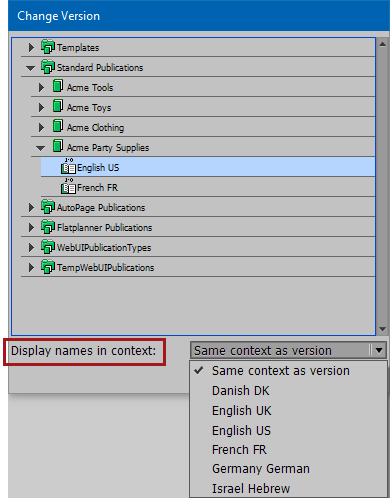
- To use a different display language than that of your publication version for object names and attribute names in the STEP palettes, choose a context from the Display names in context option before clicking OK. This option allows you to choose a different display context so you can, for example, view all product and attribute names in English if you are working with a French publication. For more information on this option, see the Description of the InDesign Interface topic here.
Reinstalling the STEP'n'design Plug-in After System Patches and Upgrades
The STEP'n'design plug-in must be reinstalled every time your STEP system is upgraded and/or every time a patch is applied to your system that impacts the STEP'n'design component. In these instances, the STEP'n'design plug-in in your Plug-Ins folder must be deleted and a brand-new plug-in must be redownloaded and installed from the WebStart page of your STEP system.
If the build level of your STEP'n'design plug-in does not match the build level of your STEP system, you will receive a warning such as the below after you connect to your STEP server from InDesign:
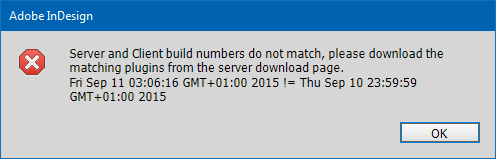
Though you will still be connected to STEP after clicking 'OK,' it is not recommended to work with a mismatched plug-in. For example, there might have been bugs in the system that were fixed with a patch. If your InDesign client is running an older build of the plug-in that was released before the patch, your system may not function properly.
2018, Stibo Systems – Confidential