
Regardless of the particular object type or hierarchy that you are working with, the general principles of creating objects in the workbench are the same, and are described below. Tree icons are set during object type creation according to preference and may be different in your system.
Note: All actions in STEP are controlled via privileges. Some users may not have access to create or delete objects, or may only have options to edit specific object types, hierarchies, or attribute values. The information below focuses strictly on the means for carrying out the various actions, and assumes that all required privileges are available to do so. More information on privileges is available in the Privilege Rules topic in the System Setup / Super User documentation here.
Objects can be manually created in the Tree via right-clicking or using the Maintain menu.
To create a new object via right-click:
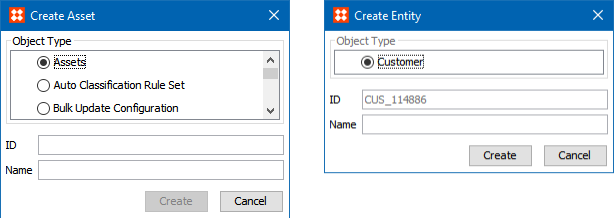
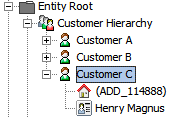
To create a new object via the Maintain menu:
From the menu in the upper left corner of the workbench, select Maintain > Insert and choose the appropriate option. Note that it is required to use this method when adding a new root node to Tree. Additionally, note that the available options differ based on the active selection when the menu is accessed. For example, the below shows the available insert options when a classification has been selected, whereas the publication-related options would be enabled if a publication object had been selected instead.
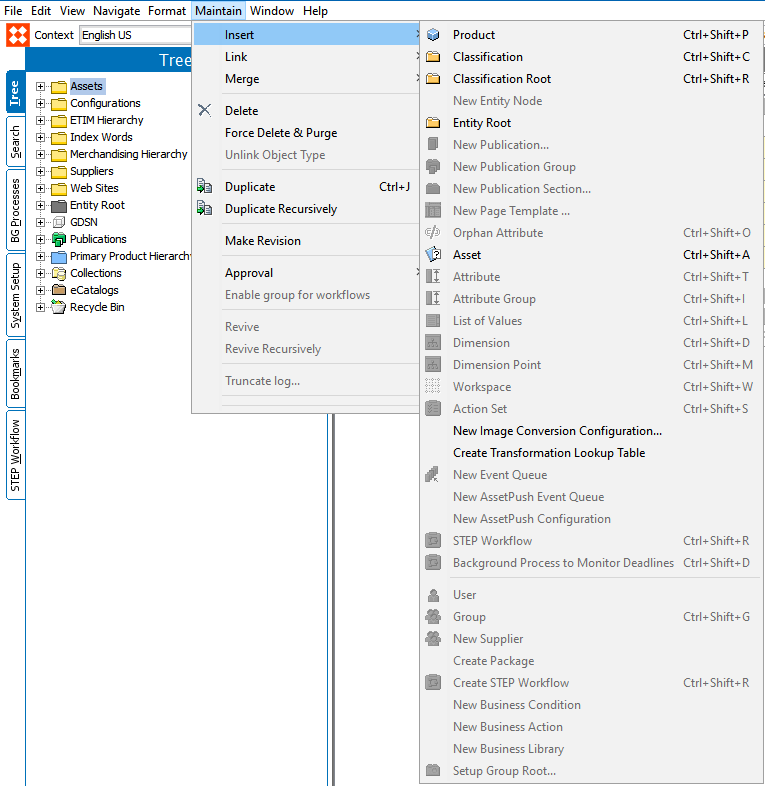
Many of the available options will only be enabled when an appropriate selection has been made on the System Setup tab. For example, an attribute group must be selected for the Attribute or Attribute Group options to be enabled.
2018, Stibo Systems – Confidential