This topic describes how to approve an object in the workbench. When an object is approved, it moves to the Approved workspace.
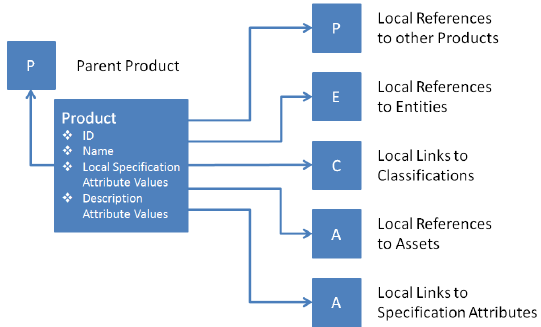
The concept of data ownership is very important in relation to approvals. Thus, for an object to be fully approved, all data that the object owns must be approved. Also, when data changes, it is the object that owns it that is modified and potentially becomes 'unapproved.'
The figure below shows data owned by a Product object (the largest box).
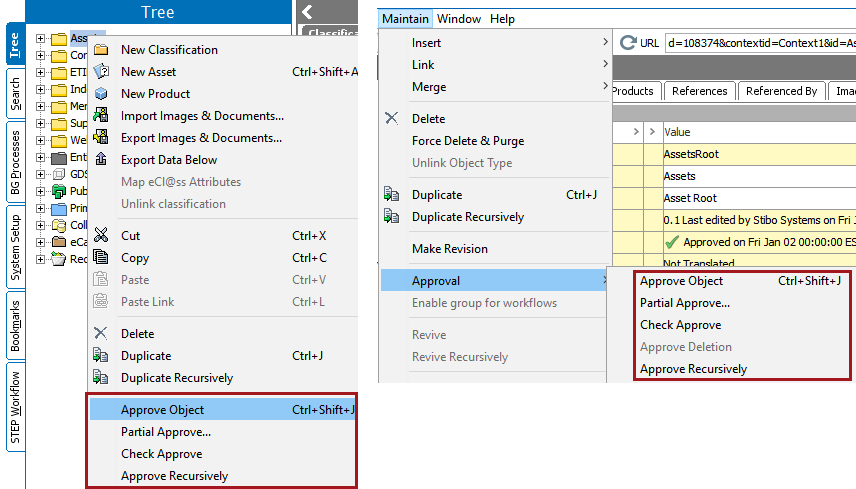
Approving objects is done by right-clicking on the object and selecting one of the available approval options, or using the options on the Maintain menu.
Note: If 'approval' is a task within a workflow, then objects can alternately be approved from the task view. See Working with Tasks in Workflows in the Workflows documentation here.
Approve Objects is available when the Main workspace is selected.
Approving objects is available for:
The status of an object in the various workspaces can be viewed in the Status tab in the Workspaces field of the relevant editor.
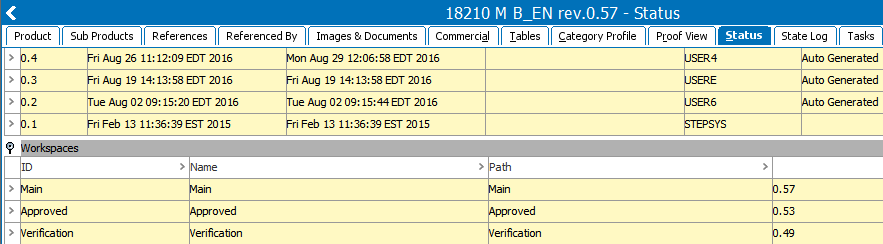
Once object editing is complete, and the object is ready for publishing, approving the object copies the current object values into the Approved workspace.
Conditions to approve an object
It is possible to approve an object that has a Reference / Link to another object that does not exist in the Approved Workspace. What will happen is that the object will become “partially approved” meaning that the object and all data that can be approved will be approved. The Reference /Link will however not be approved, and if the Target for the Reference / Link is later approved, the Source needs to be approved again for the Reference Link to be reflected in the Approved Workspace.
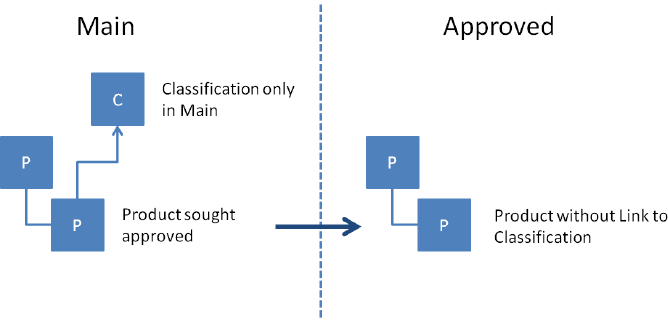
Partial approvals can also be performed deliberately - both manually and programmatically. Specific Attributes, References, Links, and the object Name can be selected for approval. The Attributes, References, Links and Names are sometimes referred to as “part objects”. These part objects can of course not exist in the Approved Workspace without the object to which they belong. Thus, when the first part object is approved, the object will be present in the Approved Workspace.
Usage
Partial approval of selected elements of the object is particularly helpful in situations where certain elements of the object need to be available for usage (in the Approved workspace) before the rest of the object or its elements can be approved.
For example, consider that there are two users who perform changes for a product and then approve the product. Now if the product is completely approved, then it difficult to identify which user performed what changes. In this case, using the Partial Approve will allow the user to approve the changes performed only by him/her and leave the rest of the changes to be approved the other user who did those changes.
Approve partially
This will bring up the Partial Approve dialog box:
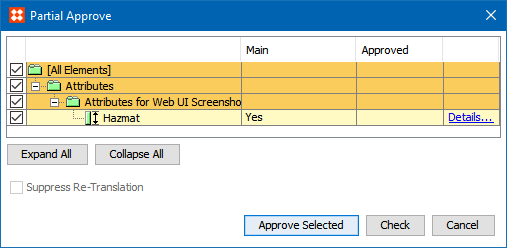
Partial Approve Compare View Dialog
The dialog shows which elements of the selected object have been changed since the last approval of the object.
Besides Name, Parent Object, and Default DTP Template, the type of elements listed are attributes, references, and tables. For each element the values in Main and Approved Workspaces are listed.
For detailed information about the value for an element, click the Details…link. This displays a detailed view of the element showing the values for the Main and Approved workspace:
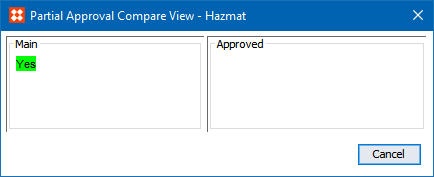
In the above example, the value for the attribute Brand Name has changed. Values only present in Main workspace are marked with a green background color. Values only present in Approve workspace are marked with a red background color.
Note: The detailed view differs slightly depending on the element type selected.
All elements are selected as default. To deselect all elements, click the checkbox next to the All Elements node.
You can select the element(s) you wish to approve by clicking the check boxes next to each element. You can also select a whole element group, i.e., Attributes by clicking the checkbox next to the element group.
To expand an element group click the + sign next to the element group. To collapse the element group, click the - sign next to the element group. To expand all elements in the dialog, click the Expand All button. To collapse all elements in the dialog, click the Collapse All button. To check if the selected elements can be successfully approved, click the Check button. An Approve report will subsequently summarize the result of the check.
Clicking the Approve Selected button will approve the selected elements of the object and the Approve status of the object will change accordingly. Normal Privilege rules apply to Partial Approve. For more information, see Action Sets here.
Normally, an approval of a translated Product in a source language will cause the Translation status of the Product to be set to Re-translation needed. In the Partial Approval dialog this behavior can be suppressed by clicking the Suppress Re-translation checkbox. All existing translation relations with status 'Up to Date' will remain in status 'Up to Date'. This is especially used in cases where only minor changes are approved and no re-translation is needed. For more information, see the Translations documentation here.
Note: To get a list of language variations of the object that potentially will be affected by the approval, place the cursor on the Suppress Re-translation label.
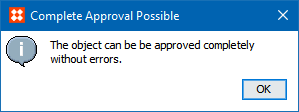
If you are not sure whether or not you are allowed to completely approve an Object, you can run a Check Approve.
The Editor shows the Object contents in Main and Approved Workspaces.
Note: If you have changed attribute values for which you do not have the Approve privileges the Approval options are unavailable.
For example, consider a Product that has multiple attributes linked and has mandatory values and references which needs to be approved after the changes have been done. In this case, scrolling down or switching between tabs to check if the values are entered is time consuming. In this case, Check Approve will help the user to know if the product can be approved completely with detailed report.
Approving Recursively is done from the Main menu by clicking Approve Recursively. Similarly, the Approve Recursively can be done by right clicking on the Product as well.
Approving Recursively is available when a Main Workspace is selected.
Approving Recursively is available for:
The status of an Object in the various Workspaces can be viewed in the History tab in the Workspaces field of the relevant Editor.
Approving Objects recursively means searching for unapproved Objects linked to (or below) a selected hierarchy node, and approving these Objects (copying them to the Approved Workspace).
This is useful and time saving e.g., when a lot of images have been imported and checked and should all be approved.
To recursively approve in the 'Main' Workspace:
A dialog box appears, listing the Name of the selected hierarchy node, contained Objects and status of analysis.
Note: Approve Recursively automatically performs a search for unapproved Objects. You can click the Skip Analysis button if this is not needed.
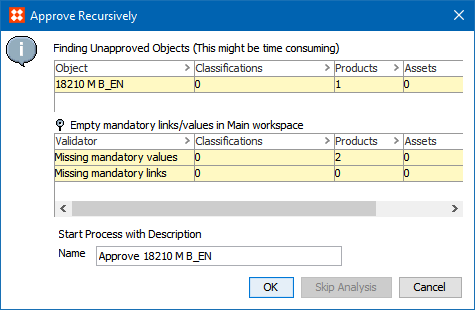
A dialog box appears displaying information on the process.
The Process view will open showing details of the process and a report of approved Objects.
The hierarchy will now have Approved status indicating that it is copied in the Approved Workspace.
Depending on your Approve Privileges, you might get different types of warnings, when clicking Approve Objector Partial Approve.
If you have modified attribute values for which you have Approve Privileges, and at the same time you have modified attribute values for which you do not have Approve Privileges, an Unable to approve entire object dialog appears.
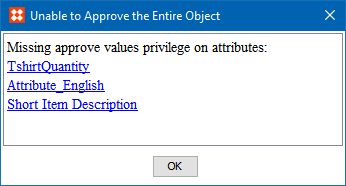
If you have modified attributes values, and you do not have Approve Privileges, then the option 'Approve' is disabled in the right-click menu. If you have modified attributes values, for which you do not have Approve Privileges, a Missing privileges dialog appears.
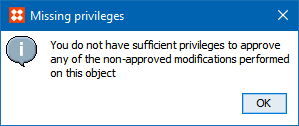
For more information about user privileges, see the User Actions topic in the System Setup / Super User Guide documentation here.
If you have modified attribute values for which you have Approve Privileges, and at the same time you have modified attribute values for which you do not have Approve Privileges, a Partial Approve dialog box appears.
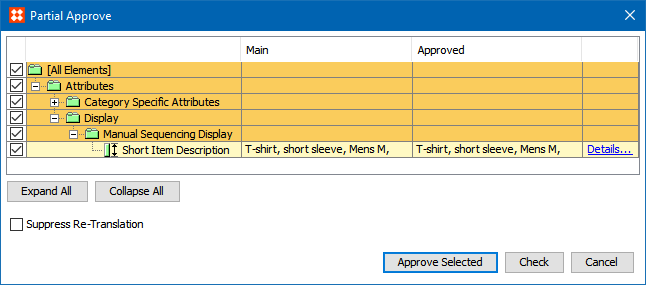
In the example above, the user will be able to approve all attribute values in Attribute Group Manual Sequence and Category Specific Attributes. All attributes users do not have permissions for will not be displayed.
In the Background Process tab, open Execution Report.
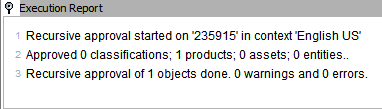
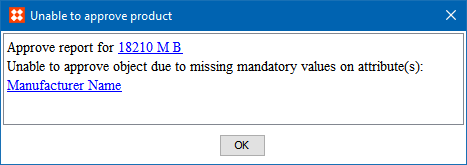
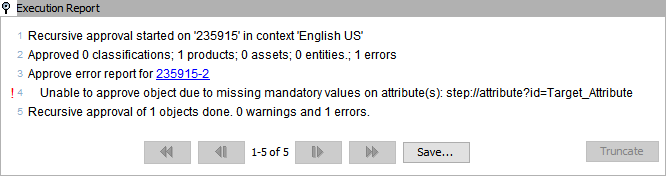
If there are any errors, the report will provide details about the error. If the process or approval was successful, then the report will show 0 error and 0 warning.
The following example shows a missing mandatory attribute value, which caused the object to not approve.
Approve Recursively Dialog
There are multiple options which are explained below:
For example, consider there are hundreds of products in a particular parent hierarchy. Selecting each product , one at a time, and then approving them would be time consuming. In these cases, approving recursively will help a user to approve all the products at one time.
Context Dependent Approvals
When an object is approved, this always happens in a specific context, and the approval will only be for data visible in this context.
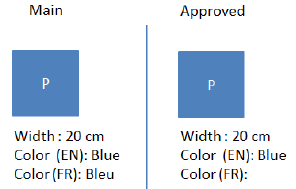
To illustrate this, see the figure below where an object 'P' has values for two different attributes, Color and Width in the Main Workspace. While Width is not dimension dependent, Color is, and has different values in two contexts - 'Blue' in the English context and 'Bleu' in the French context. If the object is approved in the English context, only the data visible will be reflected in the Approved workspace. Because of this separated approval, the object must also be approved in the French context to have it become completely approved (green checkmark in the approval status field). Until this approval across contexts is done, the object will in the English context have the status 'Approved in Current Context on [date + time]' (yellow checkmark), and in the French context have the status of 'Last Approved on [date + time]' (red X).
2018, Stibo Systems – Confidential