Open topic with navigation
Approval Symbols
The Approved symbols are used to indicate the status of a Product, Classification, Image or Document. The Approved symbol is viewed by clicking either a Product, Classification, Image or Document.
If you need to approve data, this is typically done in:
- Normal viewing mode - either approve a single object, or you can approve recursively.
- Approved mode - approve all Objects, or you can partial approve Objects (choose specific Values and References to be approved).
An Object can contain revised data or not revised data.
Not revised Objects are:
- Externally maintained Attributes
- Commercial Data
- Entities, which are not set up to be Workspace revisable
Revised data are:
- Internally maintained Attributes (e.g. Description Attributes and Specification Attributes)
- References between Objects:
- Product to Image / Document Reference
- Product to Product Reference
- Product to Classification
- Product to Entity
- Classification to Classification
- Classification to Entity
- Image / Document to Entity
- Image / Document to Classification
- Entity to Entity
- Entity to Product
- Entity to Image / Document
- Entity to Classification
- Object names (e.g. Product names, Images & Documents names and Classification names)
- STEP PIM Tables
- Linked Attributes to Product
Note: Only the status of revised data are reflected in the Approved field (see the table below for more information).
The Approved field contains one of three different symbols indicating the Approved status of the current Object.
|

|
Unapproved
|
Revised data on Product, Classification or Images & Documents in current context are not approved.
Examples can be:
- An Object has never been approved.
- Revised data (e.g. Attribute Values, References, Object names or tables) have been changed in current context without being approved.
Examples of changes to revised data could be:
- A change in Object name.
- A changed value on an internally maintained Attribute.
- If an Attribute has been linked to a Product.
- If Reference links to Objects have been made.
Note: When linking a Product to Classification and in case the Classification Object Type owns the Product links, then the Product does not get the Unapproved symbol. For more information, see Online Help - Object Types & Structures.
Privileges can have an influence on the Approved symbols. See 'Users with Different Privileges' below.
|
|

|
Approved
|
Revised data on Product, Classification or Images & Documents are approved in all contexts.
Note: No data in current context or any contexts are to be approved.
|
|

|
Partial Approved
|
The yellow Partial Approved symbol can appear if:
Revised data have been approved in current context but a Reference, Object name, or Value need also to be approved for the Object to get approved in all contexts.
If you change view to another context, then you typically see that:
- A dimension dependent Reference is not approved.
- A dimension dependent Value is not approved.
- A dimension dependent Object name is not approved.
Note: When all the dimension dependent References, Attribute values and Object names have been approved, then the symbol will change from yellow Partial Approved symbol to a green Approved symbol.
Privileges can have an influence on the Approved symbols. See 'Users with Different Privileges' below.
|
Different Approval Status Messages in the STEP Application
- Unapproved
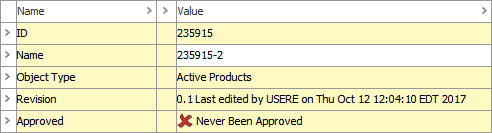
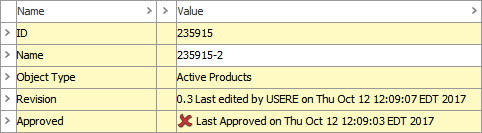
In these examples, objects are shown as an unapproved status in 2 different situations.
When an object is newly created and never been approved as shown below:
When an object attribute / reference is modified, the status will show as “Last Approved on” along with the date and time as shown below:
- Approved
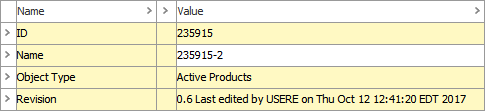
- Partially approved
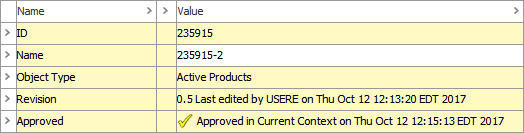
Users with Different Privileges
If two users have different View privileges, then they might get two different Approved symbols when looking at an Approved Object.
Example with Attribute can be:
- User 1 has the privileges to see all Attributes
- User 2 has limited privileges and can only see some of the Attributes
If changes are made to the Attributes that only User 1 can see, then User 1 gets the Unapproved symbol, while User 2 only gets the yellow Partial Approved symbol as no changes has been made to the Objects he can see.
If changes are made to Attributes that both User 1 and User 2 have the privileges to see, then both users get the Unapproved symbol.
2018, Stibo Systems – Confidential