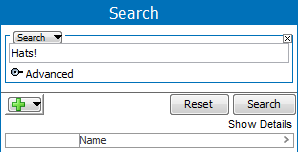
This section describes the different types of search criteria available in the STEP system as well as some basic search functions.
Important: Calculated attribute values are generated on-the-fly. Searching for the value of a calculated attribute is not allowed since generating all possible calculations would cause substantial performance issues.
The standard search criteria named 'Search' allows you to find objects in STEP based on Name, ID, Attributes and their values.
A text string entered in the search field will make STEP search for object Names, IDs, or Attribute values where the text occurs.
If you simply enter a text string and click the Search button, the search will find objects with an ID, and / or a Name and / or Attribute and / or their values matching the entered string. Below you can see how you can further refine your standard searches.
Note: By default, standard searches are case insensitive for Name and Attribute value searches and case sensitive for ID searches. You can make Name and Attribute value searches case sensitive using the Advanced option "Match Case on Names and Values." For more information on the options available under advanced, see the Search: Advanced Options topic here.
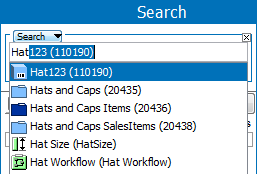
Once you start typing in the standard search criteria text field, the system will suggest possible entries matching the typed in text (case insensitive) and display them on a drop-down menu as shown below.
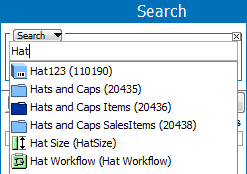
In the typeahead menu, objects are displayed with their relevant icon, then Name and ID in brackets, whereas Attribute values are shown as text.
Items can be selected from the menu using either the mouse or the keyboard 'arrow up' and 'arrow down' keys. A maximum of 100 items will be displayed.
Note: Using system properties it is possible for a system administrator to control the behavior of the typeahead. E.g., after how many entered characters should suggestions be shown etc.
You can limit standard searches to match on ID only by entering "ID = " at the beginning of the text field as shown below.
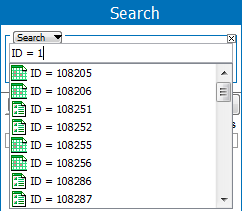
Note: "id" and "Id" will work as well and spaces on each side of the equals sign are optional.
You can limit standard searches to match only on Name by entering "Name = " at the beginning of the text field as shown below.
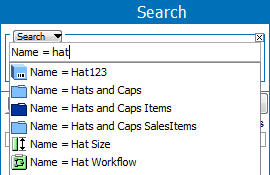
Note: E.g., "name" and "NAME" will work as well and spaces on each side of the equals sign are optional.
Using a standard search, you can limit the result to only match on values for specific Attributes.
Important: You cannot perform a search on calculated attribute values.
There are at least three ways to construct an Attribute search query:
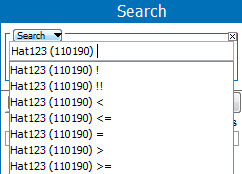
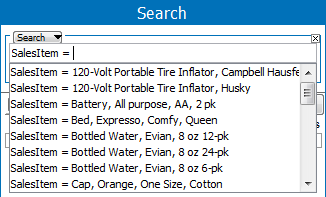
Note: As shown on the screenshot above, if you have the required privileges you will get typeahead suggestions on existing values after having specified a search operator.
The following search operators that can be used when performing Attribute value and Reference Metadata Attribute value searches.
< - Less than operator. Only works for number validated Attributes (Validation Base Type = number, integer or fraction)
<= - Less than or equal to operator. Only works for number validated Attributes (Validation Base Type = number, integer or fraction)
= - Equal to operator.
> - Greater than operator. Only works for number validated Attributes (Validation Base Type = number, integer or fraction)
>= - Greater than or equal to operator. Only works for number validated Attributes (Validation Base Type = number, integer or fraction)
! - Operator used for finding objects where the specified Attribute does not have values in current Context. Note that the search does not check whether the Attribute is valid for a given object. Also, if the specified attribute has an inherited value (not a local value), then the object will be listed in the results set even though the value field is not empty.
!! - Operator used for finding objects where the specified Attribute does not have local values in any Context. Note that the search does not check whether the Attribute is valid for a given object. Also, if the specified attribute has an inherited value (not a local value), then the object will be listed in the results set even though the value field is not empty.
In searches you can use two different wildcards for performing searches on partial text strings. The wildcards are asterisk (*) and question mark (?).
The difference between the two is that while the asterisk (*) represents any number of characters in a string, the question mark represents exactly one character.
The wildcards '?' (single character) and '*' (multiple characters) can be used anywhere in the text string.
Note: Searches starting with a wildcard as shown above will be significantly slower than other searches and generally should be avoided.
Values for numeric searches with no units are assumed supplied in the default unit for the attribute. For example, if kg is the default unit for the Weight attribute, 'Weight = 1' will match '1 kg' and '1000 g'. If no default unit is configured, the search 'Weight = 1' will only match the value '1' with no unit.
If a user has an attribute with the validation type of 'ISO Date', where the date populated in the field is in the YYYY-MM-DD format, a user can search the populated attribute on objects using the following key words in the Search tab: now, today, tomorrow, yesterday.
While it does not matter if the 'ISO Date' is set to 'Strict Validation' or not, it does matter that the date is written in the YYYY-MM-DD format. Any other format, including using slashes ' / ' instead of dashes '-' will not work since searches work by matching only values conforming to the ISO standard (with dashes). For this reason, it is recommended that 'Strict Validation' be set to Yes. Otherwise, the stored values are not guaranteed to be searchable.
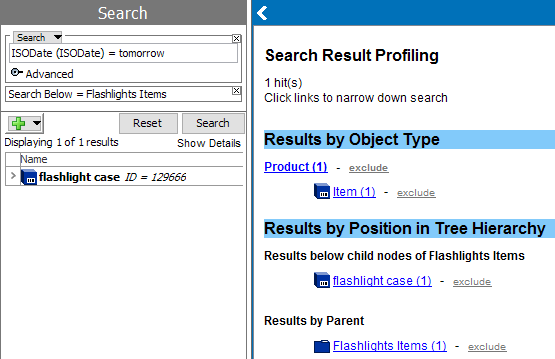
In the example below, a user used this in a search to look for an object that has a particular date. In the case below, the user typed in the name of the date attribute 'ISO Date', and then used an 'attribute value search operation' followed by the key work of "tomorrow." They then narrowed their search even further to just under one particular node, giving them the desired results.
You can combine different search criteria to create advanced searches. Except for cases where one or more OR operators are used, the sequence of the criteria does not matter.
The search shown below:
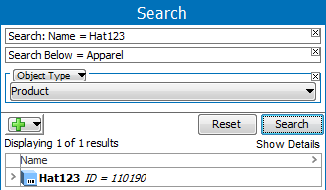
...will generate the same results as:
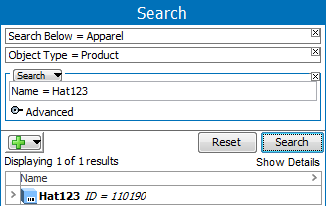
When not using OR Operators or Exclude Search Criteria in the search, all criteria will be combined with an implicit AND operator.
By clicking the button with the green plus icon, a query can be constructed that combines several criteria. The criteria will by default be "AND", meaning that all criteria will be met for the found results.
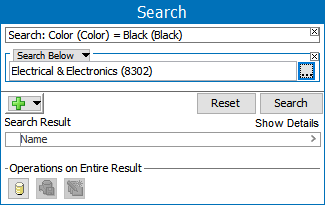
As an example, the search shown below will find objects that have the value 'Black' for the 'Color' Attribute AND are present below an 'Audio Visual Equipment' hierarchy node. The order of criteria does not have significance.
As for how to construct your search using Exclude Search Criteria and OR Operators, please see below.
It is possible to negate all the different types of search criteria using the Exclude Search Criteria functionality.
You can add Exclude Search Criteria to your search either by clicking and holding the Add Criteria / Operator button. Then select Add Exclude from the menu that displays as shown below. Criteria can also be excluded by clicking an 'exclude' link on the Search Result Profiling panel.
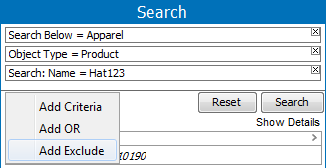
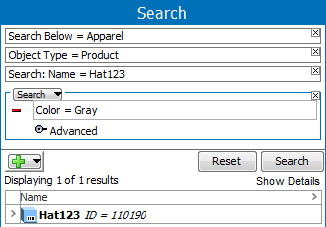
Exclude Search Criteria appear with a red minus icon on the left side of the criteria panel as shown below.
As long as no OR Operators are used, it does not matter where in the sequence of criteria Exclude Search Criteria are placed.
Taking the example above, the search will find objects where all the "positive" criteria are met, minus objects where the Attribute "Color" is "Gray."
Note: Use as many Exclude Search Criteria in your search as needed. Keep in mind that the Exclude Criteria are subtracted from the "positive" search result, so a search containing only an Exclude Search Criteria without an Include criteria as point of departure will not generate any results.
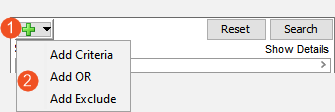
You can add an OR Operator to your search by clicking and holding the Add Criteria / Operator button. Then select Add Or from the menu that displays as shown below.
When using OR Operators your search will be divided in to completely separate parts containing one or more criteria. Each part is in effect executed separately and the results then added before presenting the final result.
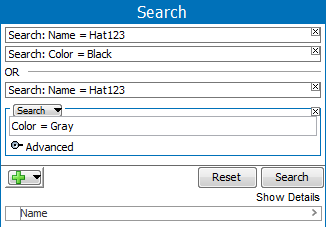
As it is not possible to work with parenthesis, when working with ORs it is often necessary to configure the same criterion on both sides of an OR separator like shown below.
As an example, the search shown below will return all objects where the Name starts with the text 'Hat123' and the Color is 'Black' plus all objects where the Name starts with the text 'Hat123' and the Color is 'Gray.'
2018, Stibo Systems – Confidential