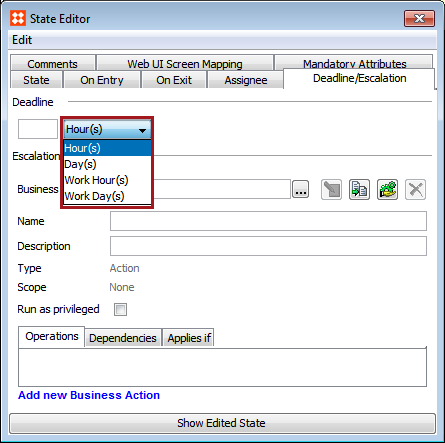
In the Workflow Designer a user can define a deadline for a state via the State Editor Deadline/Escalation tab. This is useful for a number of reasons, one of which might be to notify a supervisor, or task manager, if a deadline is not met for a particular task in a particular state. This may be important to know because if the task is late, it could impact many steps that come after it.
The deadline is set relative to the time an object enters the state. For example, if it is set to '5 Hour(s)' an object entering the state at 6 a.m. will get the deadline set to 11 a.m. The available time periods are: Hour(s), Day(s), Work Hour(s), and Work Day(s). Work hours are hard-coded to be from 8 a.m. to 4 p.m., with work days being Monday to Friday (bank holidays and the like are not taken into consideration).
On the same tab it is possible to define or select a business action that should be executed if the deadline is met and the background process for monitoring deadlines is run.
This background process, which can be scheduled to run with specific intervals, can be started from any Setup Group in the System Setup that can hold workflow objects.
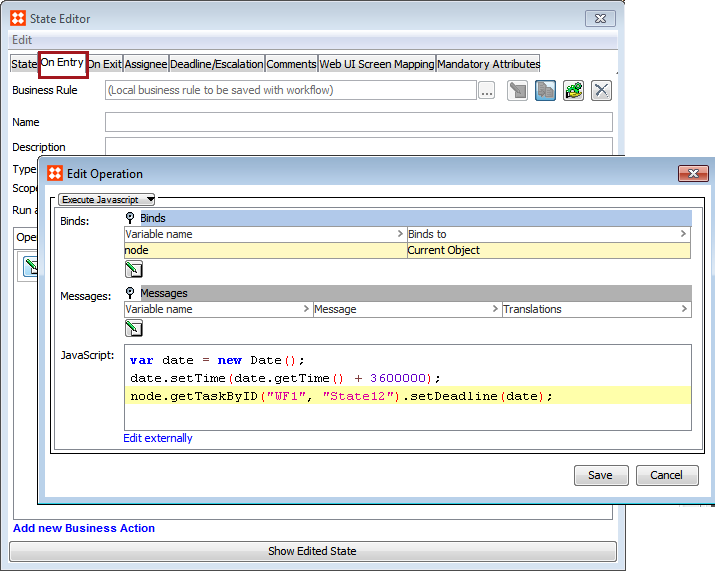
As described in the Views and Mappings for Workflows section of the Workflows documentation here. Deadlines can be viewed and manipulated in views via the 'WorkflowDeadline' Component. In the public API, methods for getting and setting deadlines are available via the Task interface. Below is an example of how a deadline can be set to an hour from now in a business action, in an On Entry tab.
var date = new Date();
date.setTime(date.getTime() + 3600000);
node.getTaskByID("Workflow ID", "State ID").setDeadline(date);
As the deadline is set via the Task interface, the above will only work from the state with ID 'State ID'. An example can be seen in the image below:
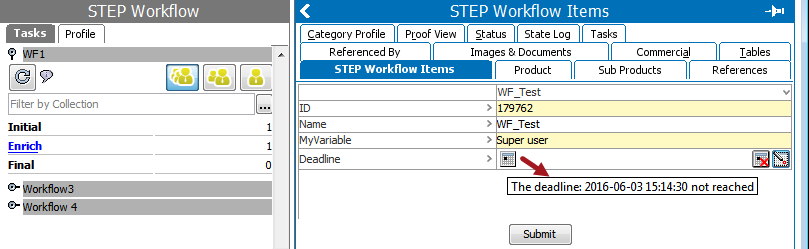
When viewed in STEP Workflow, if a deadline is not yet met it looks like the image below:
If a user wishes to remove a deadline from a business rule, this can be done by setting the deadline to null, as shown below.
node.getTaskByID("Workflow ID", "State ID").setDeadline(null);
Deadlines can also be set by editing the workbench views and mapping for a given workflow. To do so:
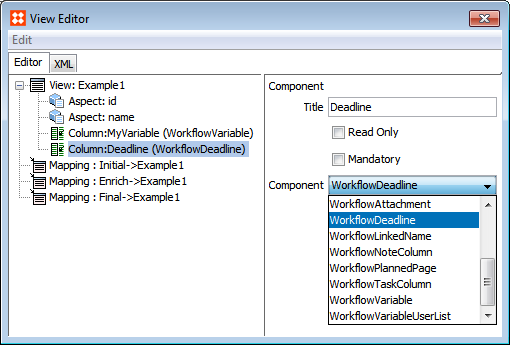
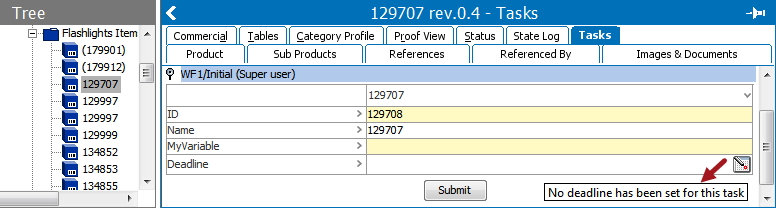
Once selected, the deadline can be set manually in the object itself via the object's Task tab, or in the STEP Workflows navigator tab.
Note: State Editor Deadline/Escalation tab allows a user to set the deadline for all the products in a particular state within the workflow, but the deadline set using workbench views and mappings will apply for a particular product in a particular state in a workflow.
2018, Stibo Systems