The Merge Rows and Columns transformation enables you to merge two rows or two columns into one.
When you merge columns or row,s the values of both rows or columns are retained. After the merge, it will look as if two attributes are placed in the same column.
The instructions in this topic assume that you have already added the transformation to your table by following the instructions in the Add a Transformation to a Table or Table Type subsection of the Table Transformations topic here.
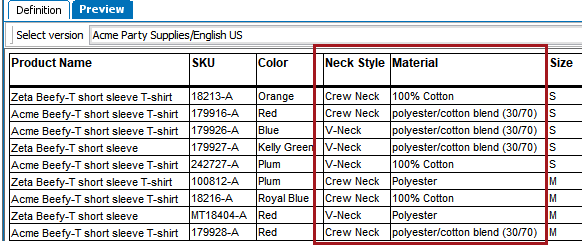
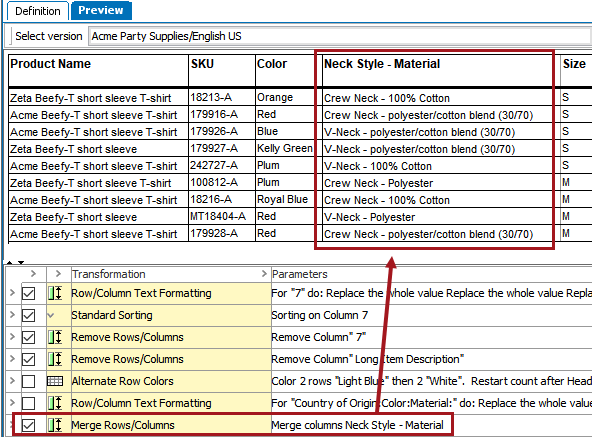
In the following example, the Neck Style and Material columns are merged.
Before
Before the merge, the Neck Style and Material attributes are maintained in two separate columns.
After
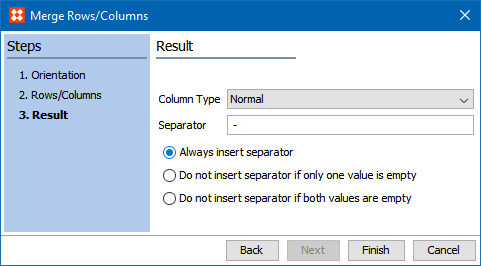
After the merge, the contents of the two columns are now merged into one column. In this example, a hyphen is used as separator.
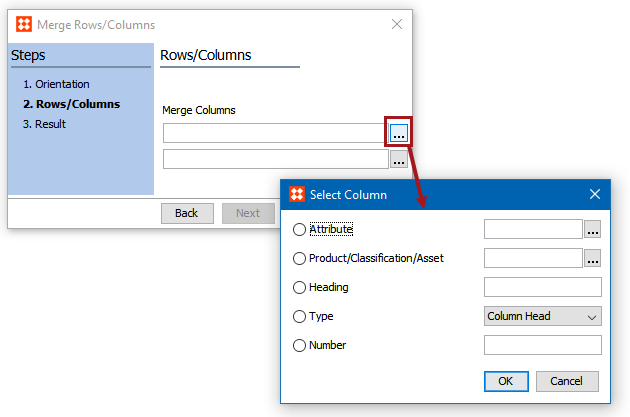
The Merge Rows and Columns transformation is set up in a three-step wizard.


2018, Stibo Systems