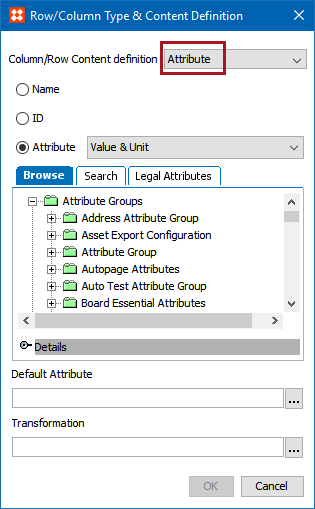
An attribute transformation performs a task on an attribute such as inserting a prefix or converting periods to commas. There are numerous reasons to apply a transformation to an attribute in a table, but some additional use cases include removing a space between numbers and units and specifying how to separate values if there are multivalued attributes in the selected attribute group.
Transformations can be applied to rows / columns / cells that use any of the following content definitions:
This topic explains how to apply preexisting attribute transformations to data in tables. For more information on how to create and configure an attribute transformation, see the Attribute Transformations section of the System Setup / Super User Guide documentation here.
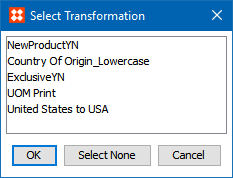
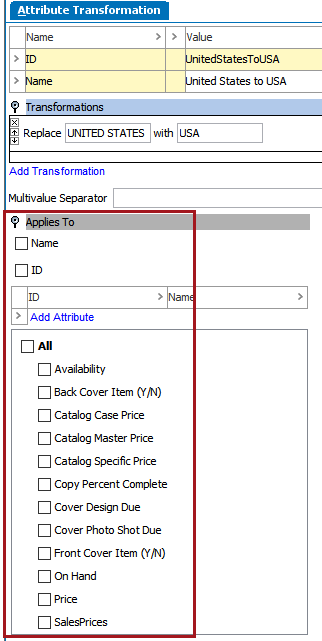
Note: Only attribute transformations that have nothing selected under the 'Applies To' flipper on the Attribute Transformation tab will appear in this list. Having no options selected allows them to be global and not limited in where they can be used.
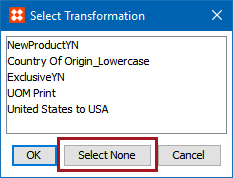
In the 'Select Transformation' dialog, click Select None.
This example uses an attribute transformation that appends a text value of -A to the STEP ID.
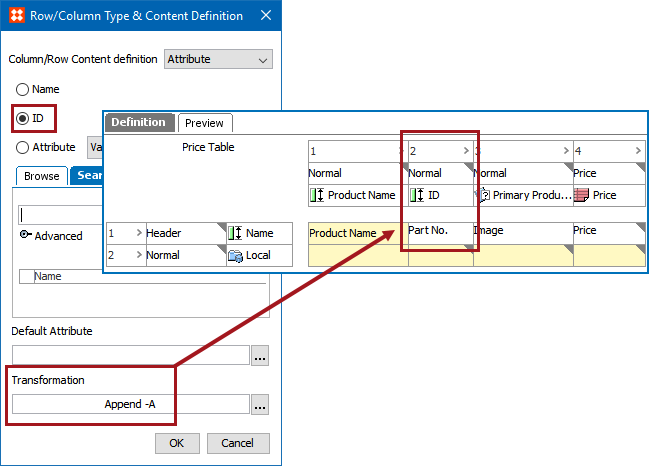
The attribute transformation has been applied to the ID in System Setup.
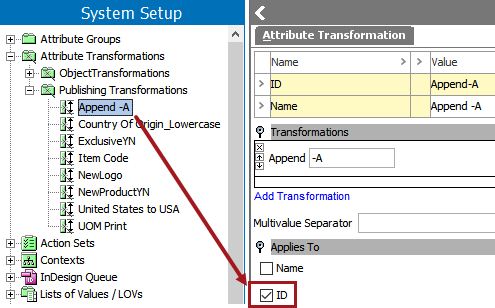
Because the transformation has been specifically applied to something (in this case, ID), the transformation appears in the upper half of the Select Transformation dialog, and not at the bottom with the global transformations.
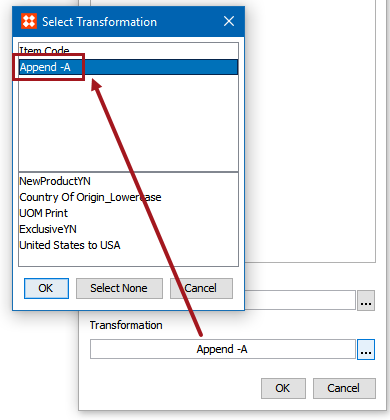
Table before applying the transformation:
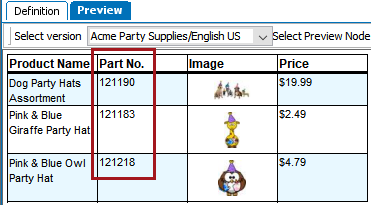
Table after applying the transformation:
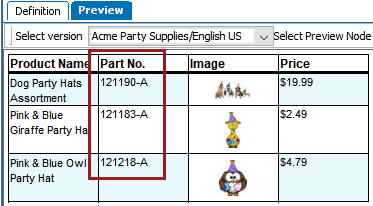
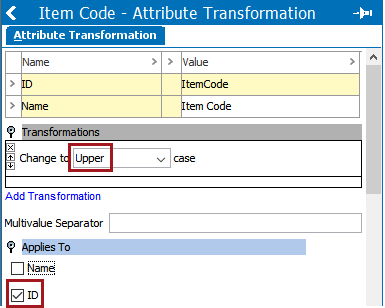
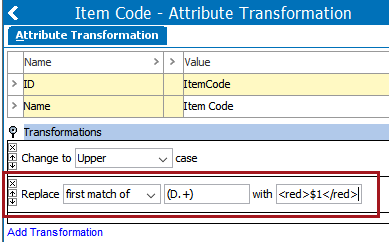
The following example shows a more advanced attribute transformation that can be applied to a table column to change all codes (STEP IDs) that start with the letter 'D' to all caps and a red text color. This example combines the following STEP functionalities:

2018, Stibo Systems