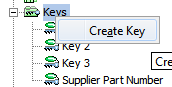
When creating a key, the user defines what object data is used and how it is combined and transformed. Multiple keys can be created and inactive or active in the system. More than one key can be valid for the same object type at the same time.
Prerequisites
It is expected that anyone creating a STEP Key is familiar with the Defining Keys section of the Keys topic (here) within this guide.
Below are steps to create a key.
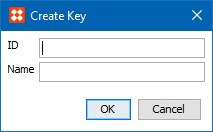
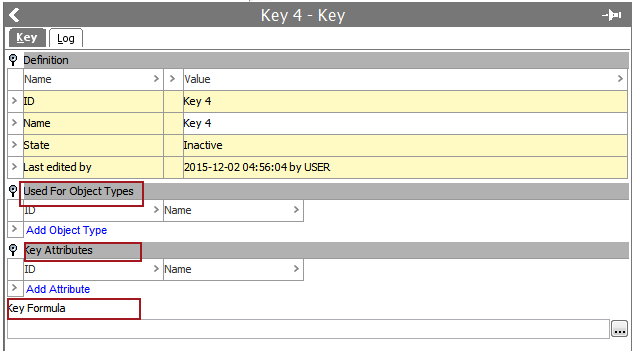
Note: Key functionality does not work with product overrides. If a product override object type is selected, then an Error dialog will display.
Note: A number of restrictions apply to the attributes used for calculating the keys. For more information, see the Defining Keys section of the Keys topic (here) within this guide.
The following are valid functions:
Important: When writing the STEP Function, only the value extraction and string manipulation functions will be available. Thus, you can combine and manipulate the key attribute values but not e.g. let the key include the ID of a parent or similar.
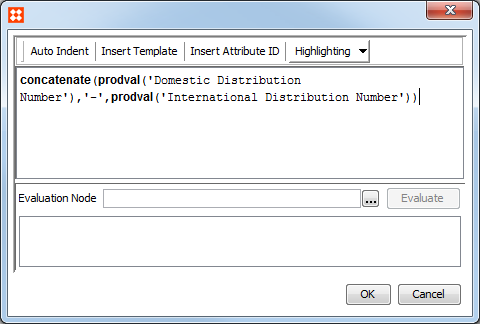
Note: It is best practice to always evaluate your formula on the Function editor by using a sample object on which the key could be implemented using the “Evaluate Node” option before activating the Key. For more information about the Function editor, see the Using Function Editor section of the System Setup / Super User Guide documentation
Once a key is created, it must be activated before it can be used. For more information, see the Activating and Deactivating Keys topic (here) within this guide.
Optionally, before activating the key, use the Check Key function to confirm the setup of the STEP Key. For more information, see the Checking Keys topic (here) within this guide.
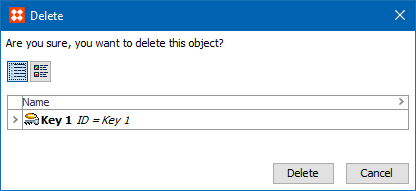
A key must be deactivated before it can be deleted. Below are steps to delete a key, after it has been deactivated.
2018, Stibo Systems