As is often the case, an attribute may not be relevant unless another attribute holds a certain value. For example, attributes specific to hazardous materials may become valid if the attribute 'Has Lead' has a value of 'Yes'. To facilitate this, STEP allows for attributes to be conditionally displayed in Web UI and Smartsheets.
A condition can be configured in two ways: as metadata on a Description Attribute or as a Specification Attribute link. When configured, it indicates the circumstances under which the relevant attribute is valid.
This enables business users to steer the Web UI and Smartsheets behavior for end users without requiring use of the STEP Web UI Designer.
Note: Conditional attribute support does not apply to STEP Workbench as all attribute visibility in the workbench is determined solely by user privileges.
For additional context, see relevant definitions below:
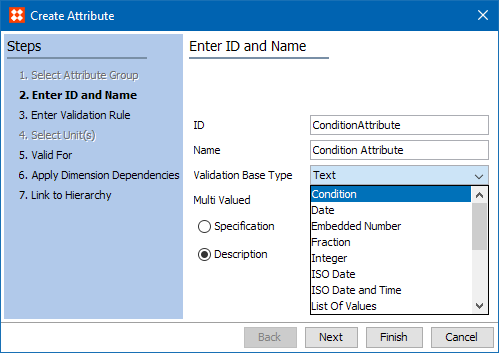
Before conditions can be set on attributes, the Conditional Attribute must be created.
Note: Only one Conditional Attribute can be active on the system at any given time. To be clear, the Conditional Attribute is simply the attribute that holds the logic for the Conditionally Valid Attributes. Therefore, any number of Conditionally Valid Attributes and their associated expressions can be configured using a single Conditional Attribute.
Important: It is recommended that attributes used for conditional validity (as the Conditional Attribute or as a Conditionally Driving Attribute) do not have dimension dependencies.
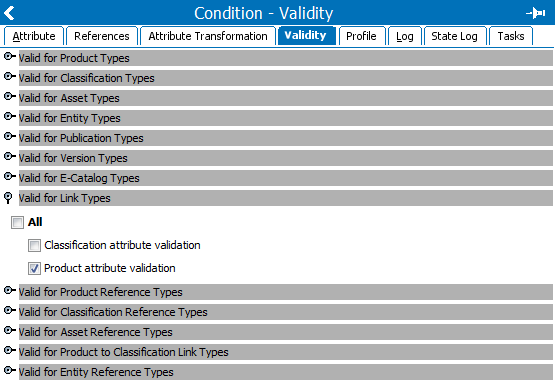
Once created, the Conditional Attribute must be activated.
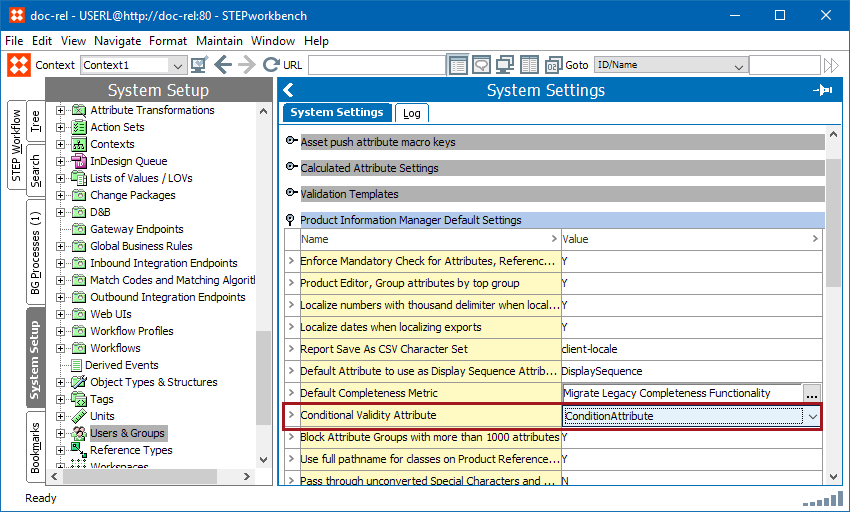
Where and how you configure a condition for an attribute depends on whether it is a Description or Specification attribute.
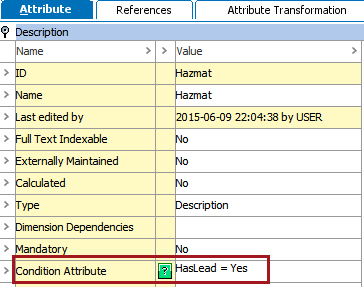
The condition for a Description Attribute is configured as metadata on the attribute itself. Before you can add it to an attribute, however, the Conditional Attribute must be made valid for the Attribute object type.
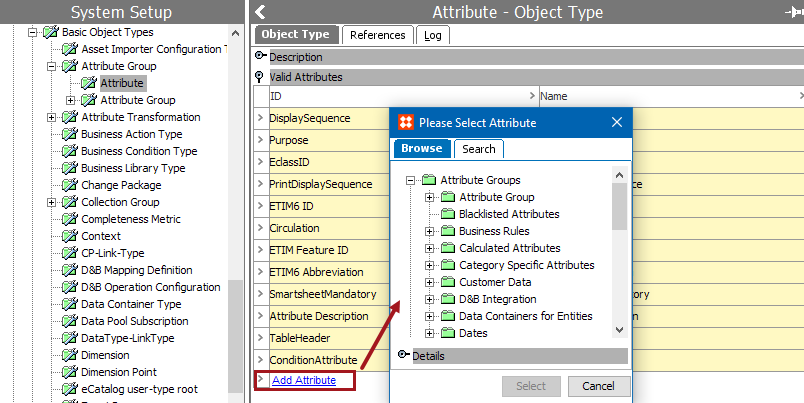
For more information, see the Description Attribute section of the System Setup / Super User Guide documentation
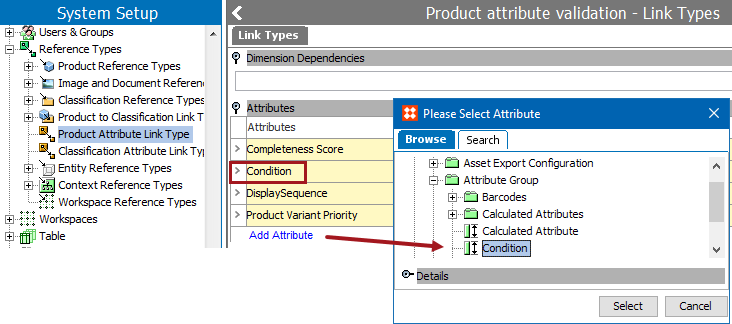
The condition for the Specification Attribute is configured by linking it to the relevant products on the References tab. Before you can add it to a product, however, the Conditional Attribute must be made valid for the Product Attribute Link Type object type.
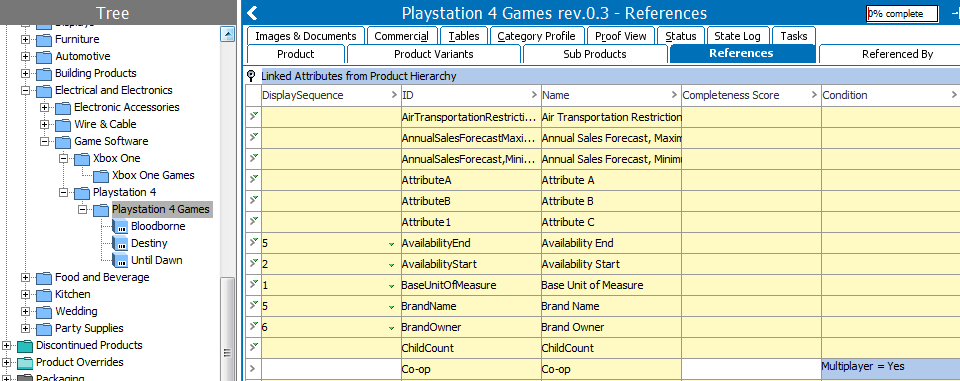
Conditional expressions are written directly in the STEP Workbench text editor.
The expressions are written in a simple syntax in the format [AttributeID] = [Value1];[Value2], where multiple values act as an 'OR' operator. For example, a Condition Attribute called 'Condition Attribute' specifies that the 'Hazmat' attribute will only appear if the 'HasLead' attribute has a value of true, using the syntax [AttributeID] = [Value1]:
Syntax forms:
Rules that must be observed for the conditions:
Note: Conditional expressions using attributes with LOVs that utilize value IDs will evaluate the value ID. For example, assume a Yes / No LOV exists that uses value IDs , where 1=Yes and 2=No. The conditional expression for this must use the value ID, e.g. 'AttributeA = 1' if the attribute should only be available when the value of AttributeA is 'Yes'.
For more information see the Business Rules with Conditional Attributes section of the Business Rules documentation
Note: Conditional attributes can also be exported using Smartsheets. When exporting products with conditional attributes any cells containing invalid conditionally displayed values will be automatically locked for editing. In order to unlock the cell and make changes, the user must first fulfill the proper conditions for the attribute and then validate the sheet. For more information on creating Smartsheets exports, see the Smartsheet Data and Template Configurations section of the Smartsheets documentation
A number of Web UI components centered around the Task List and Node Editor components are enabled to deal with the conditional validity of attributes. These components honor the conditional validity settings and only allow for display and/or editing of attribute values if they are valid based on the driving conditions.
For example, notice that the 'Hazmat' attribute is available when 'Has Lead' is set to 'Yes', but is unavailable when 'Has Lead' is left unpopulated (or set to 'No').
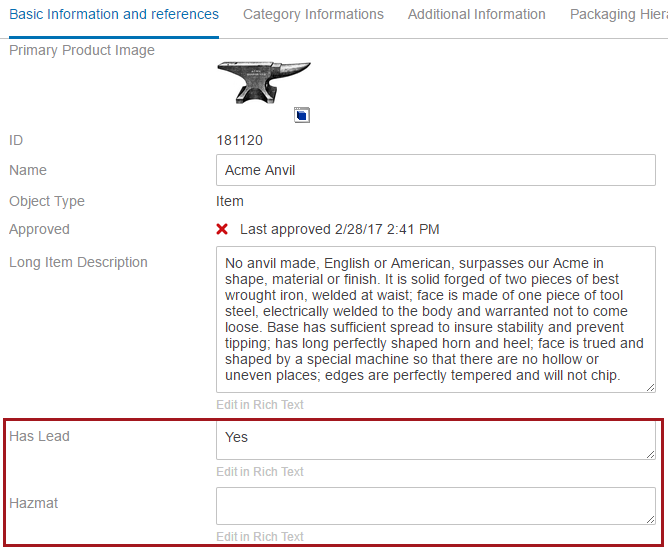
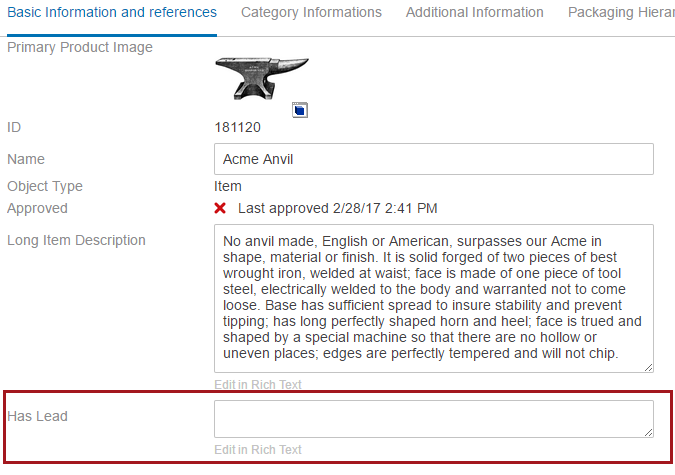
Note: Hazmat attribute will not be available, If ‘Has Lead’ attribute is set to ‘No’ or ‘Left Blank.'
Conditional attribute functionality can be used with Web UI elements:
Note: Before working on Conditional Attributes,it is important to make sure that attributes have validity and are linked on the object where conditions should match. In our example, Has Lead and Hazmat attributes are linked and have validity on the Item object. If the attribute is linked on the parent level, specify the condition on the parent level. Validity must be available on object.
2018, Stibo Systems