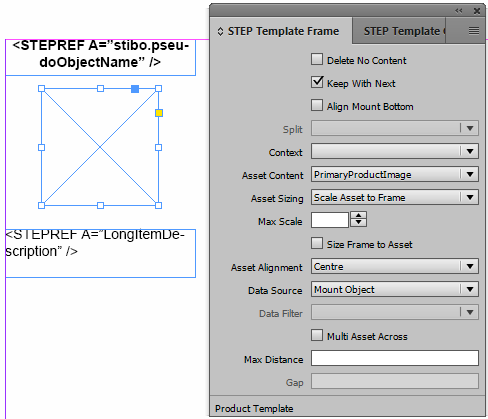
The STEP Template Frame palette (or panel, in InDesign terminology) is primarily used when creating product templates in InDesign. This palette is where settings that apply to entire frames on templates are configured, such as settings to adjust image scaling and text frame height. The STEP Template Frame palette also has limited applications for publication templates and InDesign-created page templates, though these uses are less common.
The STEP Template Frame palette is blank until a frame is selected on a template. The options change depending on what template type is selected under the STEP > Template Type menu and what type of frame is selected—text, asset, or grouped.
The STEP Template Frame palette is accessed by navigating to Window > STEP Template Frame from the InDesign application bar across the top of the InDesign interface.
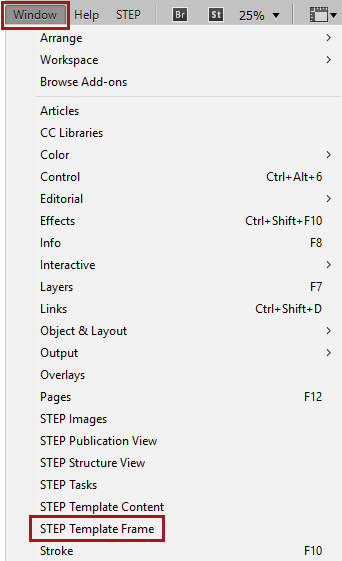
The parameters available for options change depending on what template type is selected under the STEP > Template Type menu and what type of frame is selected—text, asset, or grouped.
A range of parameters are set on frames on product templates, page templates, and publication templates from the lower half of the STEP Template Frame palette. These parameters control the behavior of elements on the page when pages are mounted, such as the scaling of text or images to match the size of their frames; allowing a text box or table to split if it reaches the bottom of a column or a page; whether to delete a frame if there is no content in STEP to populate it; and many more.
STEP Template Frame palette parameters differ depending on the type of template being configured and the type of frame being configured. The following sections of this topic list these parameters and describe their functions.
Parameters for product templates in the STEP Template Frame palette are different depending on what type of frame is being configured on the page: text frame, image frame, or grouped frame. As the list of parameters available for each is extensive, they are covered separately in the following STEP'n'design topics:
Only relevant when using the STEP Flatplanner component, and primarily used for Galley templates. For more information, see the STEP Template Frame palette topics mentioned above in the 'Parameters Available for Product Templates' section and the Galley Templates section of the Flatplanner documentation
Attributes and other frames may be added to publication templates that are intended for use with the STEP Flatplanner or STEP AutoPage publishing components.
Elements added to publication templates from the STEP Template Frame palette are typically text frames that either display description attribute values (such as page headers) or Product Continuation Notes for AutoPage publications. Image frames may also be added to display logos or background images, though this is less common.
Attribute text frames and image reference frames are configured on publication templates the same way that they are configured for product templates.
For more information about Product Continuation Notes on publication templates for AutoPage publications, see the AutoPage Pagination Rule Actions topic in the AutoPage documentation here.
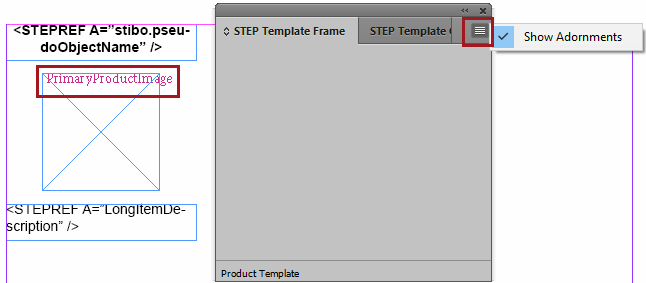
The Options menu in the STEP Template Frame palette (arrow in upper right corner) contains one option, Show Adornments. Use this option to display the STEP ID of the asset reference type assigned to each image frame on the product template.
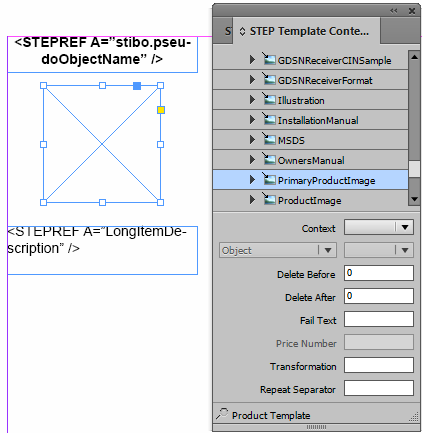
When adornments are not displayed, the asset reference type assigned to a frame can be determined by opening the STEP Template Content palette and selecting the frame. The attribute tree will 'jump' to the assigned asset reference type. For more information on the STEP Template Content palette, see the STEP Template Content section of this documentation
2018, Stibo Systems