Open topic with navigation
Decision Table Matchers
Matchers take data from two objects, apply matching logic to them, and output a rank score. Matchers can be written in JavaScript or as STEP functions.
Predefined customer data normalizer templates are also available for those with the required license. For more information on this license, ask your system administrator.
If required, Matchers can be organized into sub tables for especially complex configurations. For more information on sub tables, see the Decision Tables section of this documentation here.
Standard Matchers
When created as a JavaScript or STEP function, 'mcevaluate' and 'evaluate' are used to assess elements from the Data and Matcher sections of the decision table, and compare their results.
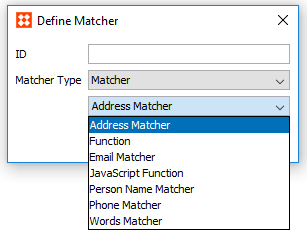
Standard Matchers include:

Customer Data Matchers
These matcher templates are intended for use in customer data solutions:
- Address Matcher
- Email Matcher
- Person Name Matcher
- Phone Matcher
- Words Matcher
Some matchers give access to lookup tables. For more information on lookup tables, see the Transformation Lookup Tables topic in System Setup / Super User Guide documentation here.
Address Matcher
The Address Matcher compares the normalized address data of two objects and outputs a rank score based on the weighted sum of relevant data elements and match factors. When applied to a rule, the resulting rank score is evaluated against a condition threshold, and returns 'True' if it meets or exceeds the minimum requirement of the threshold. If the combination of street and postcode, or street and city is a match, the Address Matcher will return a rank score indicating a match.
The Address Matcher configuration is split into two tabs: Settings, where the corresponding normalizer is mapped and the condition threshold is established, and Advanced, where different weights are applied to the relevant data elements and match factors.
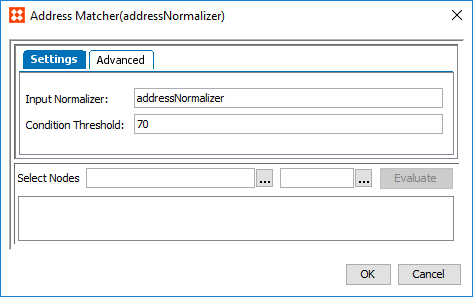
- To configure a matcher for customer address data, click the ellipsis button (…) in the Matcher column to access the configuration.
- The Address Matcher configuration dialog will open in the 'Settings' tab.
- In the Input Normalizer parameter, enter the ID of the address normalizer the matcher applies to. This field is case sensitive.
- In the Condition Threshold parameter, enter the minimum score a matcher must achieve in order to return 'True' on a decision table rule. By default this score is set to '70.'
Note: An empty Condition Threshold should be used if a variable threshold is required between different rules. For example, one rule requires the matcher to return a score greater than '70,' and another rule needs it to be greater than '75.'
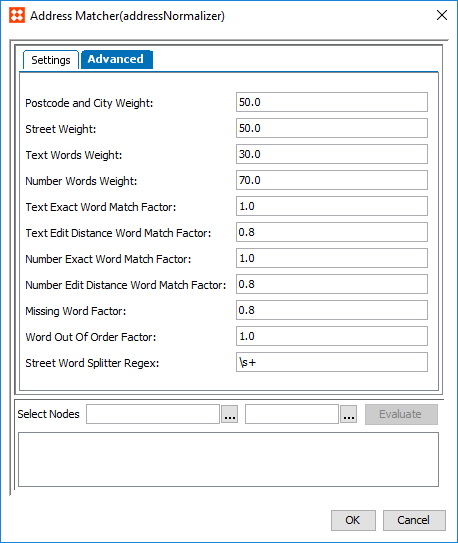
- Navigate to the 'Advanced' tab. All but one of the parameters included on this tab require that a weight be defined. The matcher considers the individual weights of these elements when they are factored together for the rank score.
A few things to note:
- The final score is a weighted sum of street and postcode, or street and city.
- The value of Street is split into individual words based on the Street Word Splitter Regex.
- The words for the Street value are split between numbers and text, and are compared separately.
- Text words are paired up using Exact, Metaphone3, and Edit Distance. Text words that are not paired are handled as Missing words.
- Number words are paired up using Exact and Edit Distance. Number words that are not paired are handled as Missing Words.
Required parameters include:
- Postcode and City Weight: The relative weight of the Postcode / City score versus the Street score.
- Street Weight: The relative weight of the Street score versus the Postcode / City. The Street score is a weighted sum of the Number Words score and the Text Words score
- Text Word Weight: The relative weight of the Text Words score versus the Number Words score.
- Number Words Weight: The relative weight of the Number Words score versus the Text Words score.
- Text Exact Word Match Factor: Determines how pairs that are exact matches should influence the final score.
- Text Edit Distance Word Match Factor: Determines how words that are paired via edit distance influence the final score.
- Number Exact Word Match Factor: Determines how pairs that are exact matches should influence the final score.
- Number Edit Distance Word Match Factor: Determines how words that are paired via edit distance influence the final score.
- Missing Word Factor: Determines how much unpaired / missing words should penalize the final result.
- Word Out Of Order Factor: Determines how much words that appear out of order should penalize the final result.
- In the Street Word Splitter Regex parameter, enter the regex used to split the Street value into words.
- Click OK when finished.
Email Matcher
The Email Matcher compares the normalized email data of two objects and outputs a rank score. When applied to a rule, the resulting rank score is evaluated against a condition threshold, and returns 'True' if it meets or exceeds the minimum requirement of the threshold. If the email values are a match, the Email Matcher will return a rank score indicting a match.
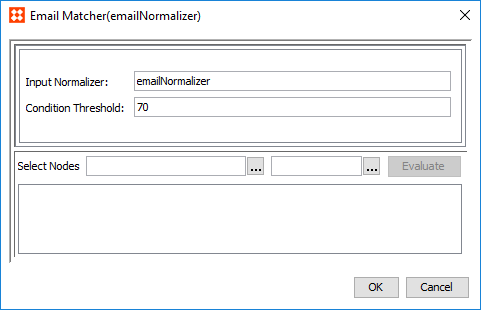
- To configure a matcher for customer email data, click the ellipsis button (…) in the Matcher column to access the configuration.
- In the Input Normalizer parameter, enter the ID of the email normalizer this matcher applies to. This field is case sensitive.
- In the Condition Threshold parameter, enter the minimum score a matcher must achieve in order to return 'True' on a decision table rule. By default this score is set to '70.'
Note: An empty Condition Threshold should be used if a variable threshold is required between different rules. For example, one rule requires the matcher to return a score greater than '70,' and another rule needs it to be greater than '75.'
- Click OK when finished.
Person Name Matcher
The Person Name Matcher compares the normalized name data of two objects and outputs a rank score based on the weighted sum of relevant data elements and match factors. When applied to a rule, the resulting rank score is evaluated against a condition threshold, and returns 'True' if it meets or exceeds the minimum requirement of the threshold. If the combination of first name and middle name, and middle name and last name is a match, the Person Name Matcher will return a rank score indicating a match.
Note: If customer names are represented in a single field rather than split into First and Last, use the Words Normalizer / Matcher instead. Middle Name is not required to use this matcher.
The Person Name Matcher configuration is split into two tabs: Settings, where the corresponding normalizer is mapped and the condition threshold is established, and Advanced, where different weights are applied to the relevant data elements and match factors
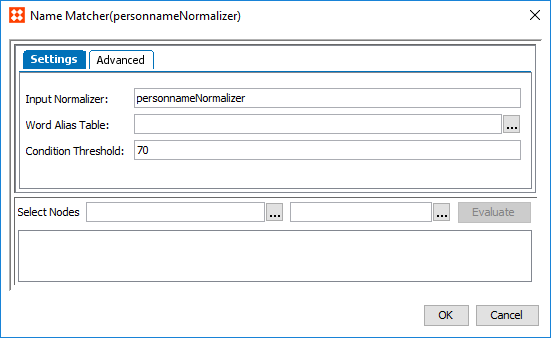
- To configure a matcher for customer name data, click the ellipsis button (…) in the Matcher column to access the configuration.
- The Person Name Matcher configuration dialog will open in the 'Settings' tab.
- In the Input Normalizer parameter, enter the ID of the person name normalizer this matcher applies to. This field is case sensitive.
- In the Word Alias Table parameter, click the ellipsis button (…) and select a lookup table to use for substituting certain words. This substitution takes place after the string has been cut into individual words via the Splitter Regex.
- In the Condition Threshold parameter, enter the minimum score a matcher must achieve in order to return 'True' on a decision table rule. By default this score is set to '70'.
Note: An empty Condition Threshold should be used if a variable threshold is required between different rules. For example, one rule requires the matcher to return a score greater than '70,' and another rule needs it to be greater than '75.'
- Navigate to the 'Advanced' tab. All but two of the parameters included on this tab require that a weight be defined. The matcher considers the individual weights of these elements when they are factored together for the rank score.
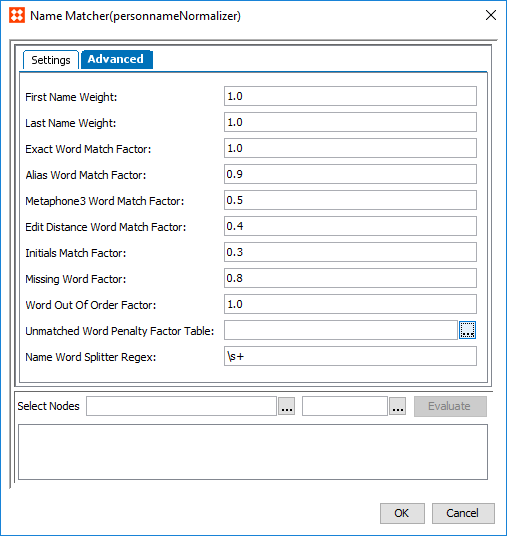
A couple things to note:
- The final score is a weighted sum of the combined first name and middle name, and the combined middle name and last name.
- The First Name, Middle Name, and Last Name values are split into individual words based on the Name Word Splitter Regex.
Required parameters include:
- First Name Weight: The relative weight of the First Name / Middle Name score versus the Middle Name / Last Name score.
- Last Name Weight: The relative weight of the Middle Name / Last Name score versus the First Name / Middle Name score.
- Exact Word Match Factor: Determines how pairs that are exact matches should influence the final score.
- Alias Word Match Factor: Determines how words paired together via aliases should influence the final score.
- Metaphone3 Word Match Factor: Determines how words paired together via metaphone3 should influence the final score.
- Edit Distance Word Match Factor: Determines how words that are paired via edit distance influence the final score.
- Initials Match Factor: Determines how words paired together via initials influence the final score.
- Missing Word Factor: Determines how much unpaired / missing words should penalize the final result.
- Word Out Of Order Factor: Determines how much words that appear out of order should penalize the final result.
- In the Unmatched Word Penalty Factor Table parameter, click the ellipsis button (…) and select the relevant lookup table. Words specified in this table penalize the final score if they don't appear on both objects.
- In the Name Word Splitter Regex parameter, enter the regex used to split the First Name, Middle Name, and Last Name values into words.
- Click OK when finished.
Phone Matcher
The Phone Matcher compares the normalized phone data of two objects and outputs a rank score. When applied to a rule, the resulting rank score is evaluated against a condition threshold, and returns 'True' if it meets or exceeds the minimum requirement of the threshold. If the phone values are a match, the Phone Matcher will return a rank score indicting a match.
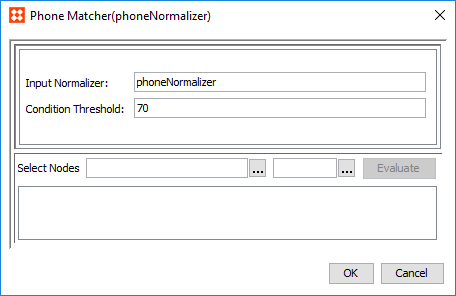
- To configure a matcher for customer phone data, click the ellipsis button (…) in the Matcher column to access the configuration.
- In the Input Normalizer parameter, enter the ID of the phone normalizer this matcher applies to. This field is case sensitive.
- In the Condition Threshold parameter, enter the minimum score a matcher must achieve in order to return 'True' on a decision table rule. By default this score is set to '70.'
Note: An empty Condition Threshold should be used if a variable threshold is required between different rules. For example, one rule requires the matcher to return a score greater than '70,' and another rule needs it to be greater than '75.'
- Click OK when finished.
Words Matcher
The Words Matcher compares the normalized words data of two objects and outputs a rank score based on the weighted sum of relevant data elements and match factors. When applied to a rule, the resulting rank score is evaluated against a condition threshold, and returns 'True' if it meets or exceeds the minimum requirement of the threshold. If the word values are a match, the Words Matcher will return a rank score indicting a match.
Note: The Words Normalizer / Matcher is a generic multi-word matcher that can represent a wide range of data. For example, customer names and social security numbers.
The Words Matcher configuration is split into two tabs: Settings, where the corresponding normalizer is mapped and the condition threshold is established, and Advanced, where different weights are applied to the relevant data elements and match factors
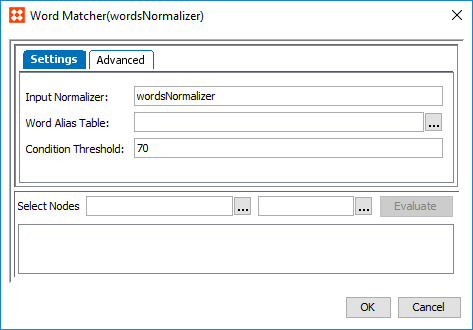
- To configure a matcher for different word normalizers, click the ellipsis button (…) in the Matcher column to access the configuration.
- The Words Matcher configuration dialog will open in the 'Settings' tab.
- In the Input Normalizer parameter, enter the ID of the words normalizer this matcher applies to. This field is case sensitive.
- In the Word Alias Table parameter, click the ellipsis button (…) and select a lookup table to use for substituting certain words. This substitution takes place after the string has been cut into individual words via the Splitter Regex.
- In the Condition Threshold parameter, enter the minimum score a matcher must achieve in order to return 'True' on a decision table rule. By default this score is set to '70.'
Note: An empty Condition Threshold should be used if a variable threshold is required between different rules. For example, one rule requires the matcher to return a score greater than '70,' and another rule needs it to be greater than '75.'
- Navigate to the 'Advanced' tab. All but two of the parameters included on this tab require that a weight be defined. The matcher considers the individual weights of these elements when they are factored together for the rank score.
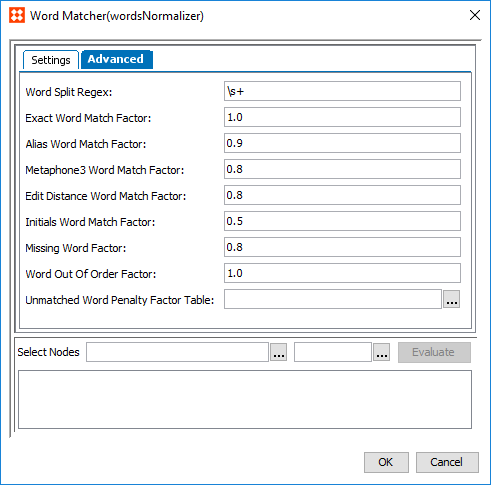
- In the Word Splitter Regex parameter, enter the regex used to split the Word values into separate words.
- Required weighed parameters include:
- Exact Word Match Factor: Determines how pairs that are exact matches should influence the final score.
- Alias Word Match Factor: Determines how words paired together via aliases should influence the final score.
- Metaphone3 Word Match Factor: Determines how words paired together via metaphone3 should influence the final score.
- Edit Distance Word Match Factor: Determines how words that are paired via edit distance influence the final score.
- Initials Match Factor: Determines how words paired together via initials influence the final score.
- Missing Word Factor: Determines how much unpaired / missing words should penalize the final result.
- Word Out Of Order Factor: Determines how much words that appear out of order should penalize the final result.
- In the Unmatched Word Penalty Factor Table parameter, click the ellipsis button (…) and select the relevant lookup table. Words specified in this table penalize the final score if they don't appear on both objects.
- Click OK when finished.
Customer Data JavaScript Matchers
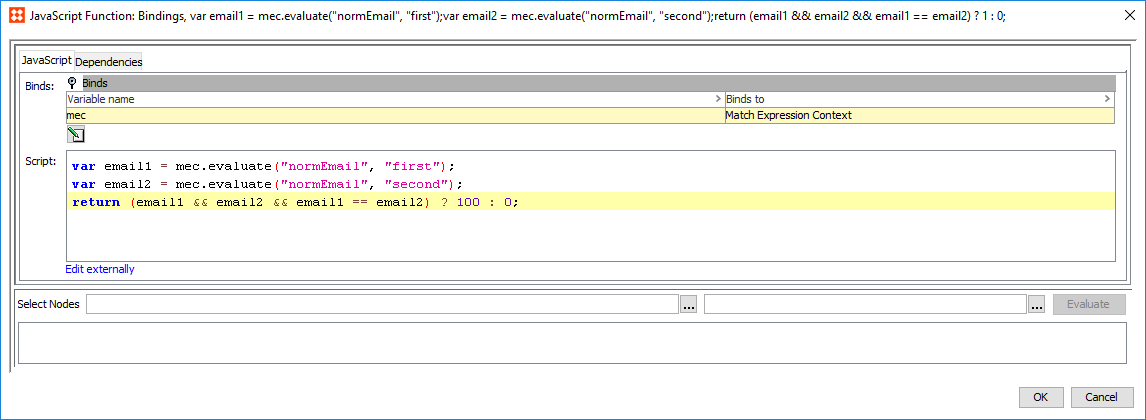
For especially complicated solutions, it is possible to expand the capabilities of a customer data matcher via JavaScript. These work in much the same way as basic customer data matchers, but allow for more flexibility and expanded functionality.
A typical customer data JavaScript matcher complies with the following basic steps:
- Use mc.evaluate to retrieve the output of a desired normalizer.
Note: 'mc' is a bind to the match expression context.
- Use an iterator to access the set of values / strings of both objects being matched.
- Compare those objects and output a rank score.
For more information on customer data JavaScript normalizers, see the Decision Table Normalizers section of the documentation here.
2018, Stibo Systems