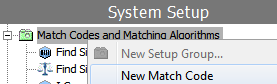
Before configuring match codes there are several things to consider:
Note: Some of the considerations listed may not be relevant for all solutions.
For more information on match codes, see the Matching, Linking, and Merging Components documentation here.
For more information on data profiling, see the Data Profiles section of the Data Profiling documentation here.
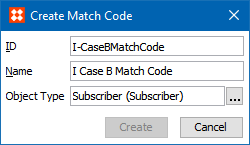
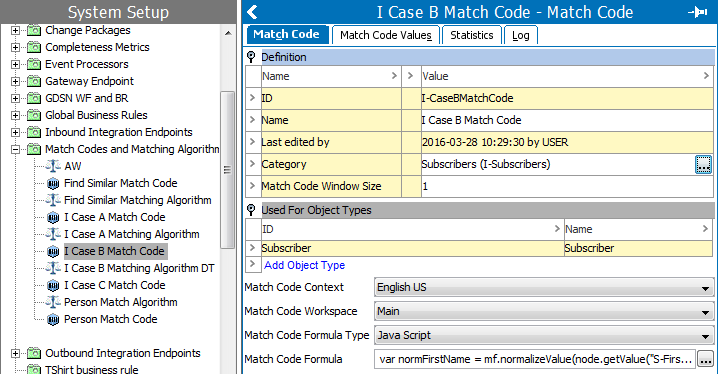
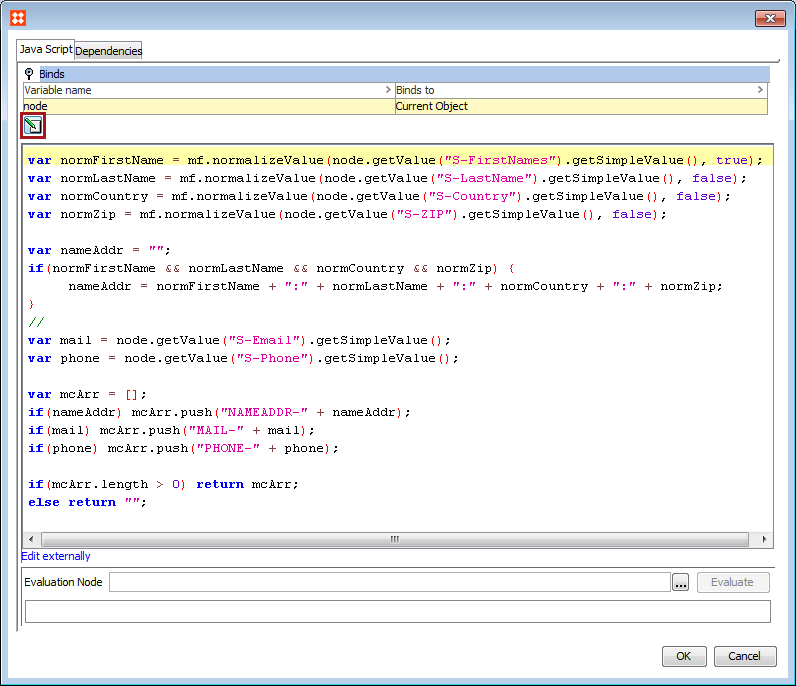
It is also possible to make use of attributes and values that are created offline, by binding them in the match code formula. This is used in cases of offline matching or matching records on import. Once inside the 'Match Code Formula' editor, open the 'Binds' flipper, and click the 'Edit Binds' button. You can declare variables and bind them to a variety of STEP elements / objects, as determined by the selected formula type.
When using JavaScript, the current object should be bound to a variable. The ultimate goal should be to return the match code value of an object from the JavaScript. If a string is returned, it will be used as a match code value. If a JavaScript array is returned, all values in the array will be used as match code values for that object. Additional utility functions for match codes can be accessed by binding 'Matching Functions' to, for example, the context variable in JavaScript or by binding 'Lookup Table Home' to, for example, 'lth':
|
Method |
Description |
|---|---|
|
context.soundex('Stibo') |
Returns the Soundex. For more information, see Text Functions in the Calculated Attributes documentation here. |
|
context.metaphone3('Stibo') |
Returns the primary value for the Metaphone 3. For more information, see Text Functions in the Calculated Attributes documentation here. |
|
context.metaphone3alternate('Stibo') |
Returns the alternate value for the Metaphone 3. For more information, see Text Functions in the Calculated Attributes documentation here. |
| lth.getLookupTableValue('<asset-id>', 'LookupValue') |
For more information, see the Transformation Lookup Tables topic in the System Setup / Super User Guide here. |
When defining the formula via the calculated attribute language, all functions are available. An object's match code value can be a single string derived from the value of the formula, or it can be a list where all the values in the list are used as match code values for that object.
Below is an example of a simple STEP Function:
The Match Code value for each object will be a concatenation of the value for a "Manufacturer" Attribute, the string ":" and the value for a "ManufacturerPartNumber" Attribute. The Manufacturer value is normalized via a Transformation Lookup Table with ID "ManufacturerNormalization".
concatenate(
replacevaluebylookup("ManufacturerNormalization", value("Manufacturer")),":",
value("ManufacturerPartNumber"))
If instead you wanted to return two Match Code values for each object, one for the Manufacturer and one for Manufacturer Part Number, each prefixed with either "MAN-" or "MPN-" could be done as follows (this example is without any normalization):
listconcatenate(
concatenate("MAN-", value("Manufacturer")), concatenate("MPN-", value("ManufacturerPartNumber")))
The reason for adding a prefix is to avoid comparing objects where their Match Code values are from completely different domains, where at all possible.
Notice that in the examples above only rudimentary normalization is applied and nothing is done to handle cases where values are missing. Since we would typically not want Match Code values only consisting of the hardcoded prefixes, below shows how checks for empty values could be added to the last example:
{ man:= value("Manufacturer"), mpn:= value("ManufacturerPartNumber")}
listconcatenate(
if(len(man)!=0, concatenate("MAN-", man), ""), if(len(mpn)!=0, concatenate("MPN-", mpn), ""))
For more information on the available STEP functions, see the Calculated Attribute Functions section of the System Setup / Super User Guide documentation here.
2018, Stibo Systems