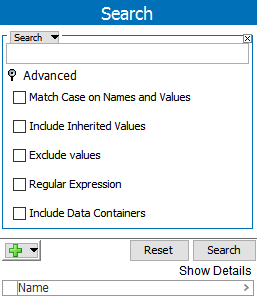
Additional options for narrowing a search can be accessed under the Advanced flipper in Simple Search.
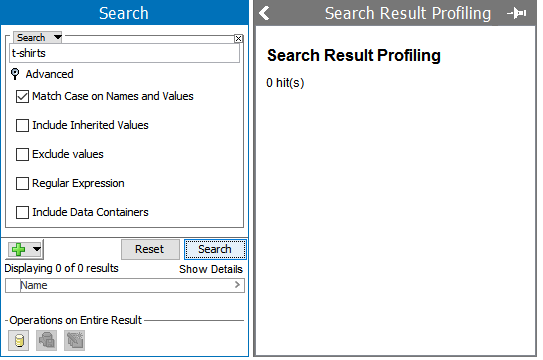
There are 4 Advanced Search Options as shown below:
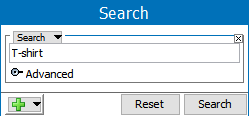
For example, this is a basic search with search criteria of 'Search = T-Shirt.'
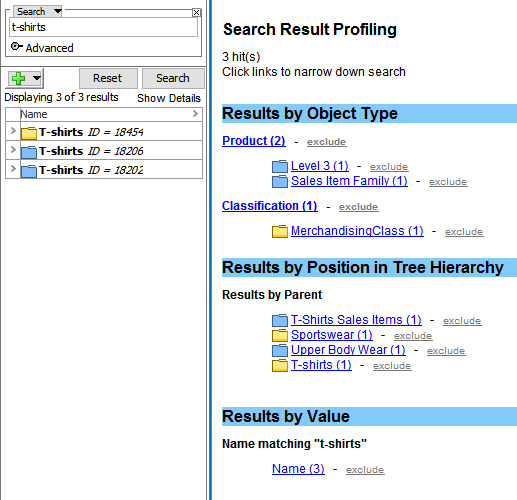
The search results are displayed with all the objects in STEPthat match the search criteria, in this case 'T-shirt.'
STEP objects in the search result includes:
Now, on the search, select the Advanced option 'Match Case on Names and Values.'
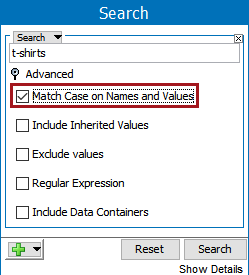
With this option selected, the search result will only include attribute values and all the object names in STEP that match the search criteria in the correct case. Since the previous search results were all a different case, this search will return no results.
Note: ID searches are always case sensitive.
When selected, attribute value search results will show objects where the match includes inherited values as well as objects where the match includes locally defined values.
Note:
Attribute values with hierarchical inheritance (values with green triangle) will only be included in the search result when Include Inherited Values option is selected.


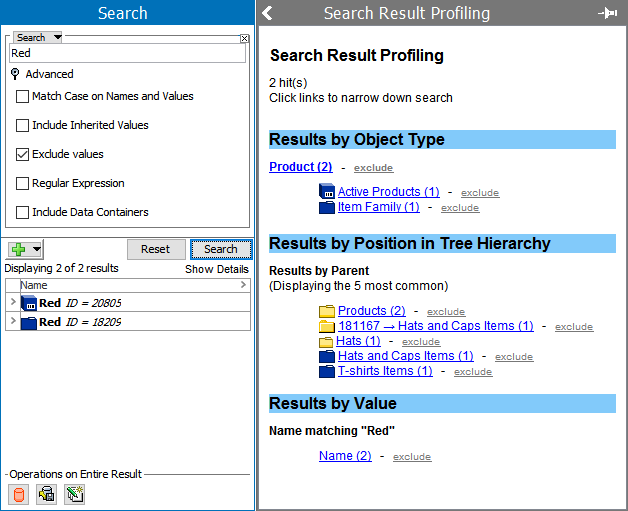
When selected, attribute values are not searched for the entered search term. If unchecked, attribute values are searched for the entered term and objects with the search term populated as an attribute value are included in the search results.
The Exclude values in advanced search are useful for neglecting objects which are having search content as a value in it.
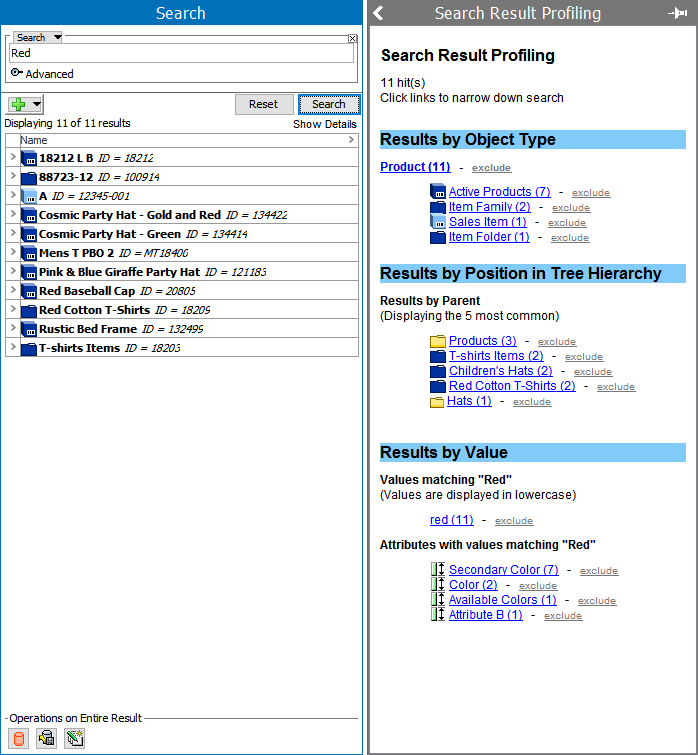
For example, assume there are attributes which has value 'Red' in few objects and there are objects which has Object Name/ID as 'Red.'
If a normal search is performed, the results for 'Red' are shown below.
If the same search is performed but with 'Exclude Values' selected under Advanced, only attribute IDs and Names matching the search are turned.
When selected, attribute values are searched using the regular expression entered in the Search text box. Although establishing an attribute with Validation Base Type of Regular Expression allows more than 2000 characters (for example, [A-Z]{1,3000}), searching via a Regular Expression only returns results for matches within the first 2000 characters. For more information, see the Regular Expression topic in System Setup / Super User Guide documentation here.
Include in search results any search terms contained inside data containers.
2018, Stibo Systems