Collections can be a valuable tool for data maintenance tasks, because they allow a user to group objects independently of their placement in the hierarchies, and they can be updated. As an example, a set of objects with data anomalies could be grouped in a collection via search criteria. Once the data is corrected, the objects with updated information no longer meet the search criteria. Thus updating the collection automatically removes any updated / fixed objects from the collection. In this way, only the objects that still need to be fixed are displayed in the collection.
This topic addresses the various ways users can interact with and maintain collections.
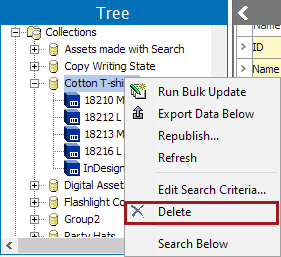
Clicking on the Delete option deletes the Collection node, but does not delete the objects within the Collection. They will still reside under their original nodes in Tree and System Setup. All collections and collection groups below a collection group must be deleted before the parent collection group can be deleted.
Important: If an object is deleted from the collection, then the same object will be deleted from the original hierarchy placement in STEP as well. In this case, it would be best to just updated the collection through proper maintenance of collections such as through an updated search or a bulk update.
To delete the collection node, right-click on the desired collection and select Delete.
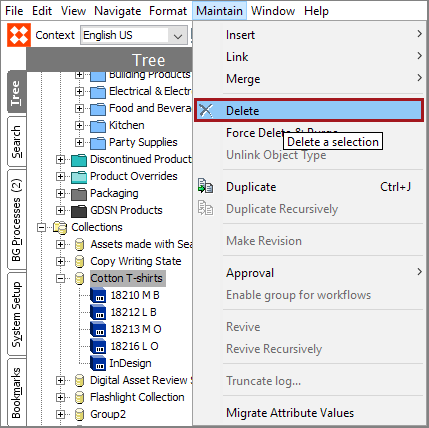
Additionally collections and collection groups can also be deleted from the Maintain menu, Delete option.
For more on creating searches, see the Navigation and Searches documentation here.
For more on how to use bulk updates, see the Bulk Updates documentation here.
Collections created from searches can be edited if needed to reflect the needed objects in the collection.
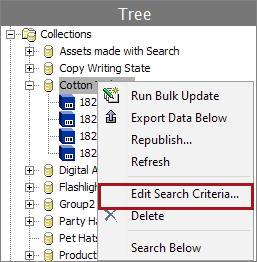
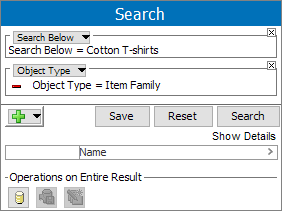
Alternatively, if a collection was created using a search criteria, the 'Search URL' will appear in the collection's Description flipper under the Search URL field. The user just needs to copy and paste this information into a browser, and they will be brought to the Search tab with the original search criteria on it where they can make adjustments if needed.
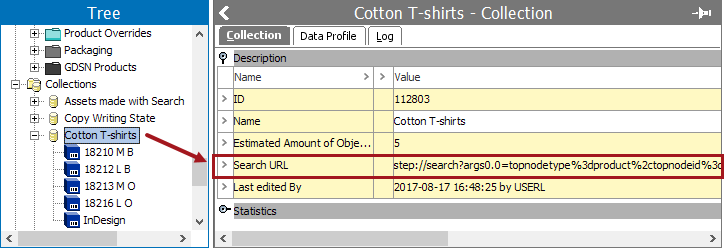
For more information on searches, see the Navigation and Search topic in the Getting Started / STEP User Guide documentation here.
The Export Manager wizard allows a user to export data on demand and to create or modify an export configuration.
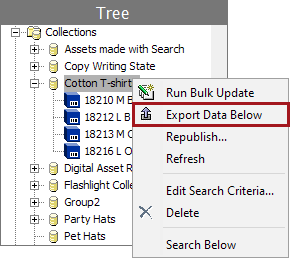
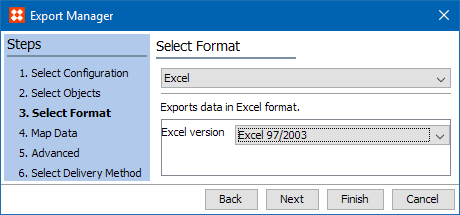
For more information on exporting, see the Exporting Data topic in the Exporting Data and Assets documentation here.
Collections created from search results can be updated for the most up-to-date information and object groupings, as objects in a collection that no longer meet the search criteria will be removed from the collection.
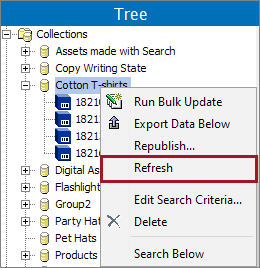
Note: The 'Refresh' option is Only available if the collection is created from a search.
This option allows the user to interact with the objects in the collection in a number of ways. To name a few, the objects could be submitted into a workflow, assigned to a user group, or have an attribute updated.
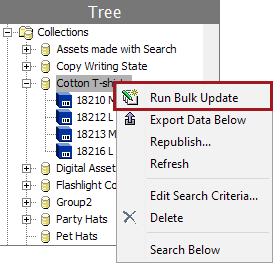
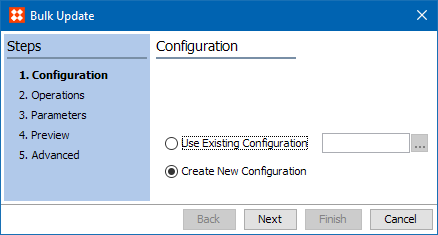
For more on how to use the bulk update wizard, and the various operations that can be applied to collections or a group of collections, see the Bulk Update documentation here.
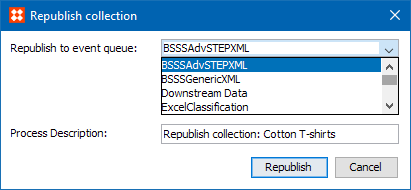
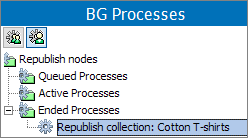
The Republish action generates events on products, classifications, or assets in the collection. Common setup is to use this option for on-demand creation of a republished event. For example, to generate events for all objects in a collection that has never been published by an event queue.
For more information on events, see the Events topic in the System Setup documentation here.
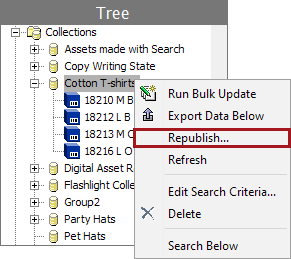
Note: Users must have the privilege to maintain event queues in order to use this action.
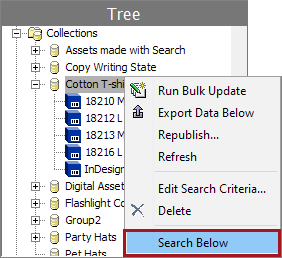
If a certain attribute on some of the items in the selected collection needed to be changed, a user could use this to locate the items.
When a user right-clicks on a collection and selects Search Below, it allows the user to search only the items in that particular collection.
See the Search Below topic in the Getting Started / STEP User Guide documentation here.
2018, Stibo Systems