 icon.
icon.Business rules can be used in a variety of ways in combination with the GDSN component. They can, for example, be used to send out messages, update status, and start workflows. The following describes how to use GDSN specific business actions and how to run business actions when receiving messages from GDSN.
In the inbound format configuration you can configure which business actions should be run when different message types are received. You can use this to update status, transition workflows or send out notification e-mails.
In the inbound format configuration, you can configure a map from strings to XPaths. When a message is received, the XPaths are evaluated and a map is created from the string keys to the evaluated values. This map can be bound into a JavaScript business action so that the business action can access parts of the incoming message.
For general information about how to set up business actions, see Business Actions in the Business Rules documentation here.
icon.The following actions are available:
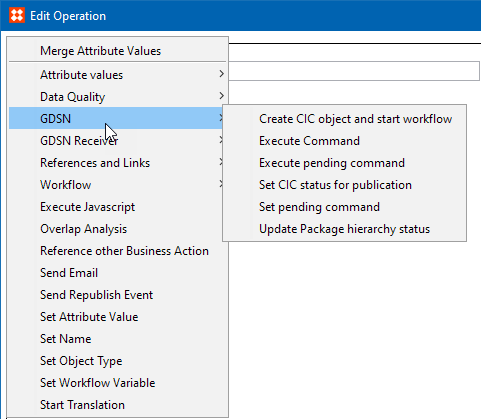
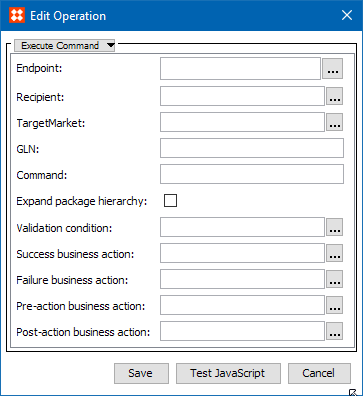
This action sends out a message to a data pool.
|
Field |
Description |
|---|---|
|
Command |
Enter the command parameter that matches the command from the outbound configuration of the message type to be sent out. |
|
Endpoint |
Specify the outbound endpoint to be used to send out the message. A list of available endpoints displays when you click the ellipsis button (…). |
|
Expand package hierarchy |
When checked, selecting a hierarchy top node exports the entire hierarchy below the node. |
|
GLN |
Specify the GLN the products must be sent from. This is the GLN the MyGLN parameter tag resolves to. |
|
Recipient |
Optional For a publish template, specify the recipient you want to publish the products to. The Recipient parameter tag will contain the GLN of the recipient. |
|
Target Market |
Specify the target market the message should be sent in. The target market parameter tag will contain the target market attribute value of the selected target market. |
|
Validation Condition |
Business condition that should be validated successfully before sending message. |
|
Success business action |
Specify which business action to run if the Validation condition is successful. |
|
Failure business action |
Specify which business action to run if the Validation condition fails. |
|
Pre-action business action |
Specify the Business Action that runs first (before any other Business Rules) when sending message. |
|
Post-action business action |
Specify the Business Action that should run after sending message. |
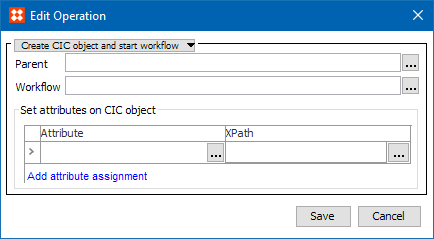
This option creates a CIC entity and starts it in a workflow. It is connected with the product the CIC applies to and with the recipient that sends the CIC. Furthermore, using XPaths, it is possible to place parts of the CIC message in an attribute on the CIC object.
|
Field |
Description |
|---|---|
|
Parent |
The CIC entity is created below the entity specified. |
|
Workflow |
The CIC entity is started in the workflow specified. |
|
Set attributes on CIC object |
Click the Add attribute assignment link. Select the attributes to be set on the CIC object and the XPaths to be evaluated to find the values from the inbound message. |
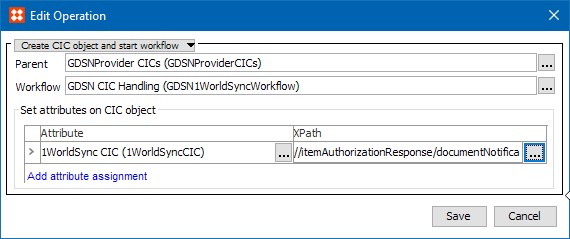
The image below shows, example of the ‘Create CIC object and start workflow’ business action.
Sets the CIC status for a publication to a recipient.
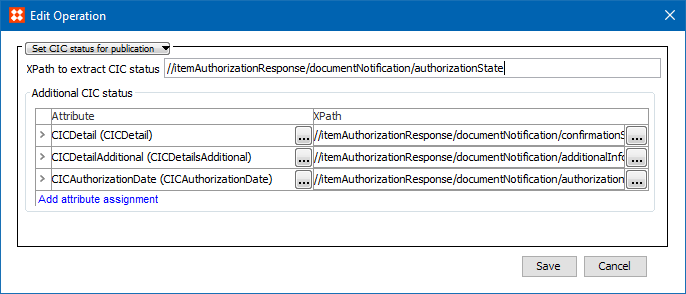
|
Field |
Description |
|---|---|
|
XPath to extract CIC status |
Mandatory Specify an XPath that points out the CIC status in the inbound message. |
|
Additional CIC status |
Optional Specify an XPath to additional CIC information and point the attribute that should be used to store this information. For example, the additional CIC information could be text values that go along with the CIC999 status or it could be the date CIC status date. |
The option sets the registration status of a package hierarchy link.
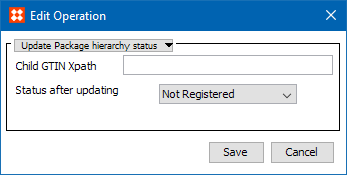
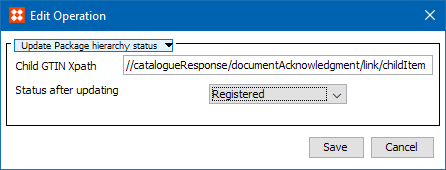
In the Child GTIN XPath field, specify an XPath that points out the GTIN of the child product in the inbound message.
From the Status after Updating list, select the status that you want the link to have after the action has been run.
The image below shows, example of the 'Update Package hierarchy status' business action.
The 'Evaluate JavaScript' plugin in connection with the 'GDSN Publisher Product Validation' binding provides the option to write JavaScript business rules that can access information about a product instance that is registered for a given data pool.
For example, this could be used to write a script that can validate if all required attributes for a given data receiver have been populated on a given product. For more information about the Validation Condition option, see GDSN Publish Action Button here or GDSN Register Action Button here.
This Business Action is used for the 1WorldSync data pool in conjunction with using the 'Pre command' option in the Web UI (GDSN Web UI Buttons here). When a pre-command is executed, the system will await a response from the data pool and GDSN before the real command is executed.
For the 1WorldSync data pool, these responses are not combined in one file and will thus not be received at the same time. Instead the responses are received asynchronously, one response message will be received from the 1WorldSync data pool and another response message will be received from the GDSN. Only when both responses have been received, is the real command (the pending command) executed.
The 'Set pending command' operation for this business action tracks which command should be executed when the response messages have been received for the pre-command, the pending command will be stored in a description attribute that is valid for the registration object (see GDSN Provider Component Model Elements here).
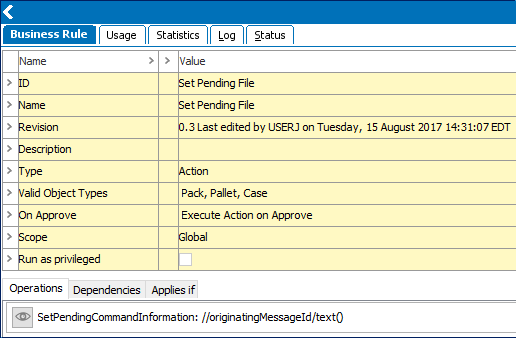
The Set Pending File business action is triggered via the Inbound format configuration with the Type Key 'catalogueResponsedocumentAcknowledgementitemADD'.
Originating Message ID: Specify the XPath for the Originating Message ID. The default value is //originatingMessageId/text().
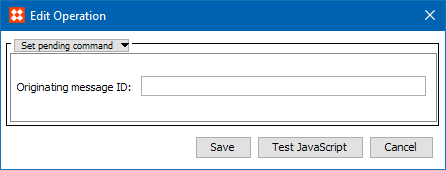
The image below shows, example of the 'Set Pending File' business action.
This Business Action will execute the pending command that is stored in a description attribute on the registration object. For further information, see Set Pending File above.
The Execute Pending File business action is triggered via the Inbound format configuration with the Type Key 'gdsnItemRegistryResponsedocumentAcknowledgement'.
2018, Stibo Systems