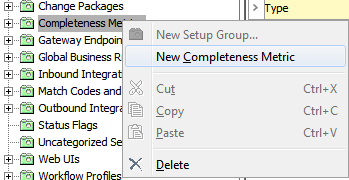
STEP allows the use of multiple completeness metrics simultaneously. This is useful, for example, if multiple channel specific completeness measurements are required. An attribute can be created to hold completeness scores for a specific completeness metric, thus offering a means to display different completeness measurements for the same object. Additionally, multiple metrics can use the same completeness score attribute.
Note: A completeness metric does not have to be an attribute with associated completeness scores. In these cases, all data objects (attributes and references) are part of the completeness calculation and have an equal score.
Note that if you want to migrate legacy completeness values stored in a special system attribute to a Description attribute, the attribute must meet a series of requirements. For more information, see the Migrating Completeness Scores to Description Attributes section of the Data Profiling documentation here.
If you create an attribute that is not going to be used for migrating completeness scores, it does not have to meet these requirements.
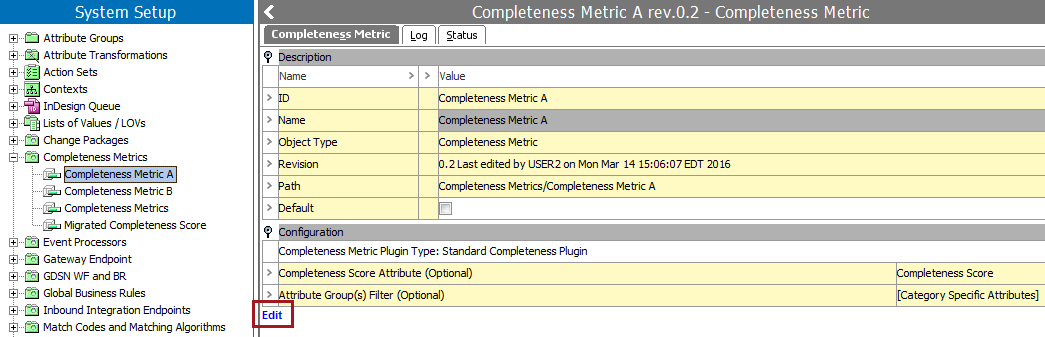
The Completeness Score Attribute field allows you to select which attribute will hold the completeness scores for the completeness metric, if applicable. If nothing is specified, all elements of the object that could contribute to the overall object completeness score will, and they are all weighed evenly.
The Attribute Group(s) Filter allows you to specify which attributes and references / links should be considered in the completeness calculation.
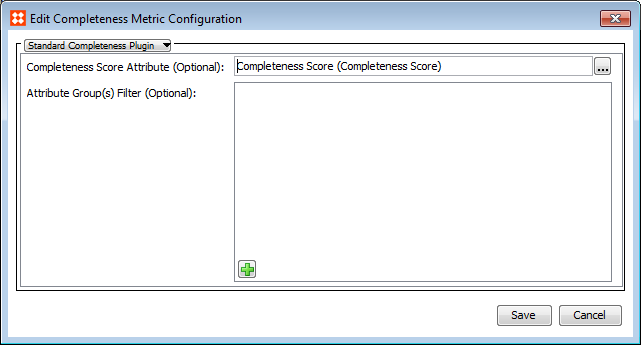
The Completeness Plugin provides the following options:
|
Selection |
Description |
|---|---|
|
No attribute or attribute groups is selected |
All data objects (attributes and references) are part of the completeness calculation, and they have an equal score. |
|
An attribute is selected |
Only completeness scores from the selected attribute are used for the completeness calculation. |
|
One or more attribute groups are selected |
Only completeness scores from data objects in the selected attribute group(s) are used for the completeness calculation, and they have an equal score. |
|
An attribute and one or more attribute groups are selected |
Only the completeness score from the selected attribute is used for the completeness calculation. |
On the Completeness Metric tab, in the Configuration area, you can view the configuration settings.

Note: If data containers should be considered for an entity's completeness score, the completeness metric must use default settings.
When a completeness metric is set as the default metric, the completeness meter shown on the product and entity editor tabs in the Workbench display the value from the default completeness metric.
2018, Stibo Systems