Open topic with navigation
Testing a Business Rule
Typically, after creating a business rule, you can test it.
Important: Business rules using context-specific JavaScript binds cannot be tested using this method. Therefore, JavaScript that uses the import change info or approve context binds cannot be tested. Similarly, business actions where the Execute JavaScript function is used to create parametrized business rules cannot be tested.
For an overview of the decision points involved in running a business rule, see the chart in the Running a Business Rule topic here.
Monitoring Business Rules
Using the BusinessRule.Warning.Threshold configuration property in the sharedconfig.properties file, allows you to specify a threshold in milliseconds for business action execution. If it takes longer to execute or test a given business action, a warning is posted in the main STEP log file available from the STEP System Administrator button on the WebStart. For information on the log, see the Logs topic in the Administration Portal documentation here.
Test a Business Rule
- In System Setup, expand the business rules node, and then select the business condition or action that you want to test.
- Right-click the condition or action, and then choose Test Business Rule to display the Test & Time Business Rule dialog.
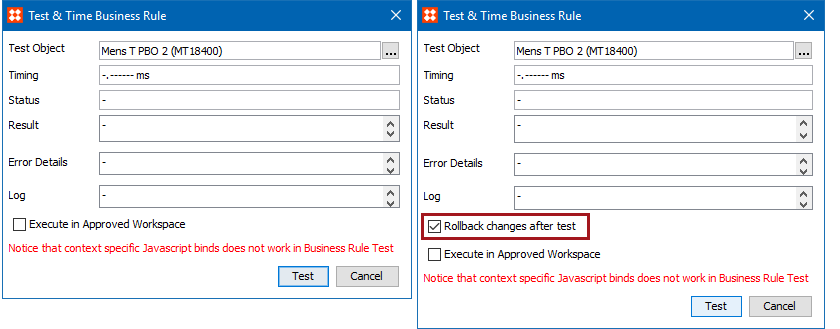
- In the Test Object parameter, click the ellipsis button (…) to display the Select Test Object dialog. Use the Browse or Search tab to identify and select the object used to test the business rule.
- When testing an action, the Rollback changes after test checkbox is available. Check the checkbox if you want the changes caused by the action to be rolled back after the action has been executed.
- The Execute in Approved Workspace is unchecked by default and the test is performed in the Main Workspace. Check the checkbox if you want the action to be performed on the selected object in the Approved Workspace.
- Click the Test button.
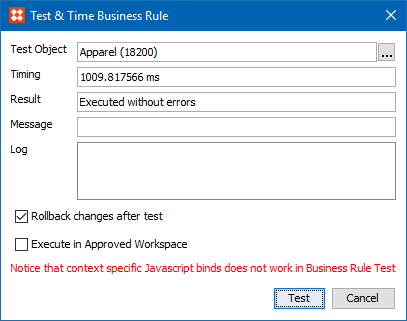
- Result for action - When testing an action, this parameter displays either executed without errors or failed. If the action fails, an error message is displayed. See the Action Test Result Examples section below.
- Result for condition - When testing a condition, this parameter displays true, false, or failed. If a condition evaluates to false, the reason is displayed. If a condition fails, an error message is displayed. See the Condition Test Result Examples section below.
- Timing - This parameter displays the time taken to execute the business rule on the selected node.
- Log - This parameter displays log message for debug and/or testing purpose. In JavaScript, use logger.info("Message”); in the code to log a message.
Action Test Result Examples
- Executed without error - This result is displayed when the business action is executed successfully as illustrated in the below image.
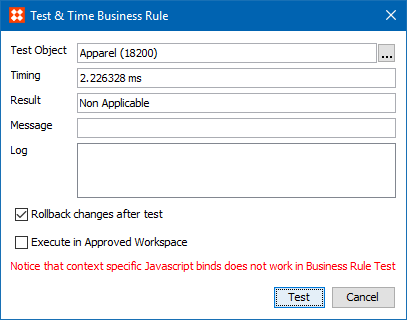
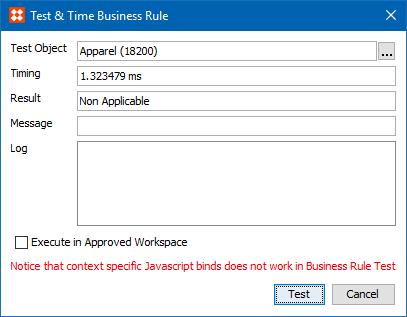
- Non Applicable - This result is displayed when the test object is not match with the business action valid object types as illustrated in the below image.
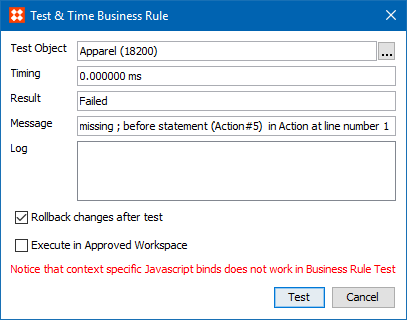
- Failed - This result is displayed when the business action has invalid methods or syntax or function as illustrated in the below image.
Condition Test Result Examples
- Non Applicable - This result is displayed when the test object is not match with the business condition valid object types as illustrated in the below image.
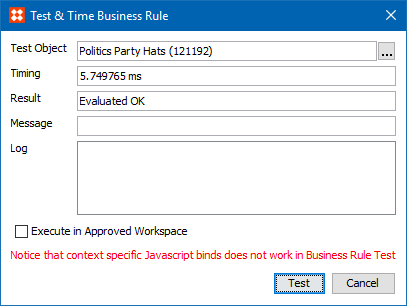
- Evaluated OK - This result is displayed when the business condition is true as illustrated in the below image.
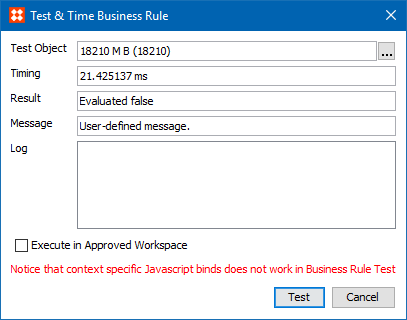
- Evaluated false - This result is displayed when the business condition fails. If configured, a user-defined message can be displayed in the message field as illustrated in the below image. For more information on the message, see the Localized Messages for JavaScript Business Rules topic here.
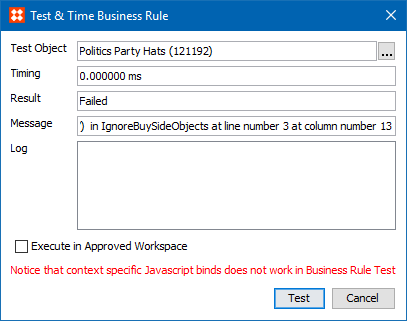
- Failed - This result is displayed when the business condition has invalid methods, syntax, or function as illustrated in the below image.
2018, Stibo Systems