The following options are actions that take place with workflows:
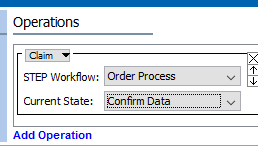
Workflow tasks are assigned to user groups where individual users in those groups can then claim the task for themselves from the group. As a user, to claim a number of tasks at once, select a workflow from the dropdown menu and then select the required state from the dropdown list.
For more information on claiming bulk updates in workflows see the Bulk Update Operations for Workflows topic in the Workflows documentation here.
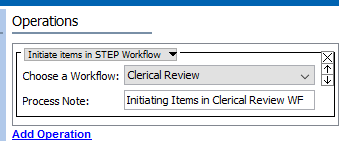
This initiates any objects that the bulk update is performed on in the selected workflow, assuming that the objects selected are valid for the workflow. To perform this action, select a workflow from the dropdown list and enter the process note / background process note.
For more information on initiating items in a STEP workflow via bulk updates see the Bulk Update Operations for Workflows topic in the Workflows documentation here.
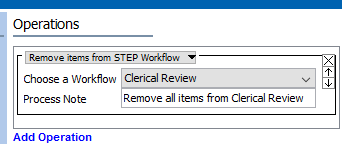
This removes all objects from one state in a workflow. Remove objects by selecting the workflow and entering in a process note for the background process that takes place.
For more on how to remove items from STEP Workflows using bulk updates, see the Remove Objects From Workflows topic in the Workflows documentation here.
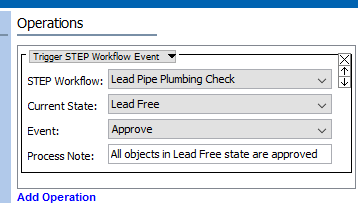
This allows a user to move an task from one state to another state. This can be performed by selecting a workflow, selecting the desired state in the workflow, and then choosing the event that needs to be triggered. A process note can also be added.
For more on triggering STEP Workflow events, the Bulk Update Operations for Workflows topic in the Workflows documentation here.
2018, Stibo Systems