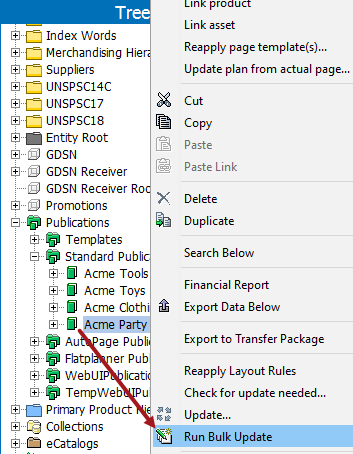
Several bulk update operations are available for publications in STEP.
Bulk update operations for publications can be accessed either by selecting File > Bulk Update > Run Bulk Update, or by right-clicking on a publication group object, publication object (pictured in the below screenshot), section object, or DTP document in the publication hierarchy and selecting Run Bulk Update.
Once the Bulk Update wizard is launched, the publishing options are accessed in step 2 of the Bulk Update wizard (Operations) by selecting 'Publishing' from the operations dropdown menu.
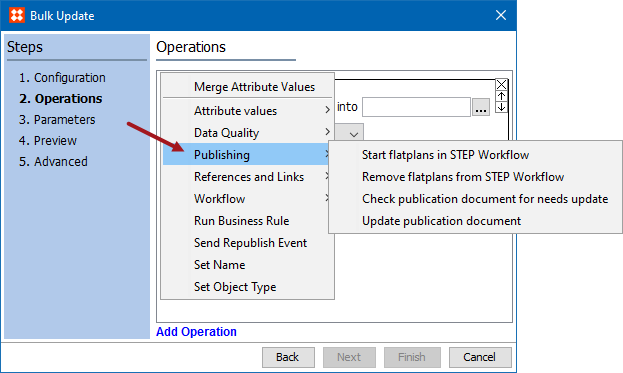
Adds all Flatplanner spreads (planned pages) in the selected publication group, publication, or section into the specified Flatplanner workflow. The bulk update is initiated by right-clicking on the desired publication group, publication, or section. A selection of planned pages can also be chosen for bulk initiation into a Flatplanner workflow by multi-selecting them and going to File > Bulk Update > Run Bulk Update.
The desired workflow is chosen from the 'Workflow' dropdown list. Note that only workflows valid for planned pages will appear. Flatplans that are already in a workflow are not affected.

After selecting which workflow to initiate the Flatplans into, a 'Process Note' can be entered to name the resultant background process.
This option is legacy functionality (pre-STEP 8.0) from when only one workflow at a time was allowed for planned pages. There is no ability to select a specified workflow.
A 'Process Note' can be entered to name the background process that takes place.

This checks all actual pages saved to the selected publication / section to determine if updates are needed. A page will need an update if any elements mounted on the page (for example, attribute values or image references) have changed in STEP since the page was originally saved to STEP.
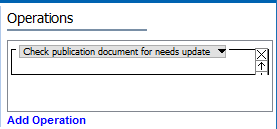
Checking documents for updates is only useful for AutoPage and Flatplanner publications. Since near-identical functionality can be accessed from other locations in the workbench (including right-clicking on a publication or section object in the Tree and clicking 'Check for update needed...'), the use cases and applications for checking documents for updates are detailed in the following publishing-specific topics instead:
When updating a publication document there are two options to choose from:
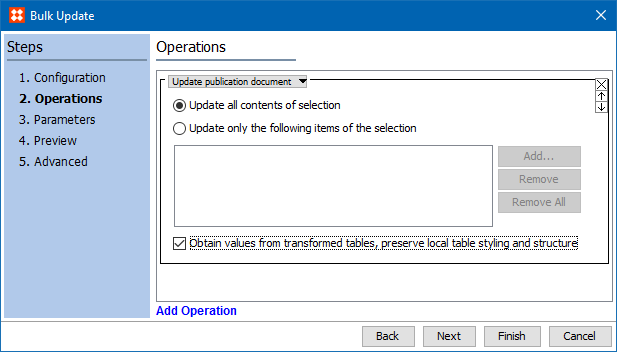
The 'Update publication document' bulk update option functions almost identically to the Update feature that is directly accessed by right-clicking on publication, section, or DTP document objects in the Tree. The selections in the 'Operations' dialog pictured above are identical to those in the 'Update contents of documents' dialog that is accessed through the 'Update' feature. Because of these similarities—and because the 'Update' feature is more commonly used than the bulk update feature to update documents—this feature is detailed in the STEP'n'design documentation instead. See Updating Documents From the Workbench in the STEP'n'design documentation
2018, Stibo Systems