There are many reasons why an object may need to be removed from a workflow. A few of the reasons for removing an object from a workflow are:
No matter the reason for removing an object from a workflow, objects can be removed, i.e., taken out of workflows, in several different ways.
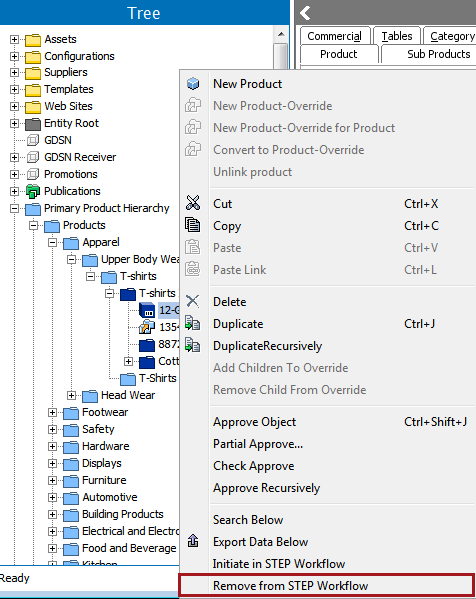
If a user wants to remove a single object from a workflow, and they have the 'Remove Items from STEP Workflow' privilege, this can be accomplished via the Remove from STEP Workflow context menu option on the object.
To do so, right-click on an object, or product, and select Remove from STEP Workflow.
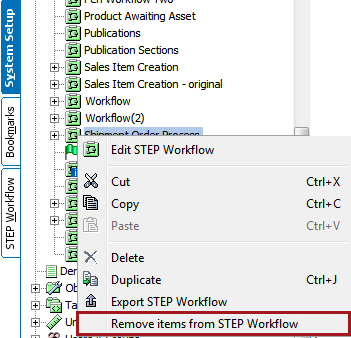
If a user needs to remove all objects from a workflow, and they have the 'Remove Items from STEP Workflow' privilege, this is possible via the workflow context menu option Remove items from STEP Workflow.
Navigate to System Setup, right-click on the workflow that needs all items removed, and select Remove items from STEP Workflow.
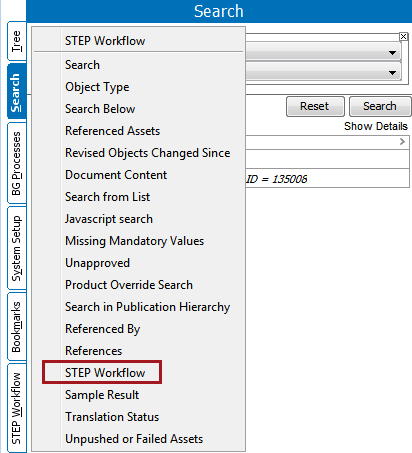
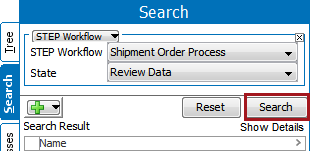
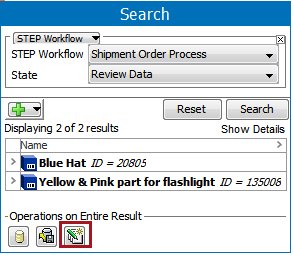
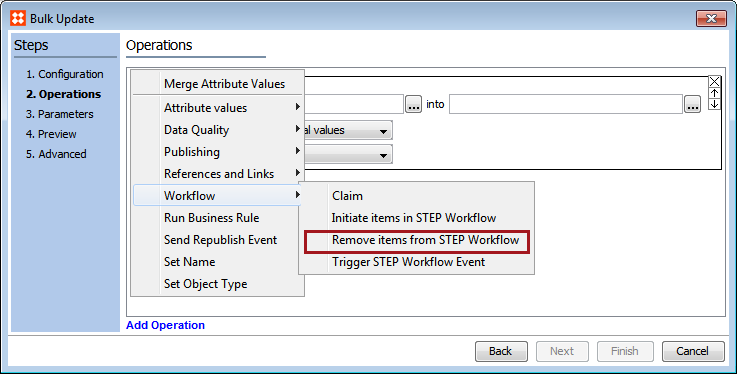
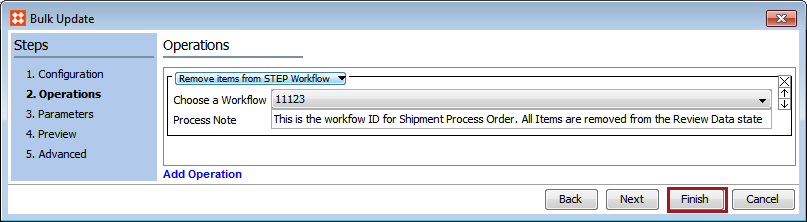
Should a user want to remove all objects from one state in a workflow, they can do so using Bulk Updates if they have the ability to search the STEP Workflow tab, and they have the 'Perform Bulk Update' privilege.
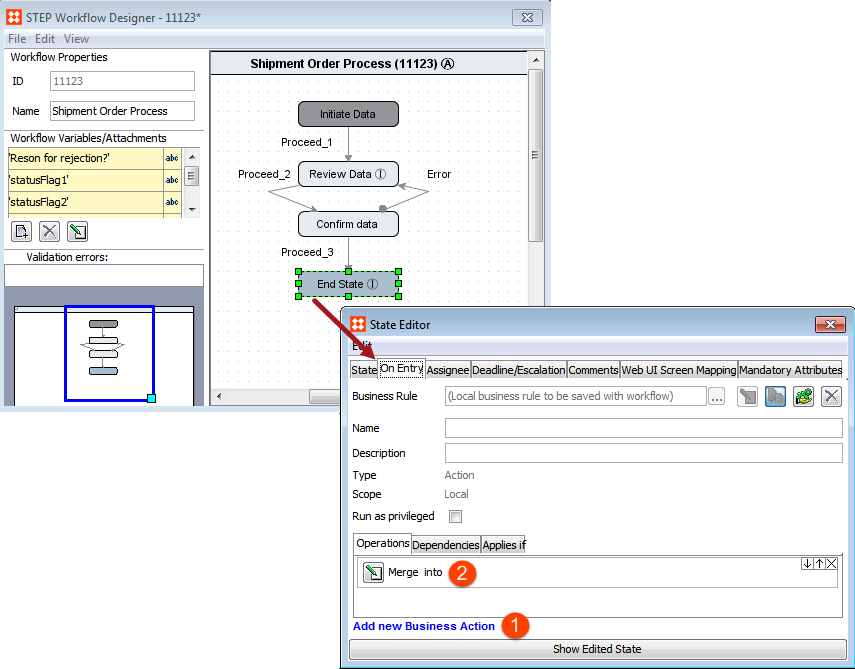
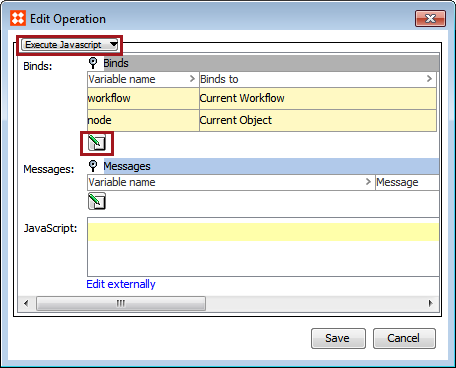
As objects per default stay in the workflow's final states until explicitly removed, it is highly recommended to automatically take the objects out of the workflow when reaching a final state on the outer level. If below script is entered in a business action configured 'On Entry' to the final state, once objects enter the state, they will be removed from the workflow and the supplied process note posted to the State Log if one was entered.
node.getWorkflowInstance(workflow).delete("Object automatically removed from Workflow");

2017, Stibo Systems