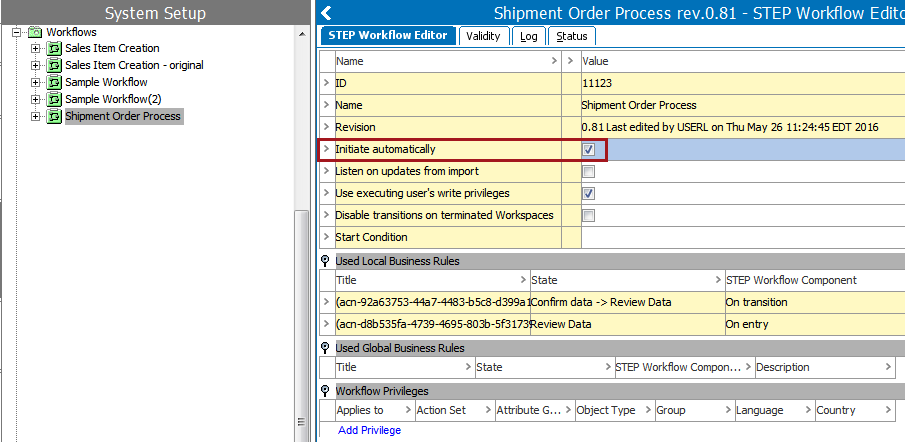
Auto-initiation is used to automatically initiate an object / task into the desired workflow when it is created or on-boarded, otherwise this would need to be done manually. With auto-initiation, items are able to be pushed through automatically, making it much simpler and more time effective.
Two commonly used scenarios where auto initiation is often applied are:
For example:
If a workflow is valid for Products, Classifications, Assets, Entities, Publications, Publication Sections, or Flatplanner Planned Pages, it is possible to have an instance of a given workflow created whenever an object of the valid object type(s) is created. In other words a workflow is automatically started when the object is created.
Now whenever an object of a type valid for the workflow is created, a workflow will be started. This could happen via workbench, Web UI, web services, or through an import.
It is important to know before creating an object, what the desired workflow is valid for, otherwise the object will not be able to automatically initiate. To check validity type, this can be viewed by opening the workflow and selecting the Validity tab. In this case, Shipment Order Process is valid for products that have an object type of the following:
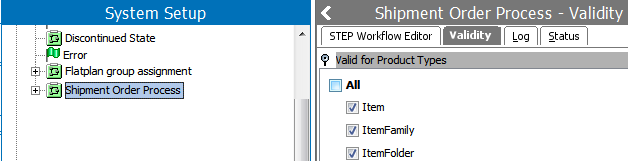
Note: Object types / names will vary according to user setup.
Once the validity type is verified, a product can be created in the workbench by entering an ID and name.
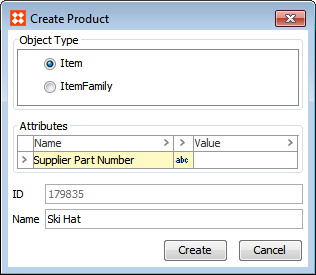
For more information on creating new objects see theCreating Objects in Tree topic in the User Guide / Getting Stared documentation here.
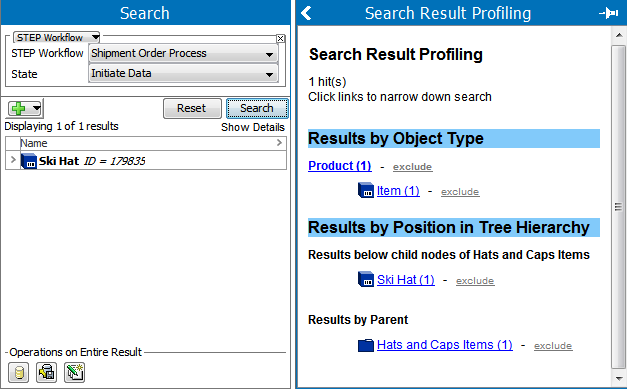
There are a number of ways to verifying that the product was automatically initiated into the desired workflow. A few are:
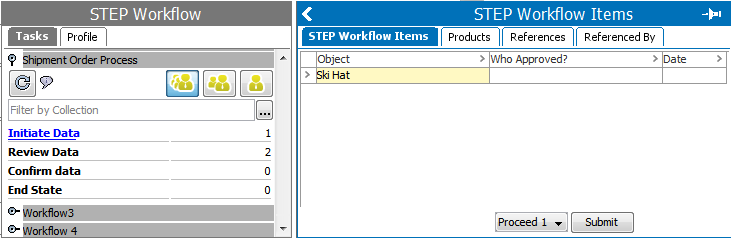
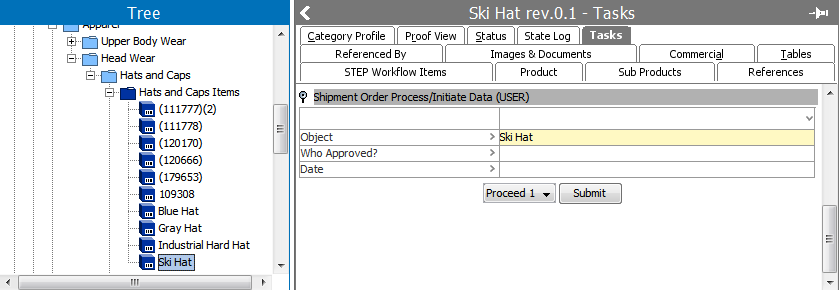
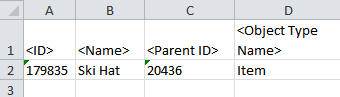
Another way to create and initiate objects into a workflow automatically is to do so via an import, where product information, such as that below, is uploaded to STEP Workbench.
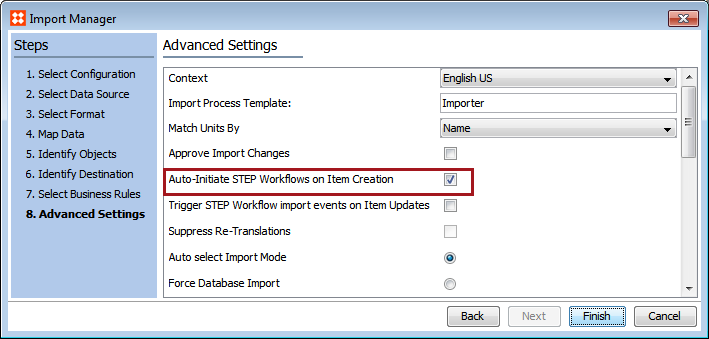
To make sure that items automatically initiate upon import, in the Import Manager wizard, under 'Advanced Settings' make sure that Auto-Initiate STEP Workflow on Item Creation is checked. If this is not checked, the item will not automatically initiate.
When the import is run, a background process is created and the user can see the product(s) initiated into the workflow in the background process.
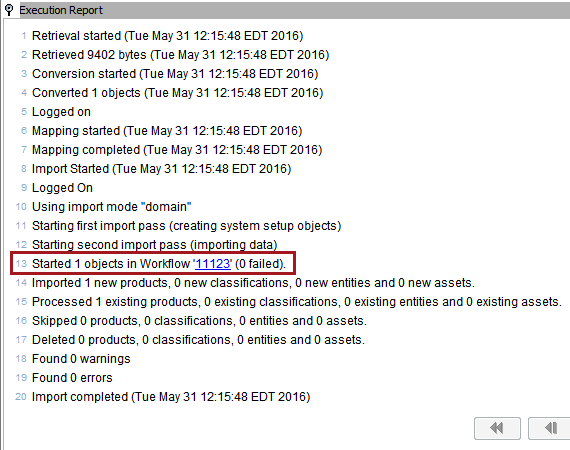
For more details on the Import Manager Functionality and the Import Manager wizard, see Creating a Data Import in the Data Exchange documentation here.
However, if a user has the 'Disable STEP Workflow Auto-initiation in Imports' privilege for a workflow, he/she is allowed to disable auto-initiation in the Import Manager (column based Imports) or directly in the XML for XML imports (by setting AutoInitiate="N" in the STEPProductInformation tag).

Note: If an object has been put into the Recycle Bin (and thus taken out of any workflow) and is revived, it will be initiated in the workflows with auto-initiation turned on.
2017, Stibo Systems