There are some prerequisites to Web UI configuration / usage.
Web UI configurations will, by default, not be user / user group specific. That is, apart from the fact that the standard privilege setup can influence what a user sees / is able to do, the Web UI will be the same for all users logging in.
Users need privileges to be able to access and use Web UI. Different privileges can be set up for different users and user groups depending on the users' roles. As an example, if a user will maintain Web UI configurations in an admin role, the user will need the proper privileges to access Web UI Designer. Or, if an end user will be using workflows or viewing / maintaining objects, then there are separate privileges for these tasks.
To follow any of the steps in the Web User Interfaces documentation, the proper privileges have to be granted (e.g., you cannot create a new Web UI unless you have the privilege to do so). For more information about privileges and user setup, see the Users and Groups section (here) and Adding User Privileges for a Group section (here) of the System Setup / STEP Super User documentation.
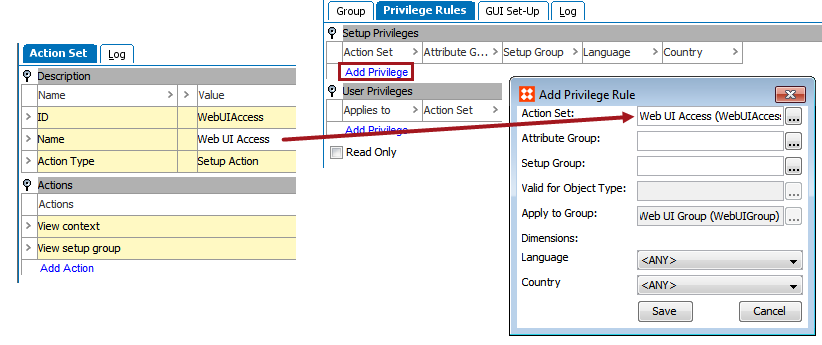
At a minimum, the actions, 'View context' and 'View setup group' must be added to a user group's privileges before a user is able to log in to a STEP Web UI. If these actions do not already exist as a stand-alone item or as part of an existing Action Set, then they need to be set up.
Here are the steps for creating an Action Set and applying it to a User Group.
For admin users who will be using the Web UI Designer, see the Designer Access section of the Web User Interfaces documentation
2017, Stibo Systems