It is often the case that some attributes may become relevant only if other attributes hold certain values. For example, attributes specific to hazardous materials may become valid if the attribute 'Has Lead' has a value of 'Yes'.
To facilitate this, STEP allows for conditions to be stored on attributes. This enables business users to steer the Web UI and Smartsheets behavior for end users without requiring use of the STEP Web UI Designer.
It is recommended that attributes used for conditional validity (whether as the conditional attribute or as part of a conditional expression) do not have dimension dependencies.
The conditional attribute should be used on any other attribute in the system. This means that it can be metadata on the attribute (or attribute link) to indicate the conditions under which the attribute it is applied to should be displayed.
Note: Conditional attribute support does not apply to STEP Workbench as all attribute visibility in the workbench is determined solely by user privileges.
For information about setting up conditional attributes, see the Setting Up Conditional Validity Attribute section in Conditional Attribute Display
A number of Web UI components centered around the Task List and Node Editor components are enabled to deal with the conditional validity of attributes. These components honor the conditional validity settings and only allow for display and/or editing of attribute values if they are valid based on the driving conditions.
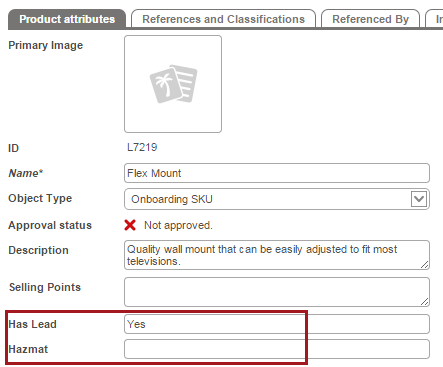
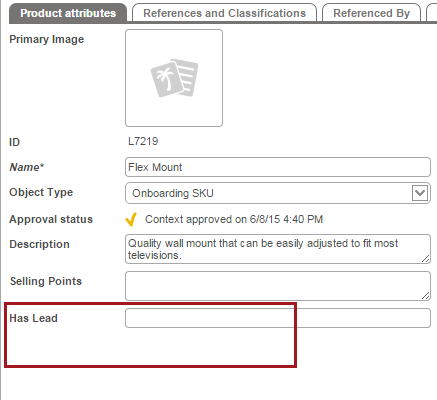
For example, notice that the 'Hazmat' attribute is available when 'Has Lead' is set to 'Yes', but is unavailable when 'Has Lead' is left unpopulated (or set to 'No').
Conditional attribute functionality can be used with Web UI elements:
For information on Smartsheets, see the Conditional Attributes Handling information in the Smartsheets documentation
For information on business rule binds, see the conditional attributes information in the Business Rules information in the STEP documentation here.
2017, Stibo Systems