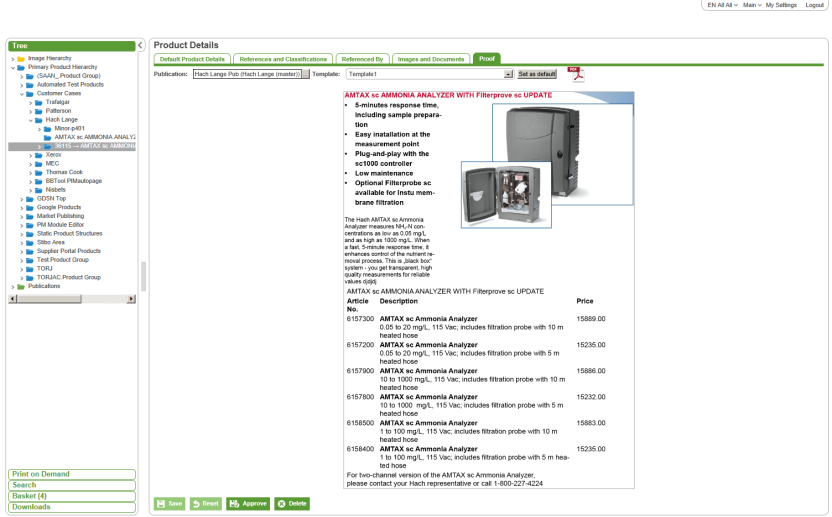
To access the Proof View functionality, from the Tree on the left hand side, select a product then select the Proof tab.
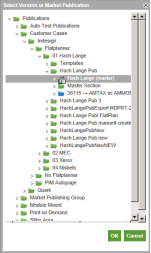
From here, the user can select a publication version to base the proof on by using the Publication Version “…” chooser.
A template to use for the proof can be chosen from the Template dropdown.
Once a publication version and a template have been selected, a JPEG proof is automatically generated and is displayed in the centre of the screen. The JPEG proof can be zoomed in or out by placing the cursor over the image and using the mouse scroll wheel.
A PDF proof can be generated by selecting the PDF icon.
The user can set a template as the default template for the product selected in the tree by pressing the “Set as default” button.
Note: More of the proof view options can hidden for the users, if the same selection are always used. For example, a publication version can be configured as default version and the user don't need to make that selection.
2017, Stibo Systems