You are here: Translations > Manual Translation

Manual Translation

This topic covers the third method of translation content in STEP, manual translation. This topic will cover, in detail, how a user can translate content in the workbench by adding content directly into the attribute for the target language.

Manual translation is only appropriate when two criteria have been met:

If either of these criteria are not met, the structured translation process is likely to be a better option.

As an example of an instance where manual translation might be a good option, we'll say that Company Z sells t-shirts. All of their product information is translated and up to date. Marketing sends a directive that a word used in the product description for one t-shirt brand needs to be changed for the US and all other global markets. As this work is very limited in scope, manual translation can be a good (and potentially fast) method to approach this challenge. In this example, the user would access the product in question, visit each language for that product, and update the relevant description for each.

Executing a Manual Translation

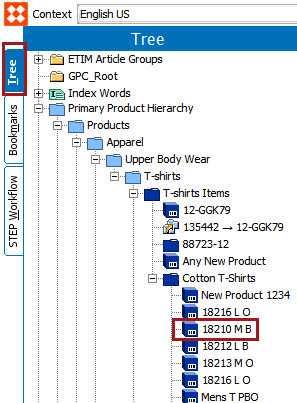
  1. Find the object in the Tree. In this example, the product to have attribute values translated is 18210 M B.

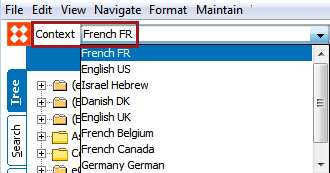
  1. Select the target language you would like to view from the Context dropdown. If, for instance, the user wants to make a change to the French translation of an attribute, they would select the French FR language from this dropdown.

  1. Click on Translation Mode. Translation mode displays an object as it exists in two languages, typically the source and the target. Clicking on Translation Mode will display the target language you chose via the Context, and the source language will display, by default, as English.

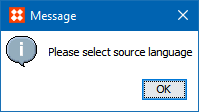
  1. When you switch to Translation Mode, you may receive an instruction dialog that reads like this:

If you see this, follow step four (below), and select the desired source language. Your STEP system will remember this selection and display it as the source language in Translation Mode until it is changed or the STEP cache is cleared.
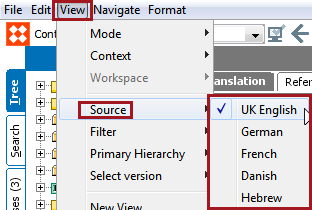
  1. To select or change the source language, click View in the File menu, and then Source. In the dropdown that displays, all available languages that have been designated on your STEP system as either a source or a target will be listed. Select the relevant source language from these.

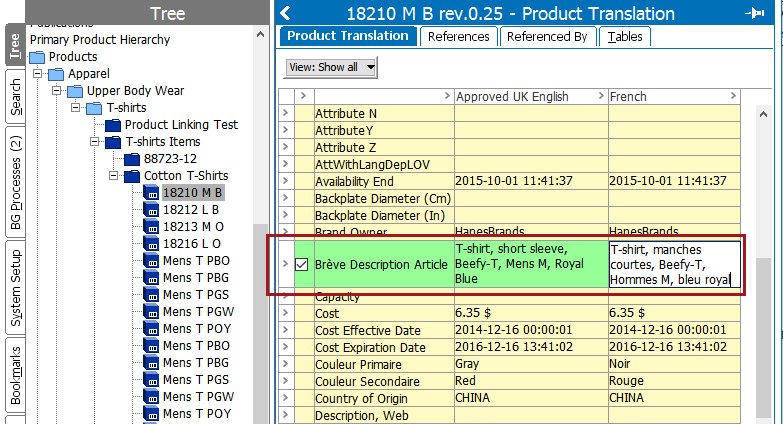
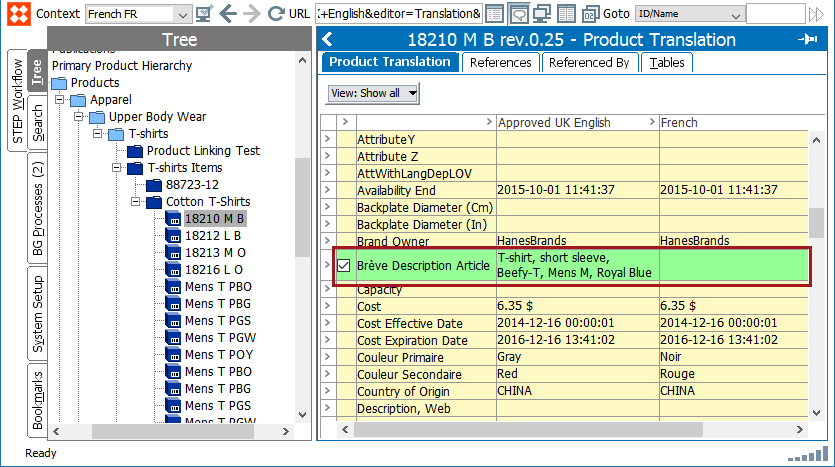
  1. In this example, we have French displaying as the target language on the Product Translation tab (notice the French FR displaying in the Context field), and Approved UK English as the source language. (The 'Approved' in 'Approved UK English' references the fact that content to be translated, whether manually or through a structured export, comes from the approved workspace.) Attributes that require translation are shaded green. In this screenshot, the Long Description attribute is shaded green and has a value in the Approved UK English column but none in the French column. The green shading is the user's prompt to add a translated value for that attribute. In this example, the attribute needs a French language value.

  1. To add a value, the user must click into the value cell for the appropriate attribute under the green-shaded target language column, and then type or paste in the translated value.

In this way, most translatable data can be added for all language dependent attributes in all languages. However, because each language dependent attribute must be amended for each language manually, manual translation is not recommended for any translation except those with a very limited amount of content to translate.

Note: When using manual translation to translate attributes on the System Setup tab, manual translation using the Translation mode view only allows you to translate the attribute names, not any of an attribute's description attributes. However, using Context view, users may manually translate an attribute's description attributes.

2017, Stibo Systems