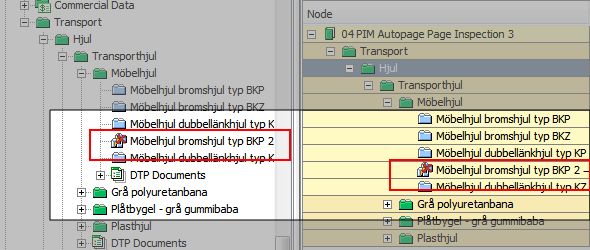
Objects are paginated in the sequence they appear in the hierarchy in the Tree. You can set the object sequence by using drag and drop to link the products to a section, or by sequencing them in a STEPXML file that you import.
You can change the object sequence as required.
If you want to change the position of a product, assets or classification, you have the following options.
Example: The following example shows you how to change the product sequence in a STEPXML file. In this example, the position of <ProductLink ID=”AC200-207”/> is changed. Furthermore, a new product, <ProductLink ID=”AC200-208”/>, is added to the file.
STEPXML file before sequence change
<PublicationSection ID=”SubSection1-2” UserTypeID=”Section”>
<Name>Sub Section 1.2</Name>
<ProductLink ID=”AC200-201”/>
<ProductLink ID=”AC200-202”/>
<ProductLink ID=”AC200-203”/>
<ProductLink ID=”AC200-204”/>
<ProductLink ID=”AC200-205”/>
<ProductLink ID=”AC200-206”/>
<ProductLink ID=”AC200-207”/></PublicationSection>
STEPXML file after sequence change
<PublicationSection ID=”SubSection1-2” UserTypeID=”Section”>
<Name>Sub Section 1.2</Name>
<ProductLink ID=”AC200-207”/><ProductLink ID=”AC200-201”/>
<ProductLink ID=”AC200-202”/>
<ProductLink ID=”AC200-203”/>
<ProductLink ID=”AC200-204”/>
<ProductLink ID=”AC200-205”/>
<ProductLink ID=”AC200-206”/>
<ProductLink ID=”AC200-207”/>
<ProductLink ID=”AC200-208”/></PublicationSection>
This sample code is an extract of a STEPXML file. To view a complete file, see the Exporting and Importing AutoPage Publications in STEPXML topic here.
You can unlink products, assets and classifications from a section or subsection in an AutoPage publication.
Note: If an object has been imported from a STEPXML file, you cannot unlink the object by editing and reimporting the file. You must delete the object in the Tree.
An object does not necessarily exist in all workspaces. If an object does not exist in the workspace that is specified for the current publication, the object is marked with a red cross in the Tree and on the AutoPage Publication Planner tab.
An object is marked with a red cross when the current publication version points to an approved workspace and the object has not been approved yet. An object is also marked with a red cross, when the current publication version points to the main workspace and the object has been deleted from that workspace but still exists in the approved workspace.
2017, Stibo Systems